

Contacts
Contacts is one list of everyone your funeral home deals with: the families you served, people planning ahead and the relatives they invite, website enquiries, newsletter subscribers, and people who wrote a condolence message or answered a form. Open it from Contacts in the sidebar.
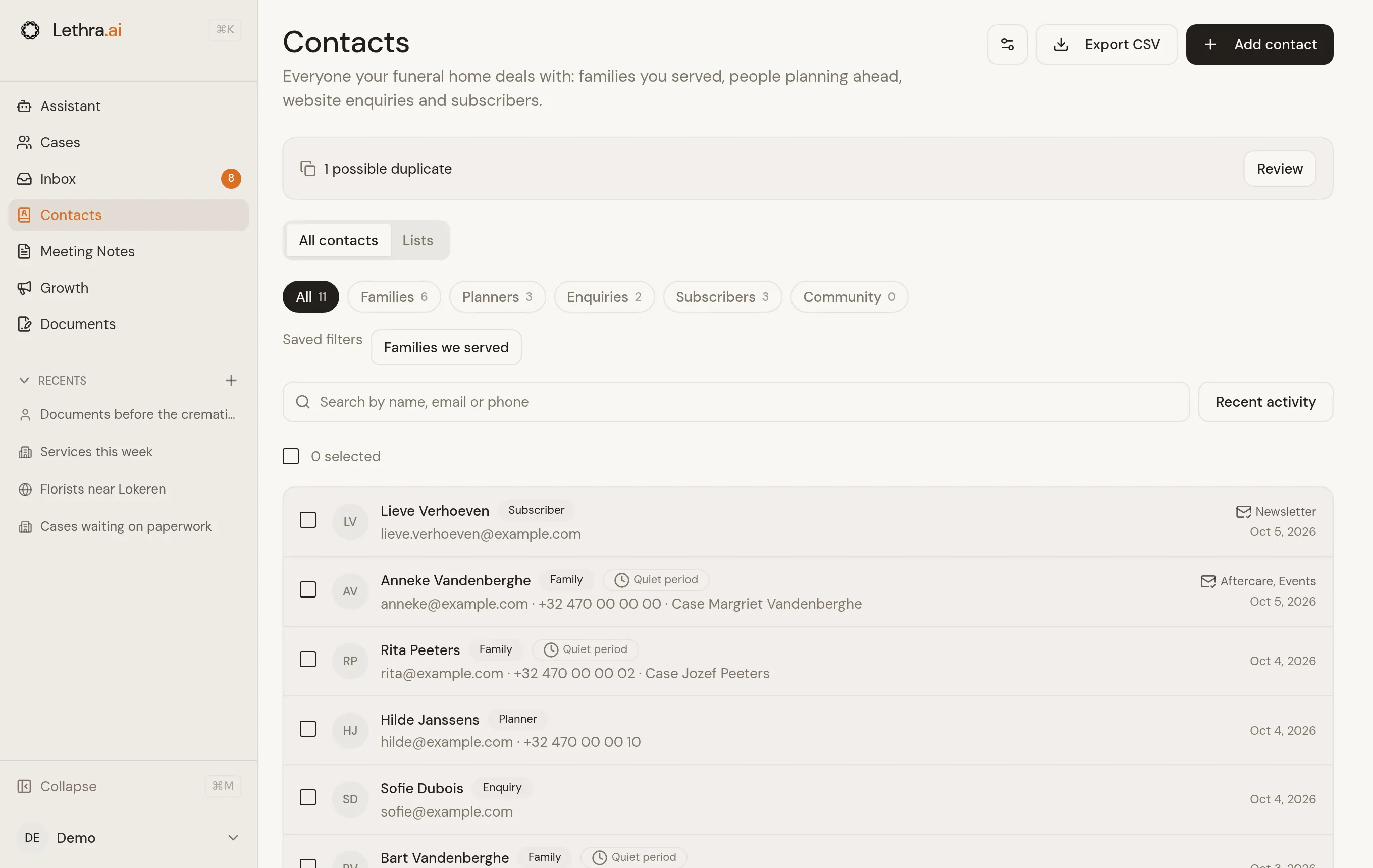
Each funeral home has its own list. If you manage several homes, you see the list of the home you are working in.
How people get into your contacts
Section titled “How people get into your contacts”You rarely add anyone by hand. Lethra adds a person the first time they reach you, wherever that is:
- someone on a case’s contact list,
- a person who plans ahead, and the relatives they invite,
- a callback request, a chat with First Call, or a newsletter sign-up on your website,
- an answer to a form on your website,
- a condolence message or a reply to a funeral invitation,
- an email or call that arrives in the inbox.
Lethra recognises the same person by email address or phone number, however the
number was typed (0475 12 34 56 and +32 475 12 34 56 are the same). When a
person comes back, for example when an enquiry becomes a case, everything is
added to the same contact.
Two people can share an email address or a landline, like a couple. When the names clearly differ, Lethra keeps them as two contacts and asks you whether they are the same person (see below).
Vendors and your own team are not part of Contacts. They stay in the inbox as before.
To add someone yourself, click Add contact. If the email address or phone number is already known, Lethra opens the existing contact instead of making a second one.
Finding people
Section titled “Finding people”Use the filters at the top: Families, Planners, Enquiries, Subscribers and Community (people you only know from a condolence, a funeral invitation or a form). Search by name, email, phone or the name of the deceased, and sort by recent activity, name or date added. Export CSV downloads the people in the current view.
A Quiet period label means the person is on a case where the death or the funeral was recent. See the quiet period.
A contact’s page
Section titled “A contact’s page”Click a person to open their page. It shows their details and notes, their consent, everything they are linked to (cases with their relation, plans, website enquiries, condolence messages), and a timeline of the emails and calls with them. Click an item in the timeline to open it in its case or in the inbox.
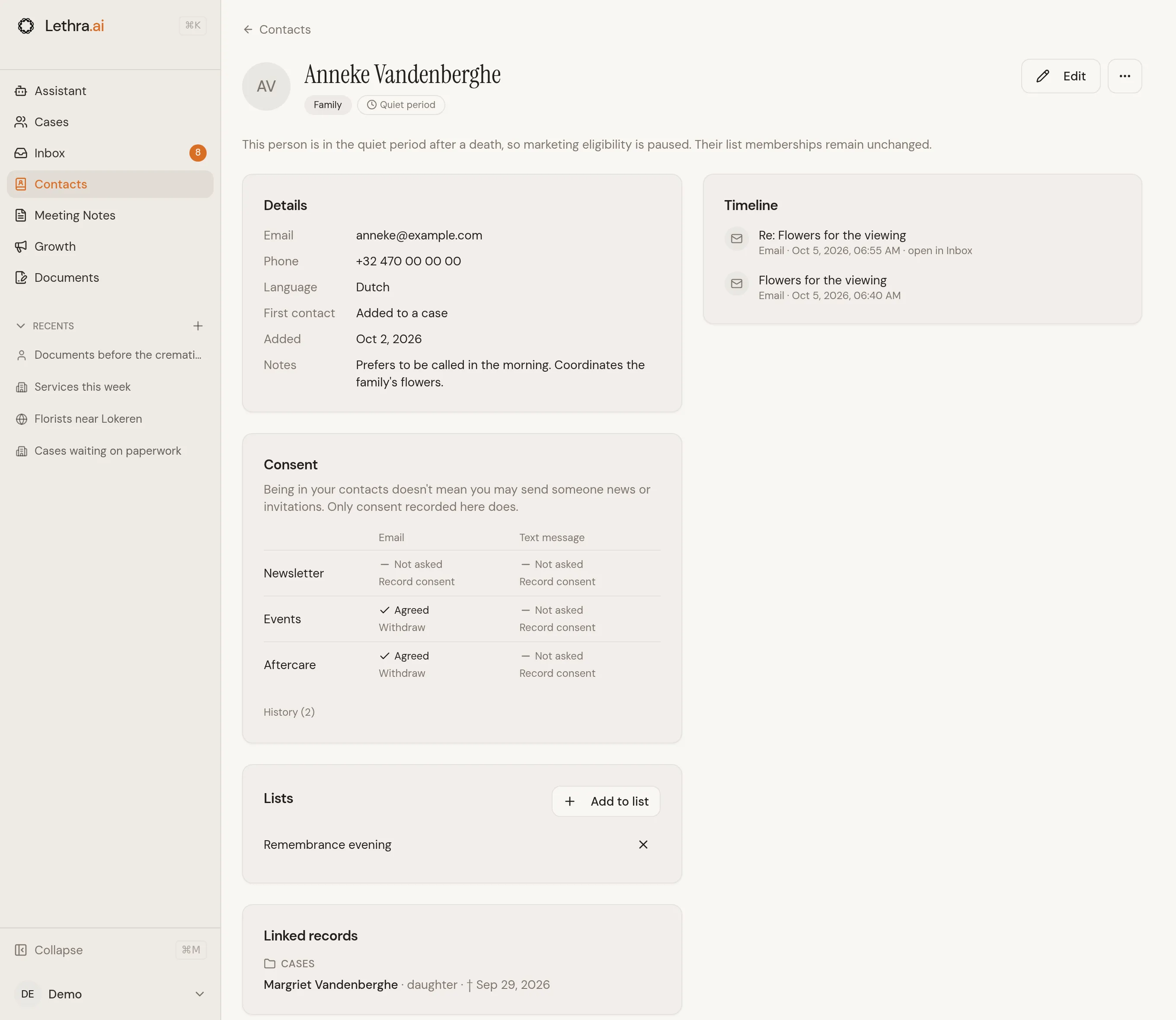
Click Edit to change the name, email, phone, language or notes. A case’s contact list keeps the details given for that case; the contact page holds the latest ones.
You can also reach a person’s page with Open contact in the inbox, on a case’s contact list and on a lead.
Possible duplicates
Section titled “Possible duplicates”When two contacts may be the same person, a bar at the top of Contacts says how many there are. Click Review to compare them side by side.
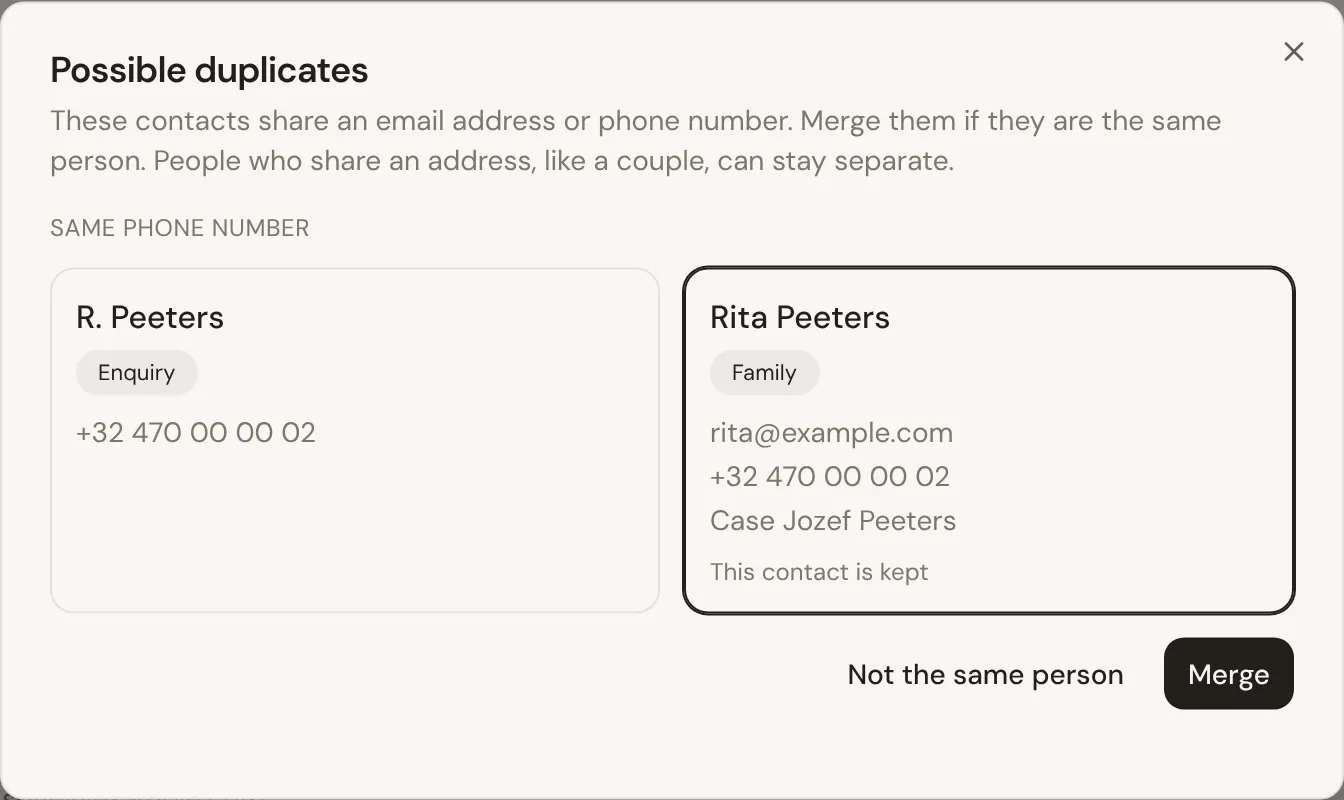
Choose the contact to keep and click Merge: everything linked to the other one moves over, and empty fields are filled in. If they are different people, click Not the same person. To merge two contacts Lethra did not suggest, open one of them, click the … menu and choose Merge with another contact.
Consent for news and invitations
Section titled “Consent for news and invitations”Being in your contacts does not mean you may send someone news or invitations. Only consent does. The Consent card on a contact’s page shows, for email and text message, whether the person agreed to the Newsletter, Events and Aftercare.
Consent is recorded in four ways:
- Newsletter sign-up on your website. The form shows what people agree to. They then get an email with a link, and the consent is recorded only once they open it and click Confirm subscription.
- A form on your website. A consent tick box can be set to count as agreeing to the newsletter, events or aftercare. Ask the website assistant for it when you add the form. A ticked box is recorded with the box’s text.
- The family portal. Families can turn on Keep me informed on their case to hear about remembrance events and support after the funeral.
- By you. When someone agrees on a paper form, in person or by phone, click Record consent next to the purpose, choose how they agreed and write down what they agreed to.
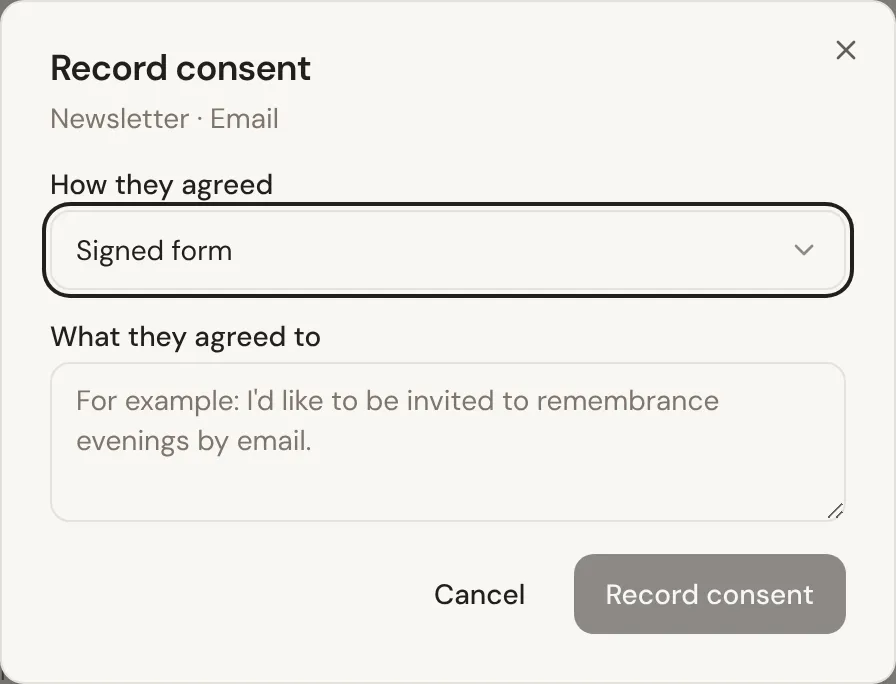

Click Withdraw when someone changes their mind. Every email Lethra sends about news or events carries an unsubscribe link: one click withdraws all of that person’s consents for email. History on the consent card shows every change, with where it came from and the exact wording.
The quiet period after a death
Section titled “The quiet period after a death”Families are excluded from marketing eligibility, not removed from lists, for a while after a death or a funeral, even if they agreed to hear from you. The period is 8 weeks unless you change it: click the settings button next to Export CSV on the Contacts page.
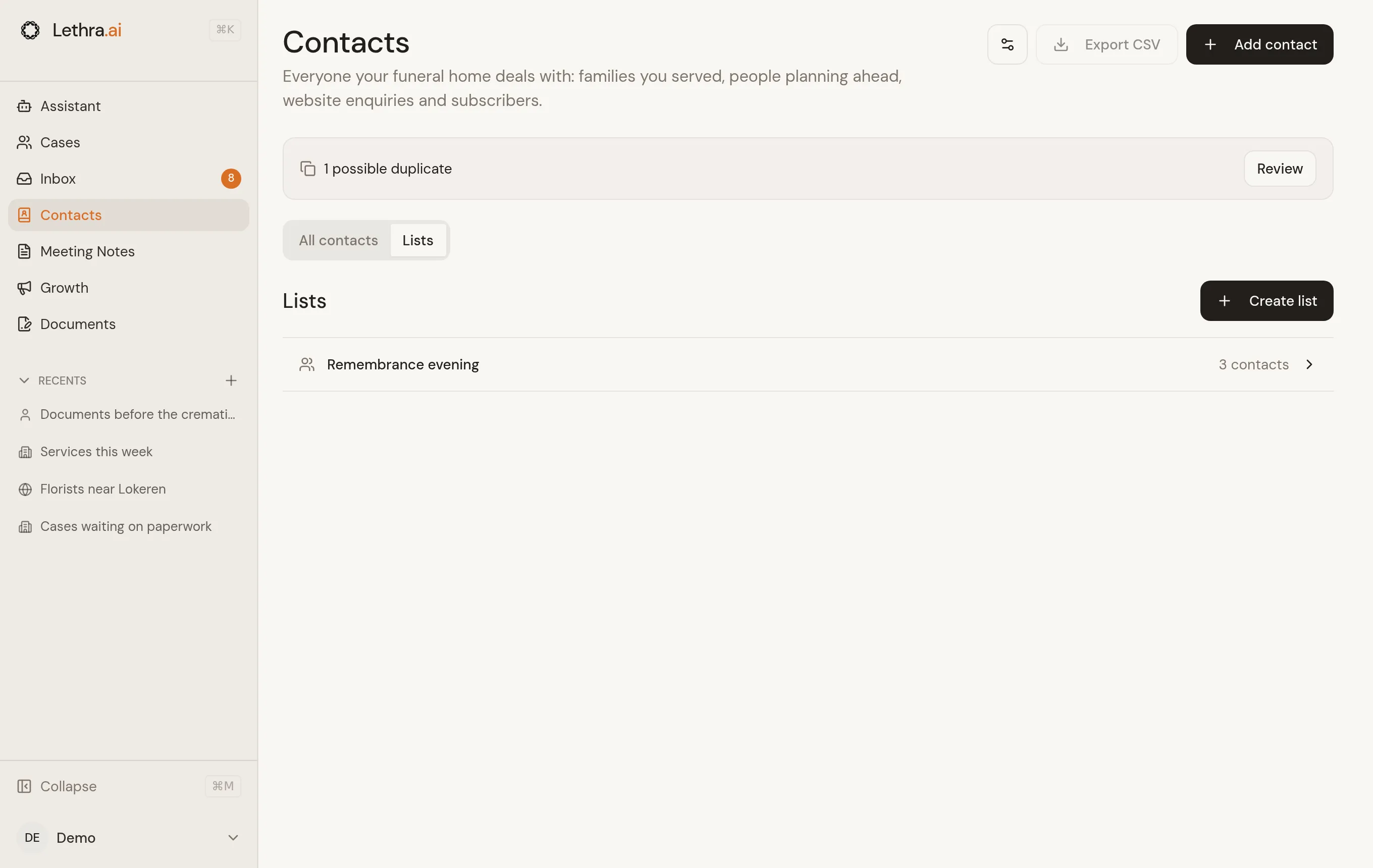
Open Lists, then Create list and give it a name. A list contains the people you choose, regardless of their category or permission to receive marketing. Lists are shared with staff of the active funeral home.
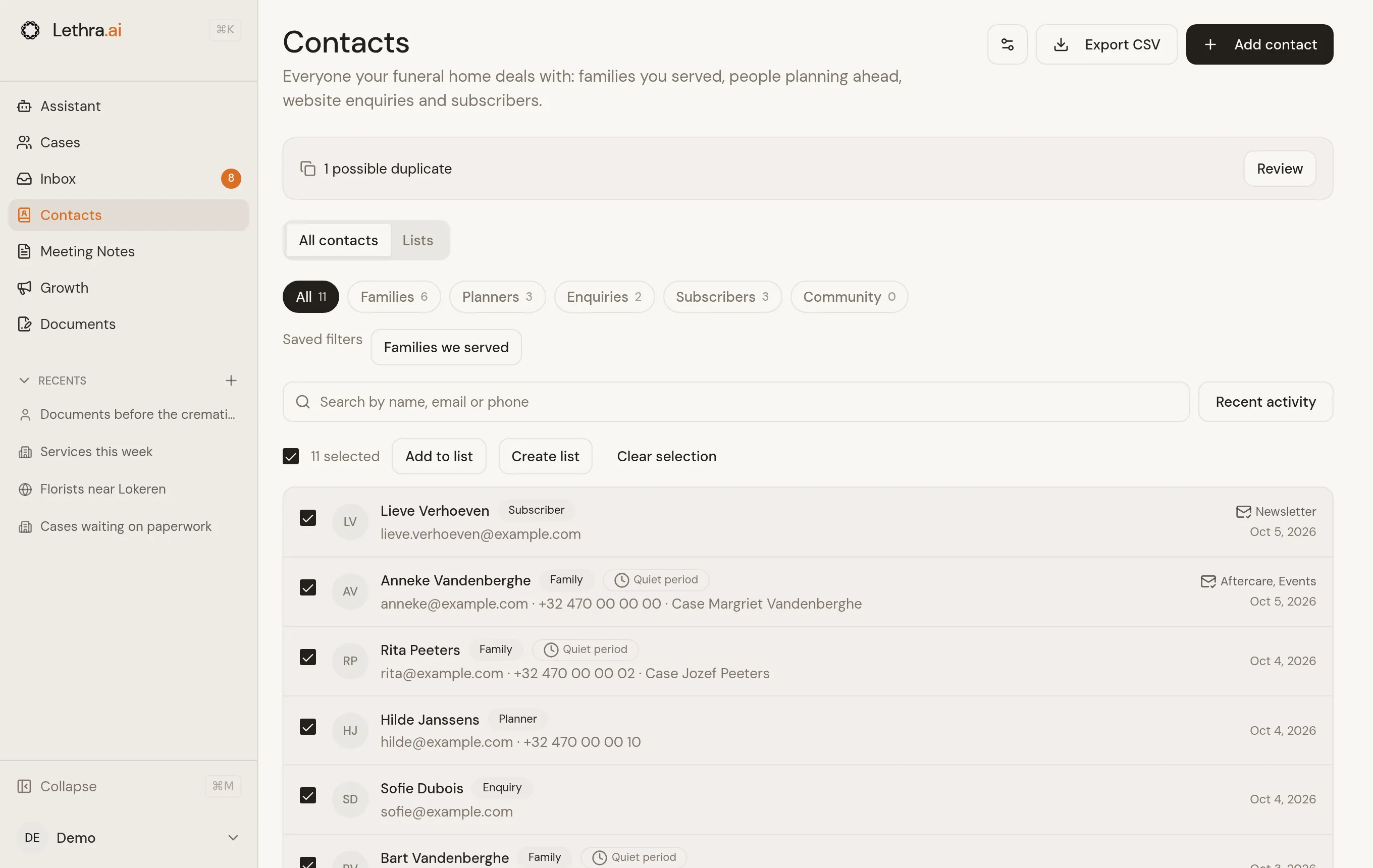
Choose contacts
Section titled “Choose contacts”In All contacts, tick individual people or the checkbox above the results. Select-all includes only the displayed results. The toolbar shows the selected count; choose Add to list or Create list.
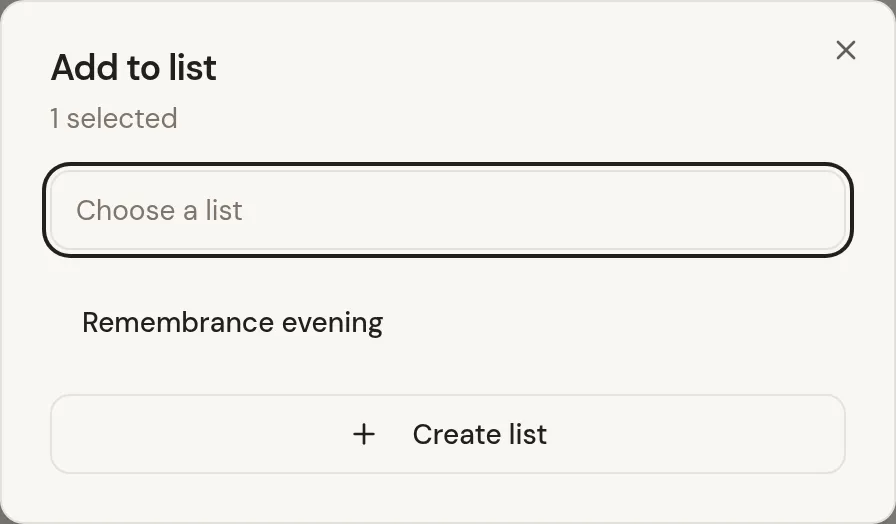
On a contact’s page, the Lists section shows their memberships. Use Add to list to choose an existing list or create one. The X removes this person from that list only.
Manage members
Section titled “Manage members”Open a list to see all its members, including those without consent or in the quiet period. Search narrows the displayed members; Export CSV downloads those displayed people, not an approved marketing audience.
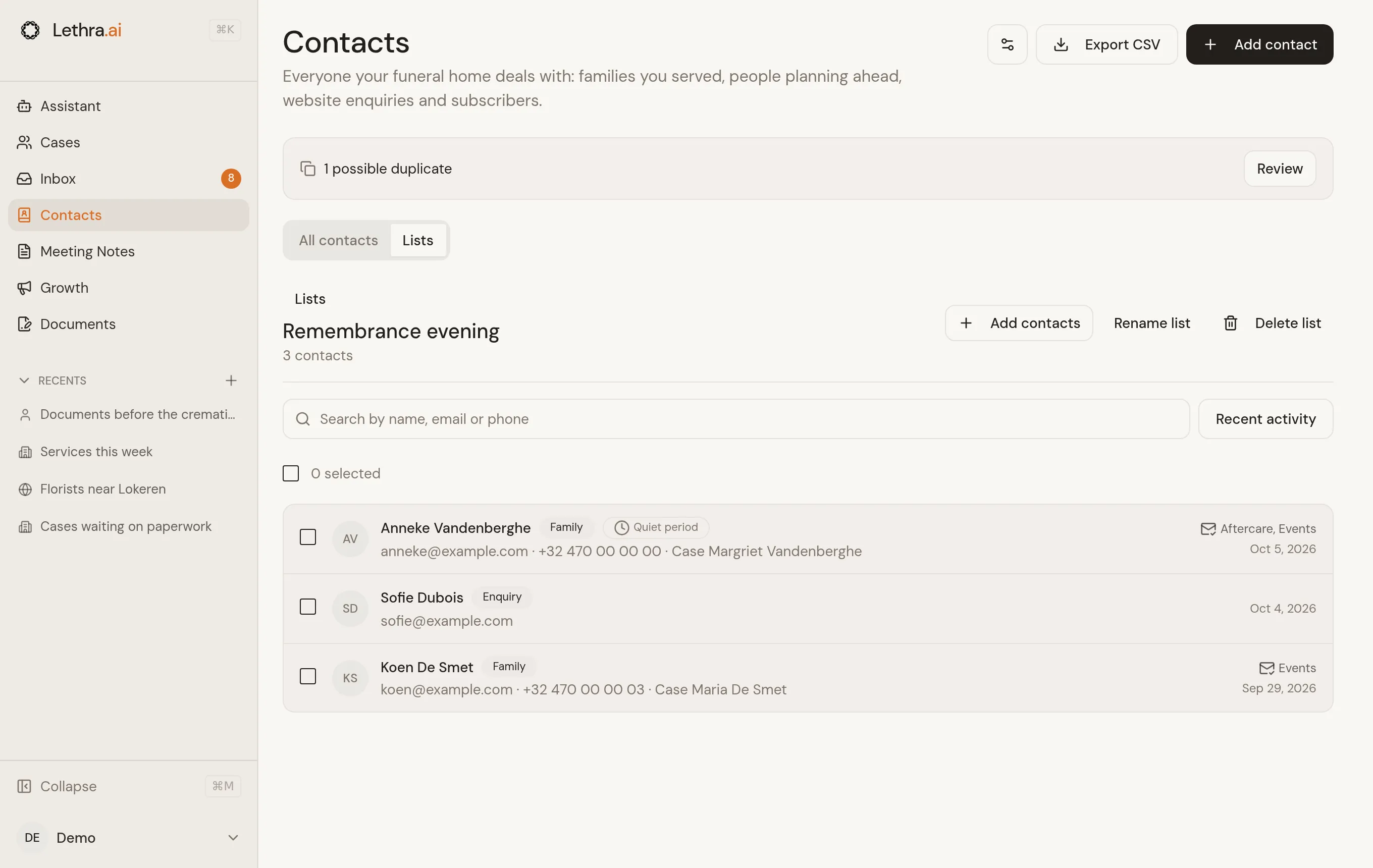
Choose Add contacts to search for more people and tick the ones to add. A person can be on several lists; adding the same person again does not create a duplicate.
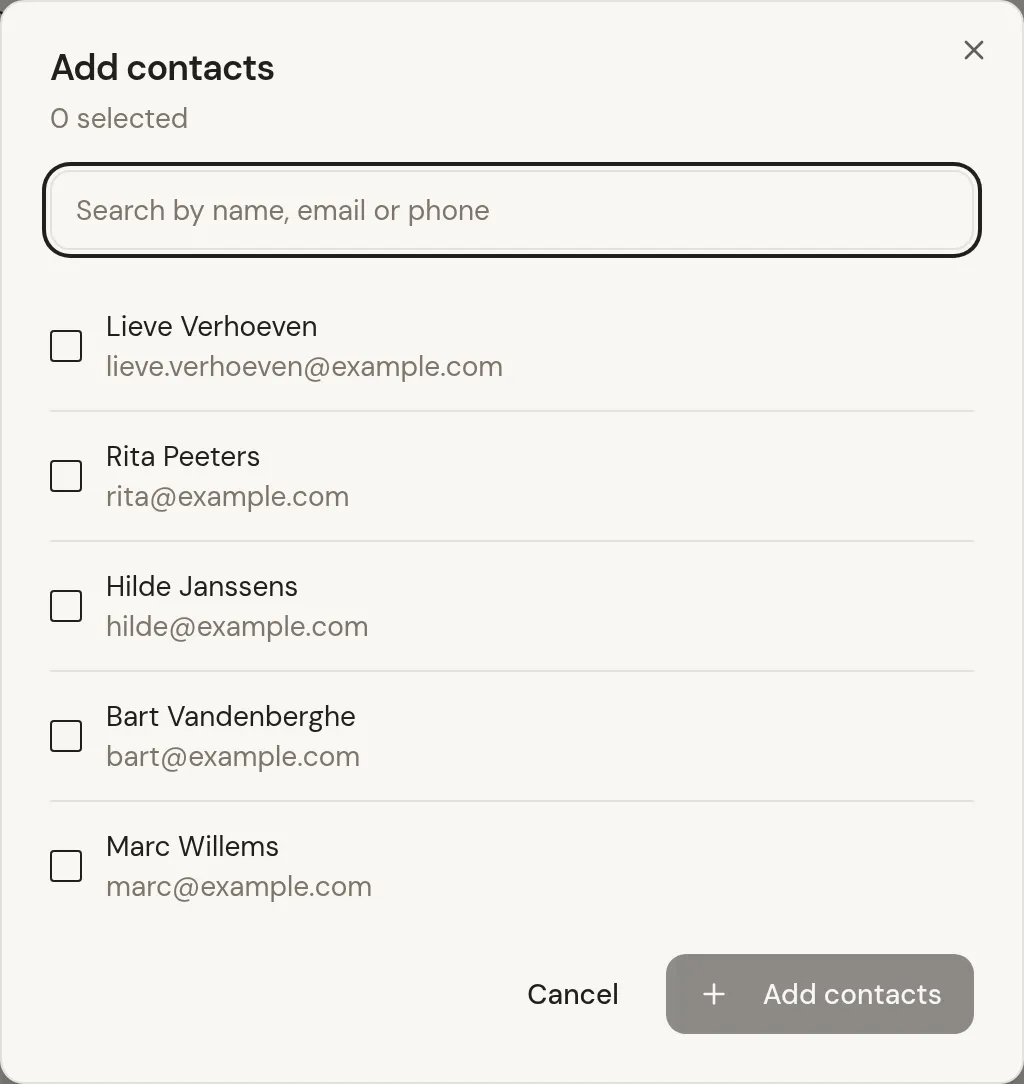
Tick members and choose Remove from list to remove only those memberships. Rename list changes its name. Delete list asks for confirmation and keeps every contact. Merging contacts preserves their lists without duplicate members; deleting a contact’s data removes their memberships. Personal-data exports include memberships.
Adding someone never records consent or bypasses the quiet period. Changing their category, language or consent does not change their lists. There is no newsletter composer or bulk invitation sender here.
Legacy dynamic records remain under Saved filters, separate from manually chosen lists.
Deleting someone’s data
Section titled “Deleting someone’s data”When a person asks you to delete their data, open their page, click the … menu and choose Delete contact. Lethra shows what is removed and what stays before anything happens:
- Removed: their contact details, consents, newsletter and callback requests, form answers, and their name on condolence messages and replies to funeral invitations.
- Kept: entries on a case’s contact list and on planning records. These are part of the case file or the plan.
Export their data in the same menu downloads everything Lethra holds about the person, for when someone asks for a copy.
Was this page helpful?
Thank you. We read every reply and use it to improve the guides.