

Website
Ads bring families in, but your website is where most of them decide to call you. The Website tab in Growth is where you build it, publish it and keep it current.
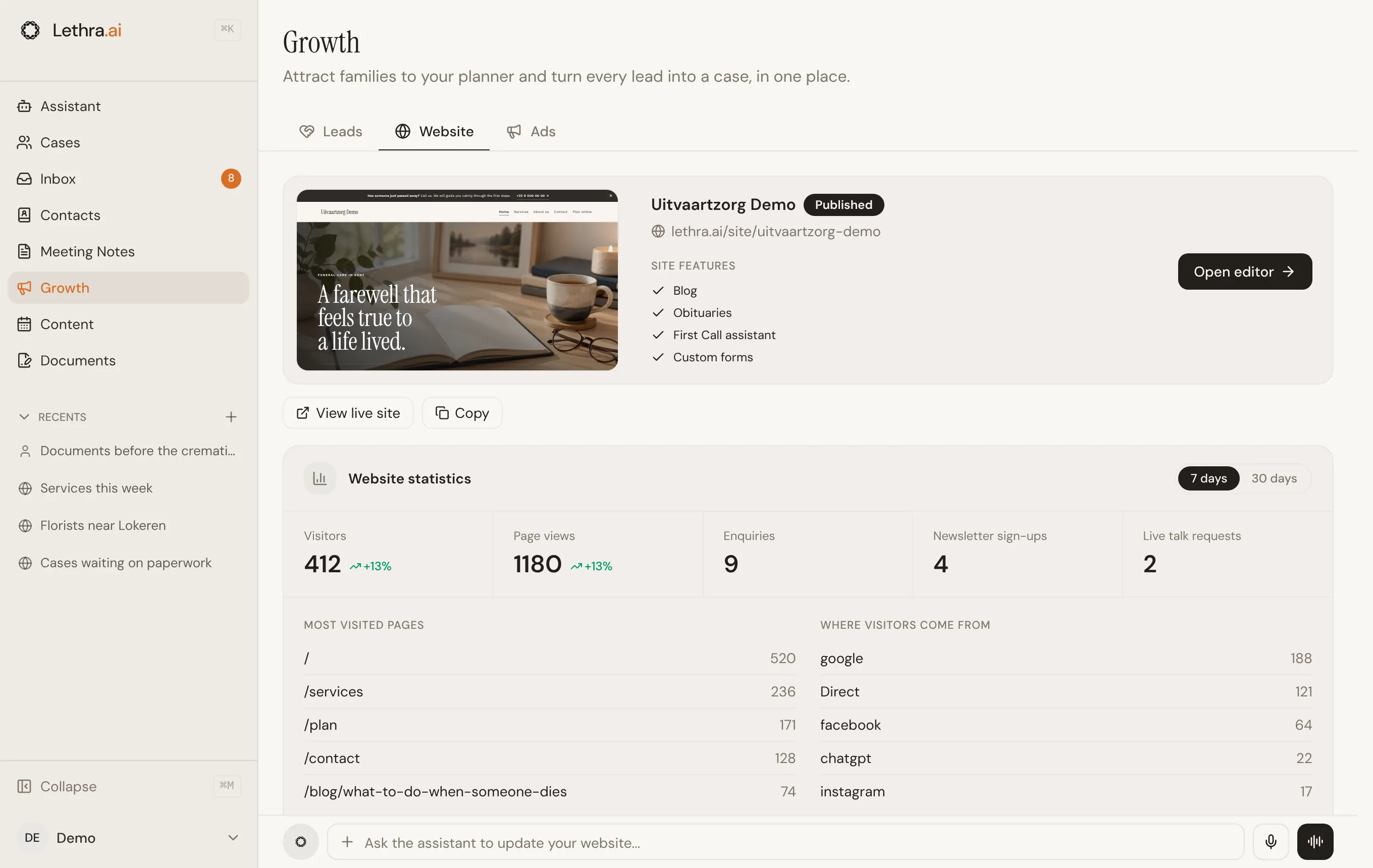
Once you have a website, the tab shows a preview with its address, whether it is published, and whether there are unpublished changes. It also lists which features are on: blog, obituaries, the First Call assistant and custom forms. Click Open editor to make changes, or use View live site and Copy to open or share the published site.
Building your website
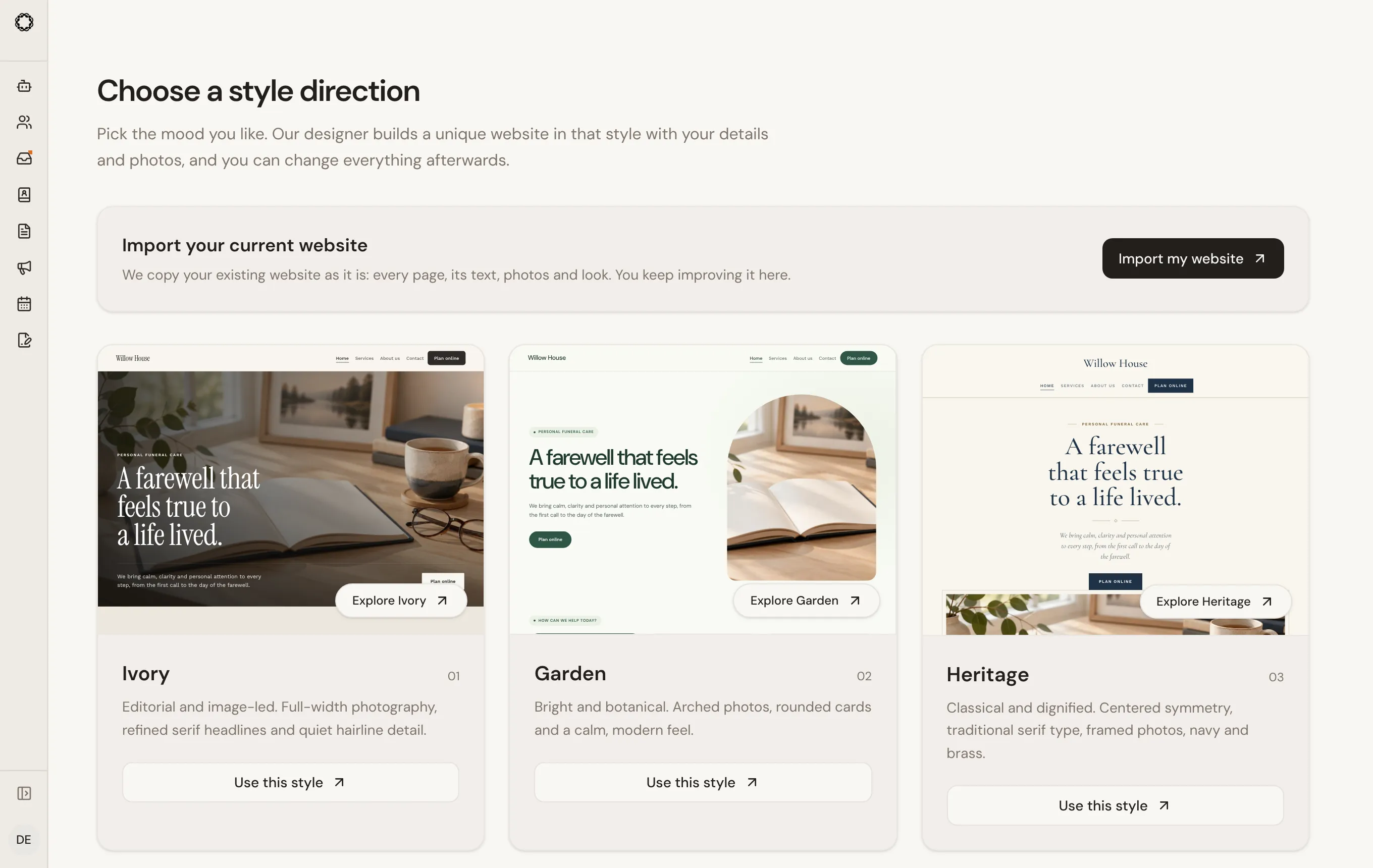
Section titled “Building your website”Open Growth, then Website, and pick a style. Lethra builds a complete site right away from your company details, then the website assistant tailors the text and photos for you. You can watch it work.
If your funeral home is part of a group with its own house style, that style appears first in the picker. Only the funeral homes of that group can use it.
Importing your current website
Section titled “Importing your current website”Already have a website you like? Instead of picking a style, choose Import my website. Enter your website address and click Find pages. Lethra lists the pages it found; untick any you do not want, confirm that you own the site or may use its content, and click Import.
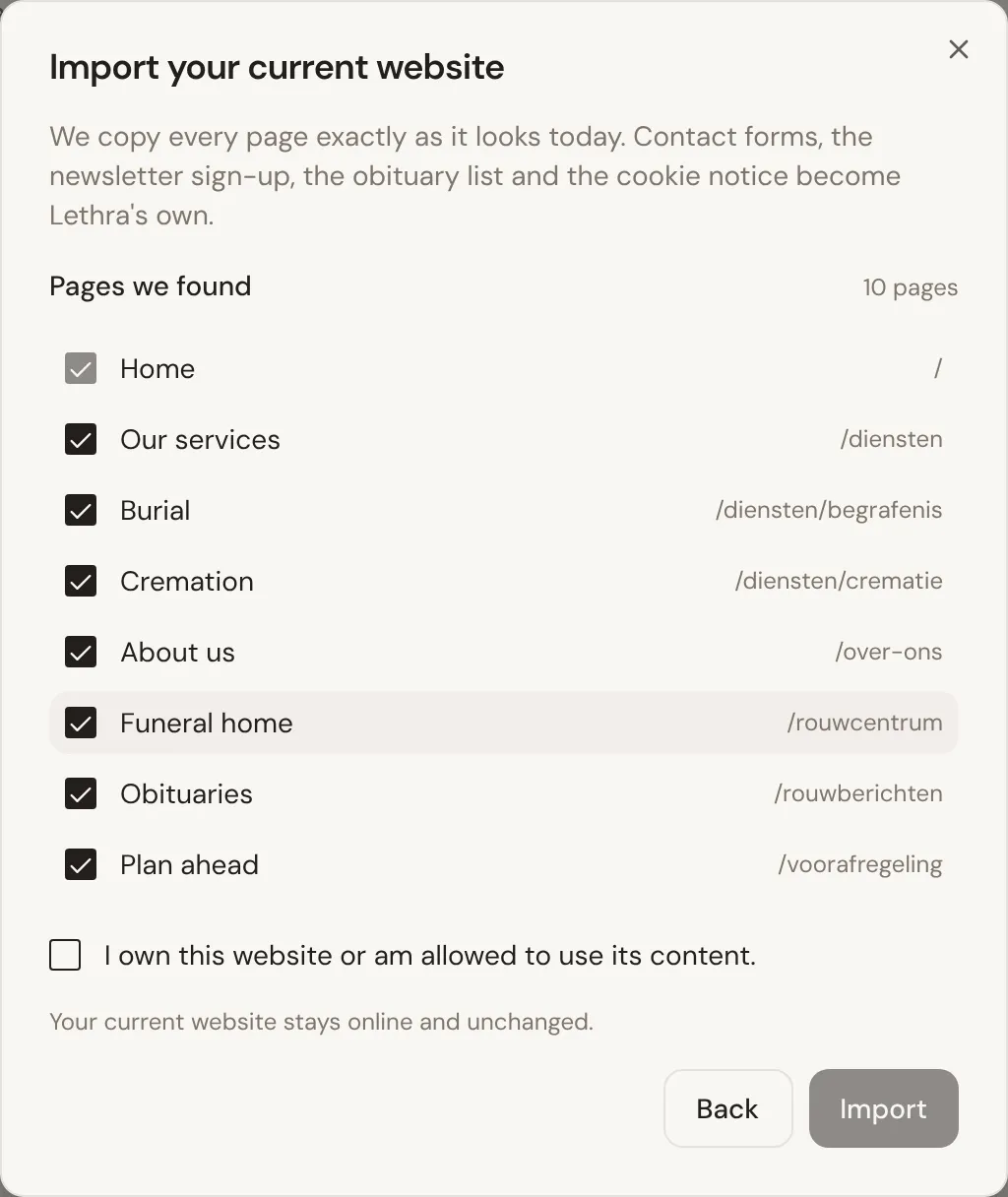
Lethra finds every page of your site, including articles, and lists them all. It then copies each page exactly as it looks today: the same text, photos, fonts, menu and footer, at the same addresses, so links and search results keep working once your domain points to Lethra. Everything is stored with Lethra, so the copy no longer depends on your old hosting.
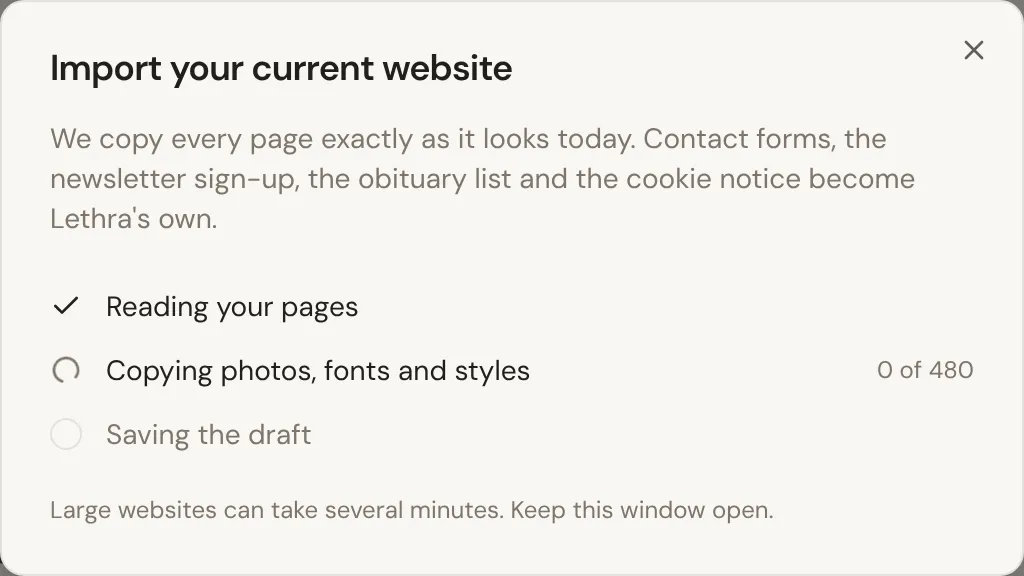
The window shows how far it is. A large site can take several minutes, so keep the window open until it is done.
A few parts become Lethra’s own, so they keep working without your old site’s scripts:
- Contact forms and newsletter sign-ups become Lethra forms. What people send arrives in your Leads and Contacts.
- The cookie notice is replaced by Lethra’s, which asks before any tracking.
- The obituary list, if your site loaded it from another service, becomes your Lethra obituary register.
Scripts, trackers and widgets from other services are never copied. Effects that needed them, such as a footer menu that folds open on phones, now show their content directly. Pop-ups, login panels and other windows that only your old site’s scripts could open are left out, and a page that repeats your homepage under another address becomes the homepage, so that address keeps working. The import is saved as a draft: your current website stays online and unchanged until you publish.
Editing with the website assistant
Section titled “Editing with the website assistant”The editor shows the website assistant on the left and your site on the right. To change anything, ask the assistant in plain words, for example “add a page about repatriation” or “make the tone warmer”. While it works you see what it is doing, and each finished step appears in the preview straight away. The preview follows each step; scroll the preview yourself to stay where you are, and click Follow changes to pick it up again. Press Stop at any time; steps that are already done are kept.
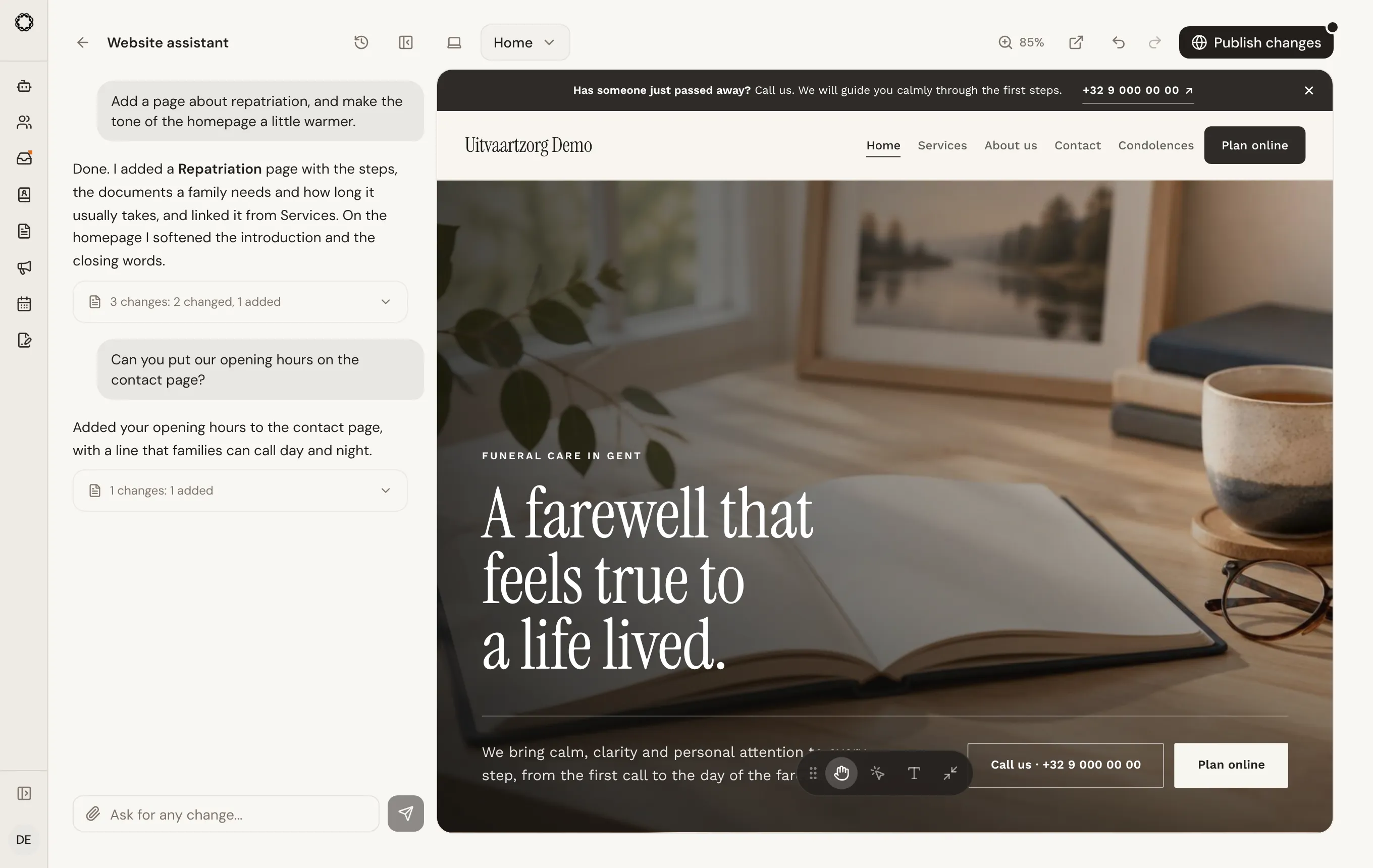
You can also work on the page itself, with the tools at the bottom of the preview:
- Edit text: choose the text tool and click any text to type in it. Links and bold words in a paragraph stay as they are. Press Enter or click elsewhere to save, or Escape to cancel.
- Select elements: click a heading, paragraph or photo to point the assistant at it. For a photo you can choose Replace photo to upload your own, pick one that is already on your site, or have one created. This also works for a photo behind a heading, such as a large banner.
- Browse site: click the links and menu of your site to move between pages, like a visitor. You can also pick a page from the list above the preview; a site with many pages gets a search box there.
- Phone or computer: switch the preview between a computer and a phone screen with the button above it. The phone view is a real phone-sized screen, so you see the layout visitors get on their phone.
- Undo and redo: use the arrows above the preview, or Ctrl+Z (Cmd+Z on a Mac) and Ctrl+Shift+Z. Undo under one of the assistant’s replies undoes everything that reply changed, in one go.
- Versions: every change is saved as a version. Click a version to look at it before you restore it.
Editing an imported website
Section titled “Editing an imported website”An imported website keeps its own menu bar and footer. They are shared by every page, so a change you make to them, by hand or through the assistant, shows on every page at once. Click the menu bar or footer with the text or select tool like any other part of the page.
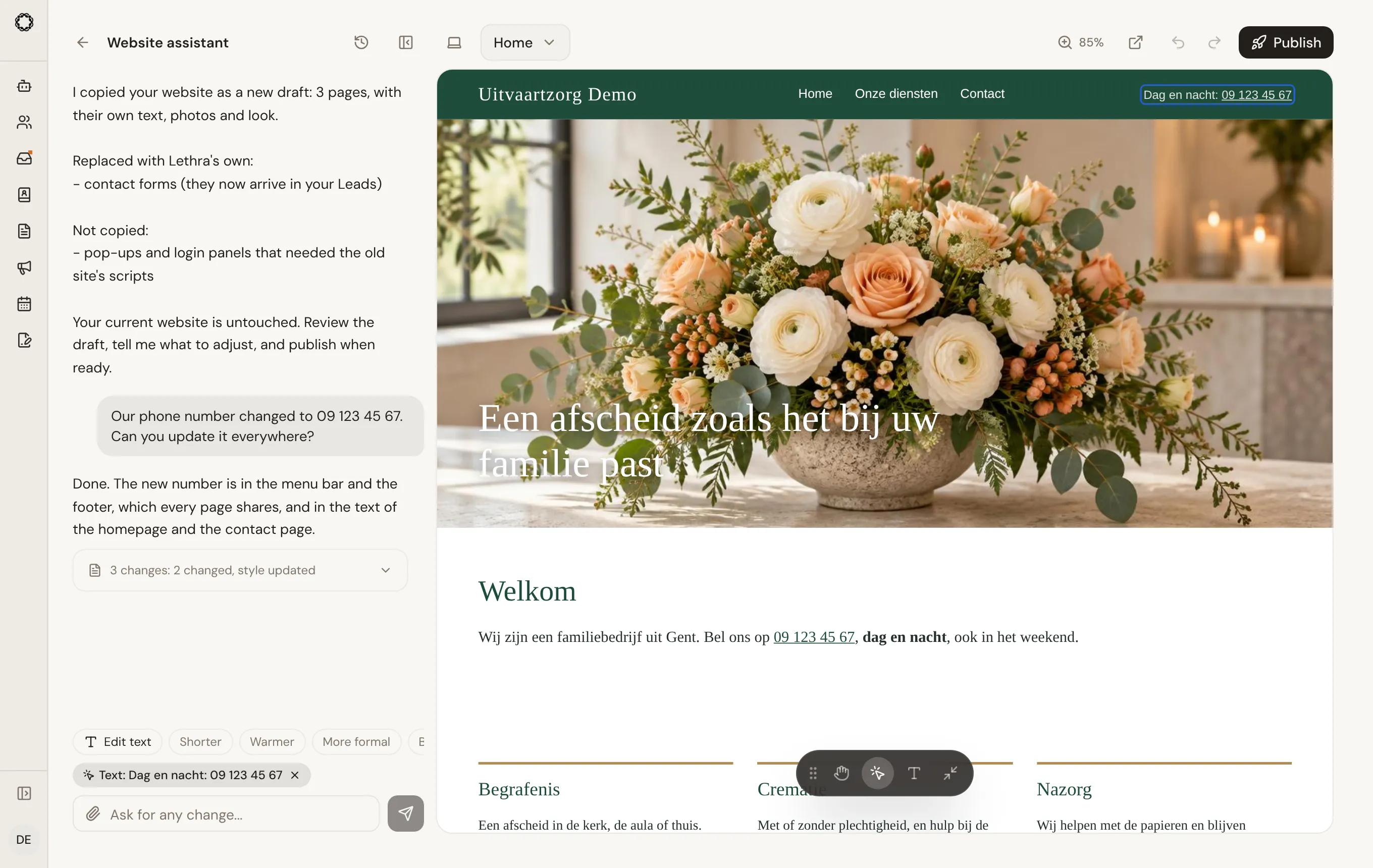
Ask the assistant for changes the same way, for example “our phone number changed, update it everywhere” or “remove the old login button”. It edits your pages in place and keeps their look; it only restyles a page when you ask it to. Sections Lethra adds, such as opening hours or a contact form, keep Lethra’s own look inside your site.
If the assistant cannot make a change at all, it saves nothing and tells you, so you can try again with a smaller, more specific request. If it is interrupted halfway, the steps it finished are kept and its reply says so; ask it to continue to finish the rest. The assistant works on one request at a time: while it is busy, for example in another tab, wait until it has finished before asking for the next change.
Launching your website
Section titled “Launching your website”Nothing you change is visible to visitors until you publish. Click Publish above the preview to open the launch window. It shows your website address and a short launch checklist, such as your phone number, a contact page and your privacy pages. When there are finishing touches left, Fix with the assistant hands them to the assistant in one go.
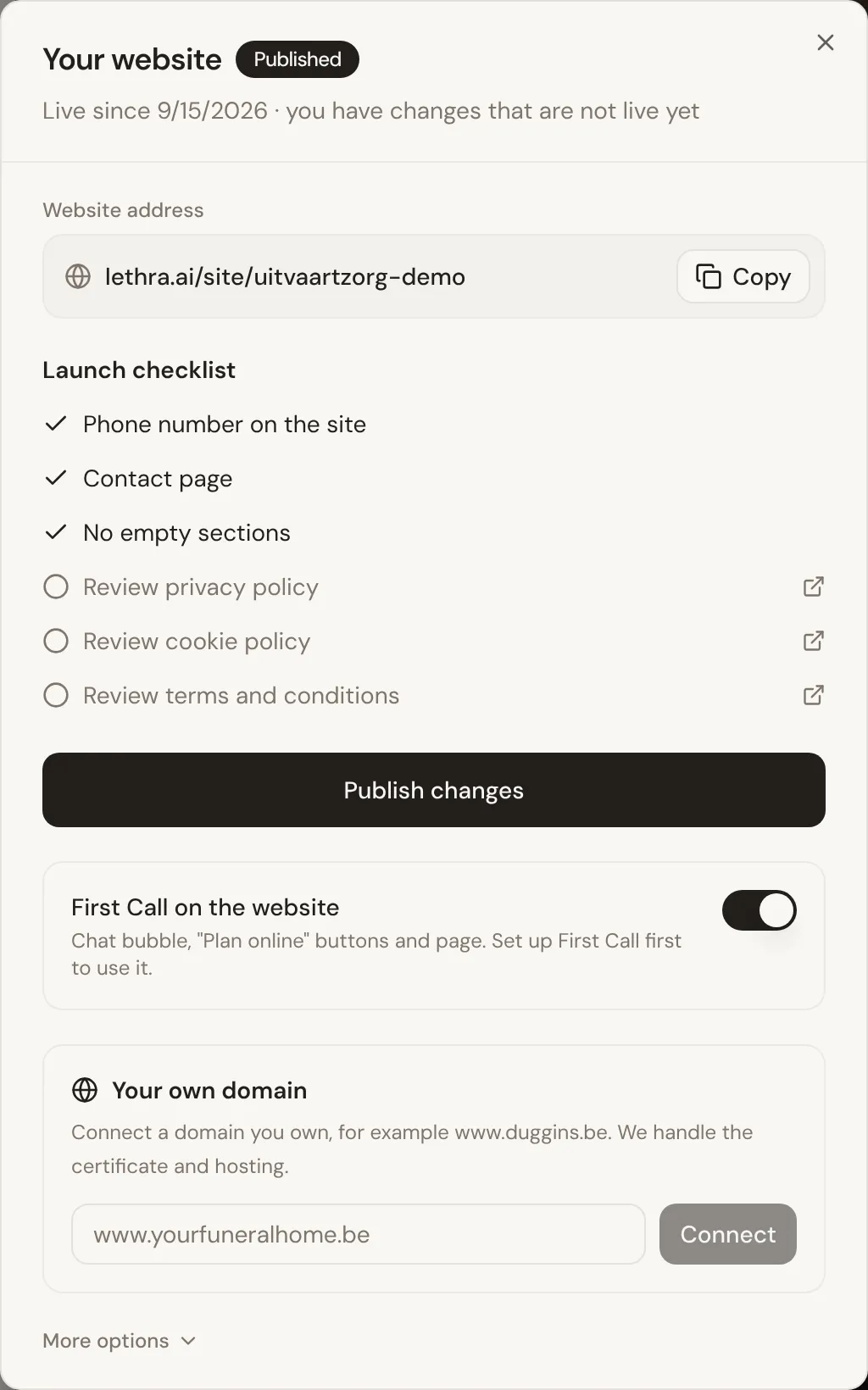
After publishing you get the address of your site to copy or share. When you make changes later, the button reads Publish changes until you publish again.
To use your own domain, such as www.yourfuneralhome.be, enter it in the same window. Lethra shows the records to add at your domain provider, with a copy button for each, and keeps checking while the window is open. This usually takes a few minutes, sometimes a few hours.
Website statistics
Section titled “Website statistics”Under the preview, Website statistics show visitors, page views, enquiries, newsletter sign-ups and live talk requests over 7 or 30 days, plus your most visited pages and where visitors come from.
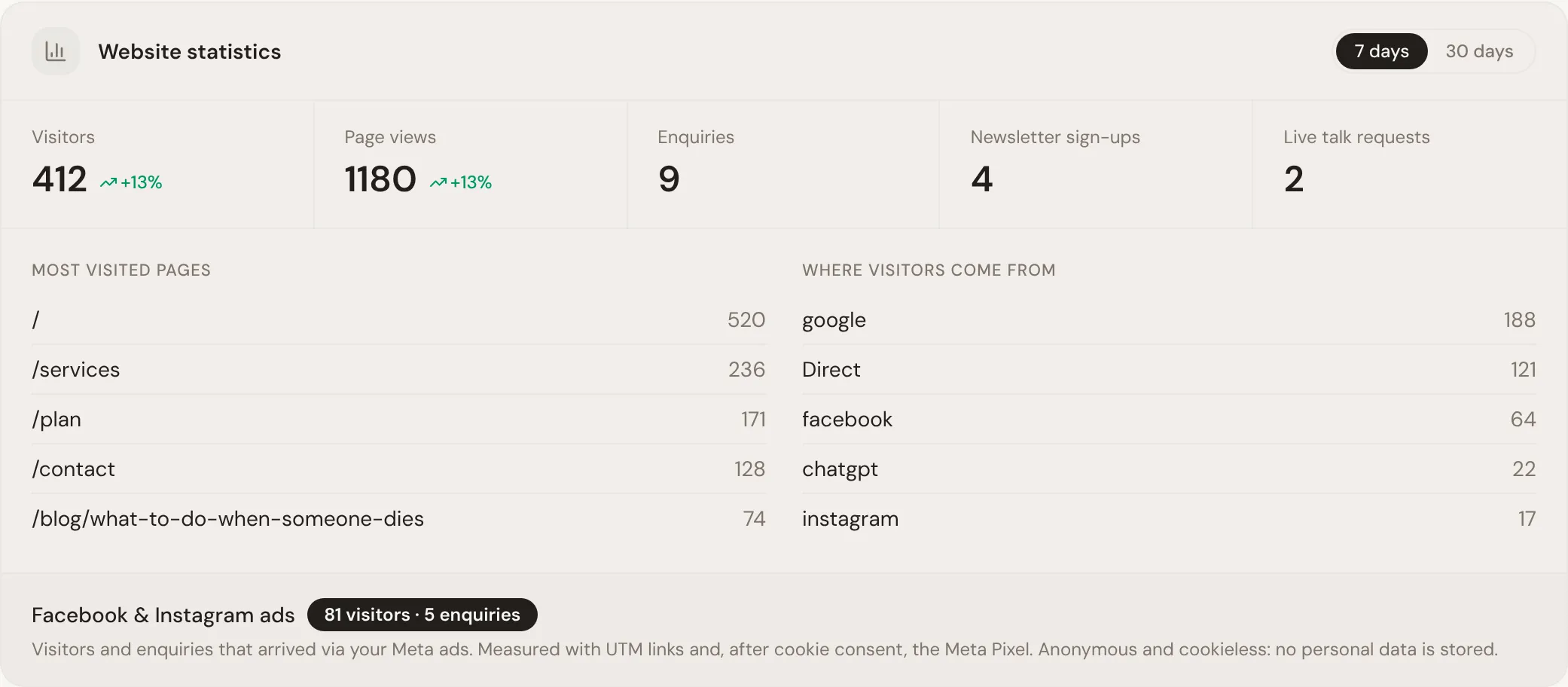
A separate line shows visitors and enquiries that arrived through your Facebook and Instagram ads. Statistics are anonymous and cookieless: no personal data is stored.
Forms and submissions
Section titled “Forms and submissions”Ask the website assistant to add a form for an event registration, competition, survey, request or sign-up. It proposes the fields and wording before changing your draft. The form only becomes public when you publish the website revision.
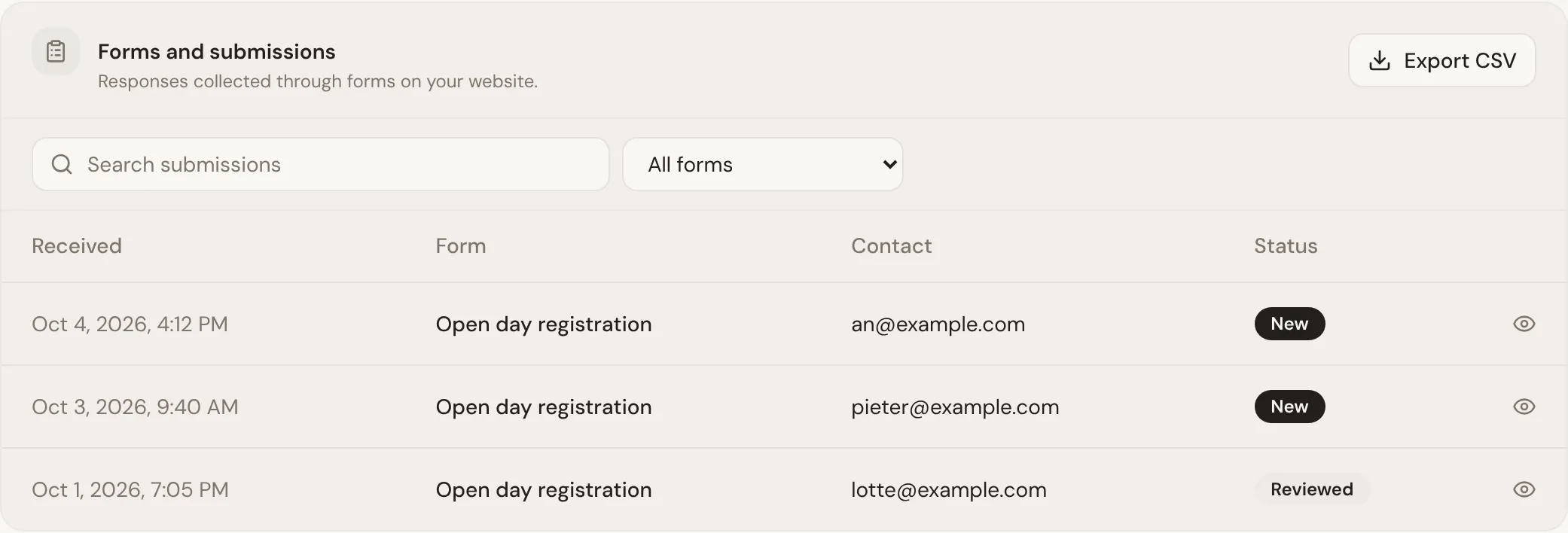
Responses appear under Forms and submissions in the Website tab. You can search them, filter by form, open every answer, mark a response reviewed, export the current list as CSV or delete a response permanently. These responses stay separate from Leads and Inbox. When someone leaves an email address or phone number, they are also added to Contacts.
Newsletter sign-ups ask for confirmation. The sign-up block says what people agree to, Lethra emails them a link, and they count as subscribers in Contacts once they open it and click Confirm subscription.
Preview forms never save a response. Public forms do not support payments, file uploads, tickets or automatic Inbox messages. Avoid asking for passwords, payment details, government identifiers or information you do not need.
Where your details come from
Section titled “Where your details come from”Your website, your planner page and the family portal all use the details in your company profile: your name, address, phone, services, logo and colours. Check them under Your Company, on the Company and Branding & style tabs.
You do not have to type them in by hand. On the Company tab, Import from Website reads the pages of your current website that matter, such as contact, about, team and services, and fills in your business details, team members and processes where it finds them. You review everything before it is saved, and nothing is published on its own.
Bring more families to your website and planner page: Ads.
Was this page helpful?
Thank you. We read every reply and use it to improve the guides.