

Newsletter
The Newsletter tab in Content is where you send an email newsletter to people who subscribed, for example through the signup form on your website. The assistant writes a first draft from your latest blog posts and obituaries. You check it, then send it straight away or plan it for later.
Who receives it
Section titled “Who receives it”Only contacts who agreed to receive your newsletter get it. Before you send, the Who receives it box shows exactly how many people it will reach and who is left out:
- No newsletter permission: the contact is on the list you chose but never subscribed. Being on a list never counts as permission.
- Recently bereaved: families you served recently are always left out, even if they subscribed. You set how long under Contacts settings.
- No usable email: the contact has no valid email address.
Choose All newsletter subscribers, or one of your contact lists to reach only part of them. Each email address gets an issue once.
Writing a newsletter
Section titled “Writing a newsletter”Click New newsletter to open the starter email. Use the conversation on the left to ask questions or describe changes to the writing and layout. The preview on the right updates after each successful edit. Blog posts and obituaries are optional, not required.
You can edit text directly in the email. Settings holds subject, preview text, language and recipients. The assistant cannot change the language or recipients. History lets you inspect and restore saved versions, and the conversation remains with the newsletter. On a phone, switch between Conversation and Preview.
The footer and unsubscribe link stay locked. Changes save automatically, but never start an email send. Send me a test sends only to your own address.
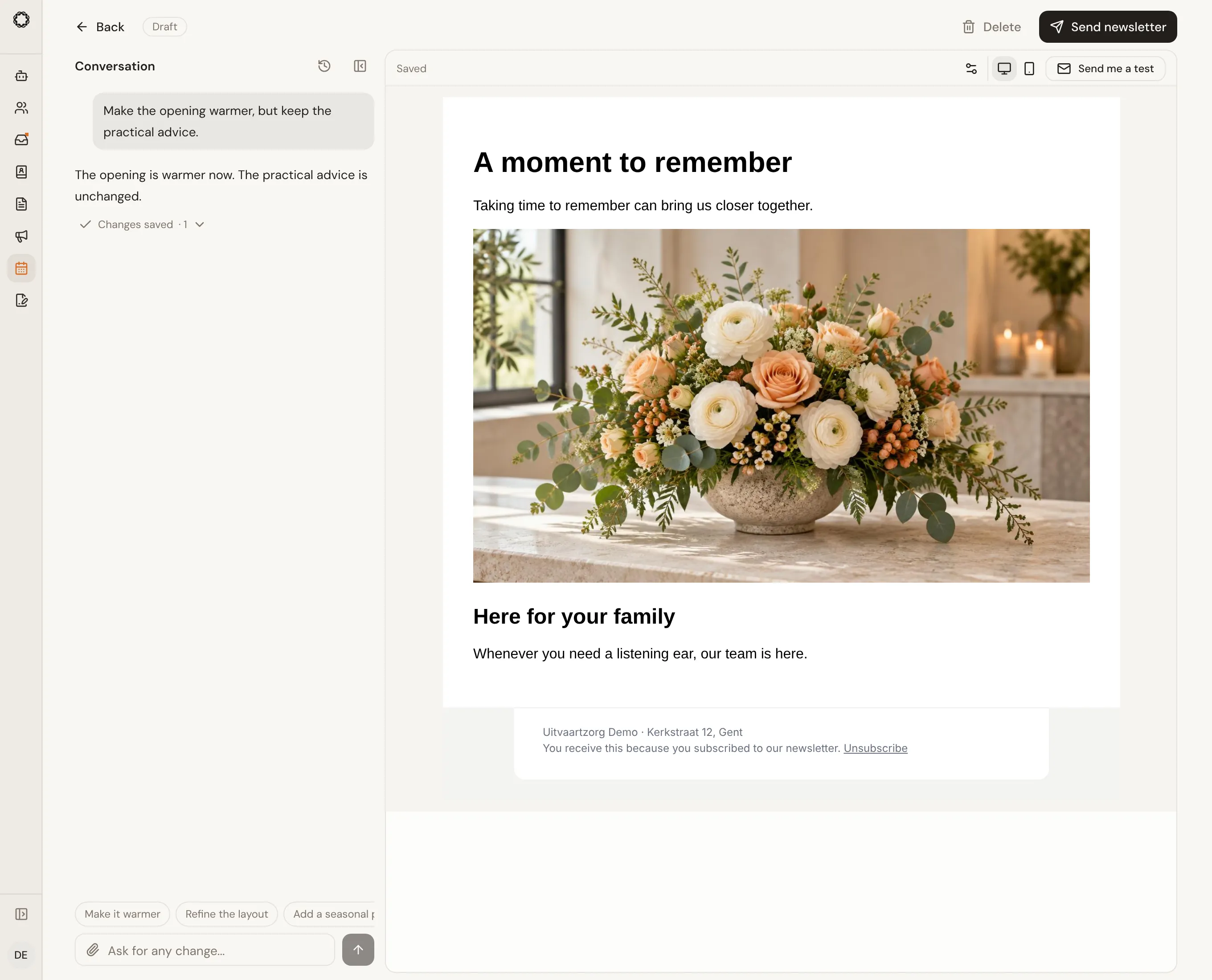
Use the photo button beside the conversation input to attach your own images, or ask for a new photograph. New images are generated and stored before they are added; a failed photo request is reported separately. Each saved edit shows an expandable change summary. Stop stops waiting for an unapplied result, and Try again retries a failed request. The preview scrolls as one email rather than inside a second scroll area.
Selection, changes and history
Section titled “Selection, changes and history”Select a passage in the preview, then describe the change in the conversation. A removable chip keeps the selected passage visible. If that passage changes before the request, select it again. Photos can be attached, pasted or dropped into the conversation input.
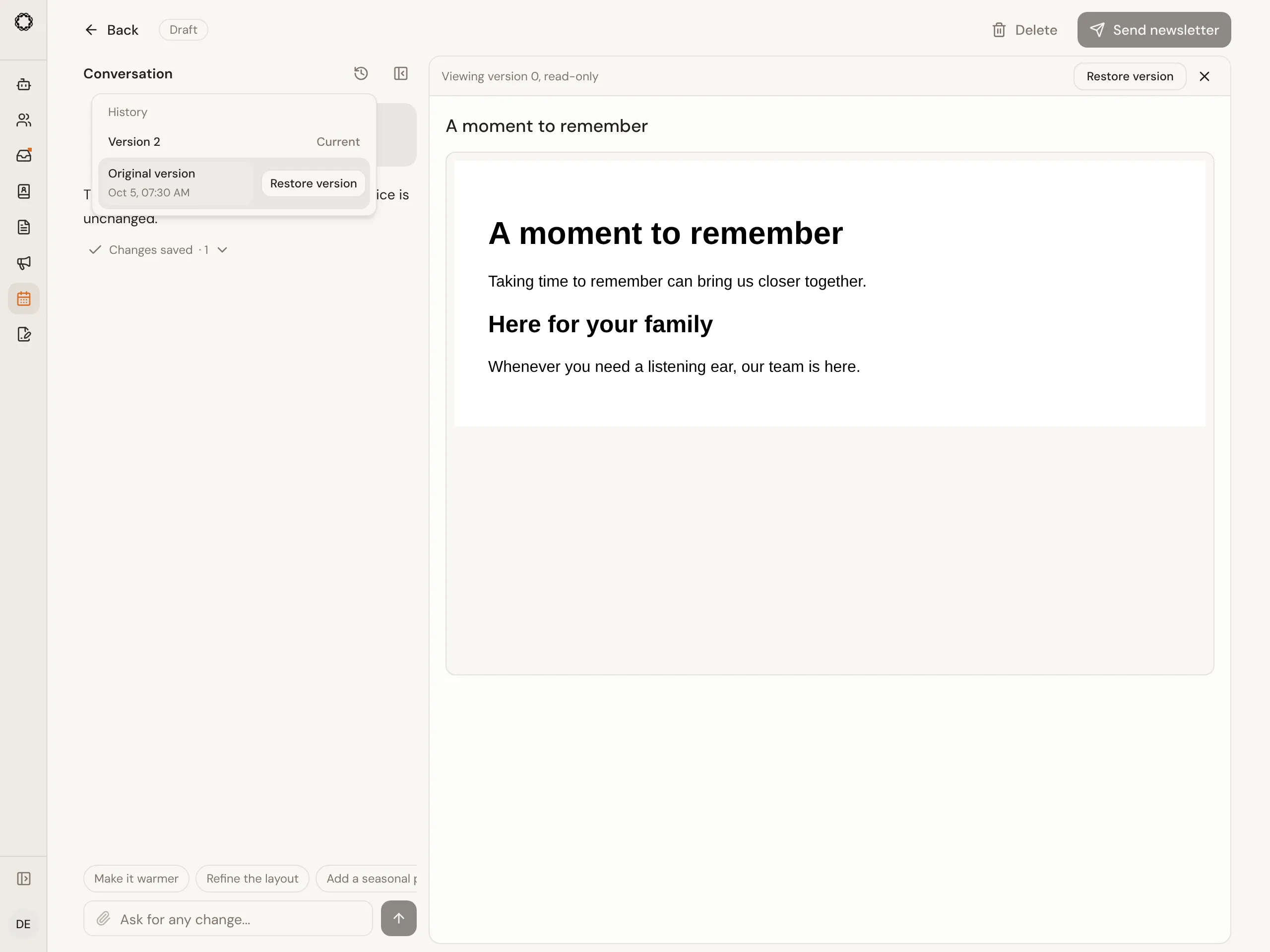
History is beside the conversation title. Open a version to inspect it without changing the current content, then choose Restore version if needed. Expand Changes saved to see the affected fields and Undo last change. Replies that only answer a question do not claim a saved change.
On a computer, Hide conversation gives the preview more room; Show conversation brings it back with your unsent message intact. Stop discards results that have not started saving; already-saved changes remain. If another edit conflicts, review the latest saved version before choosing to keep your edits and retry.
Sending
Section titled “Sending”- Send now sends it right away, after you confirm the number of people.
- Schedule sends it at the date and time you choose. Until then you can click Back to draft to make changes.
Emails go out gradually from your funeral home’s own mailbox, and replies land in your Inbox. After sending you see how many were sent, failed, skipped, and how many people unsubscribed.
Every email has an unsubscribe link. Someone who unsubscribes never receives another newsletter, even one that is already being sent.
With the assistant
Section titled “With the assistant”Ask the assistant, for example, “write this month’s newsletter from our latest blog posts”. It saves a draft and shows it as a card. It can also offer to schedule it for a time: nothing is sent until you click the button on the card.
Limits
Section titled “Limits”One newsletter can go to up to 2,000 people. For a larger audience, choose a smaller list.
Obituaries and condolence messages on your website: Condolences.
Was this page helpful?
Thank you. We read every reply and use it to improve the guides.