

What a group is
Some firms run several funeral homes, each with its own name, website and team. Lethra calls each funeral home a brand, and the head office that owns them a group. The group workspace is where head office staff see every brand in one place.
Each brand keeps working as its own firm in Lethra, with its own cases, inbox, website, ads and team. The group workspace sits above them. It does not replace the brand dashboards, it gives you a way into all of them.
How a group is set up
Section titled “How a group is set up”Lethra creates the group for you and adds the first members. A funeral home that already uses Lethra can be attached to your group by Lethra. After that, your group adds new brands and invites colleagues itself. See Brands and websites and The group team.
Attaching a brand is permanent. Brands cannot leave a group or move to another one.
Who sees the group workspace
Section titled “Who sees the group workspace”Group members land in the group workspace when they sign in. Staff of a single funeral home never see it. They keep working in their own brand as before.
Every group member has the same rights. A member can open every brand, see all cases, add brands, set ad budgets, change the billing details and invite or remove other members.
Finding your way around
Section titled “Finding your way around”The sidebar of the group workspace has seven pages:
- Overview: the numbers for the whole group and what needs attention. See The group overview.
- Brands: every brand, with its leads, cases and ad spend.
- Websites: the status of every brand’s site.
- Ad budgets: a monthly cap per brand. See Ad budgets.
- Billing and Settings: this month’s statement and the group’s details. See Billing and settings.
- Team: the people with group access.
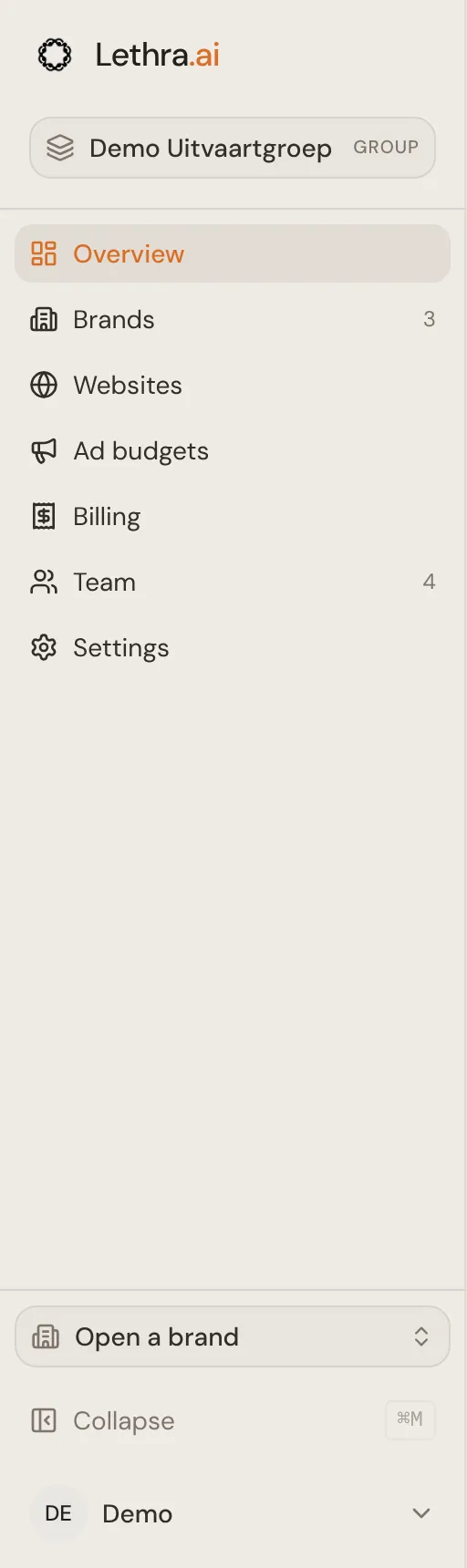
If you belong to more than one group, click the group name at the top of the sidebar to switch to another group.
Working inside a brand
Section titled “Working inside a brand”Click a brand anywhere in the group workspace to open its dashboard. You then work in that brand exactly as its own staff do.
To go straight to one page of a brand, use the arrow next to Open on the brand’s row. It opens the brand’s dashboard, leads, cases, inbox, website editor, ads, First Call settings or brand team.
Open a brand, at the bottom of the group sidebar, lists your brands so you can jump into one. It shows the first ten. With more brands, use the Brands page, which has a search box.
Inside a brand there are two ways back:
- The brand switcher at the top of the sidebar lists Group workspace first, then every brand you can open. Pick another brand to switch without going back to the group.
- Group workspace, at the bottom of the sidebar, takes you back to the overview.
See what the first page tells you: The group overview.
Was this page helpful?
Thank you. We read every reply and use it to improve the guides.