

Team and access
Every colleague who works in your firm’s Lethra gets there through an invitation from someone already inside your firm. The only exception is the first person: a funeral home that is new to Lethra signs up from the sign-in screen and creates its own workspace. See Signing in and your workspace.
Inviting a colleague
Section titled “Inviting a colleague”From Your Company, open the Members & billing tab. The Team members card lists everyone with access, and below it, under Pending invites, is where you create invites.
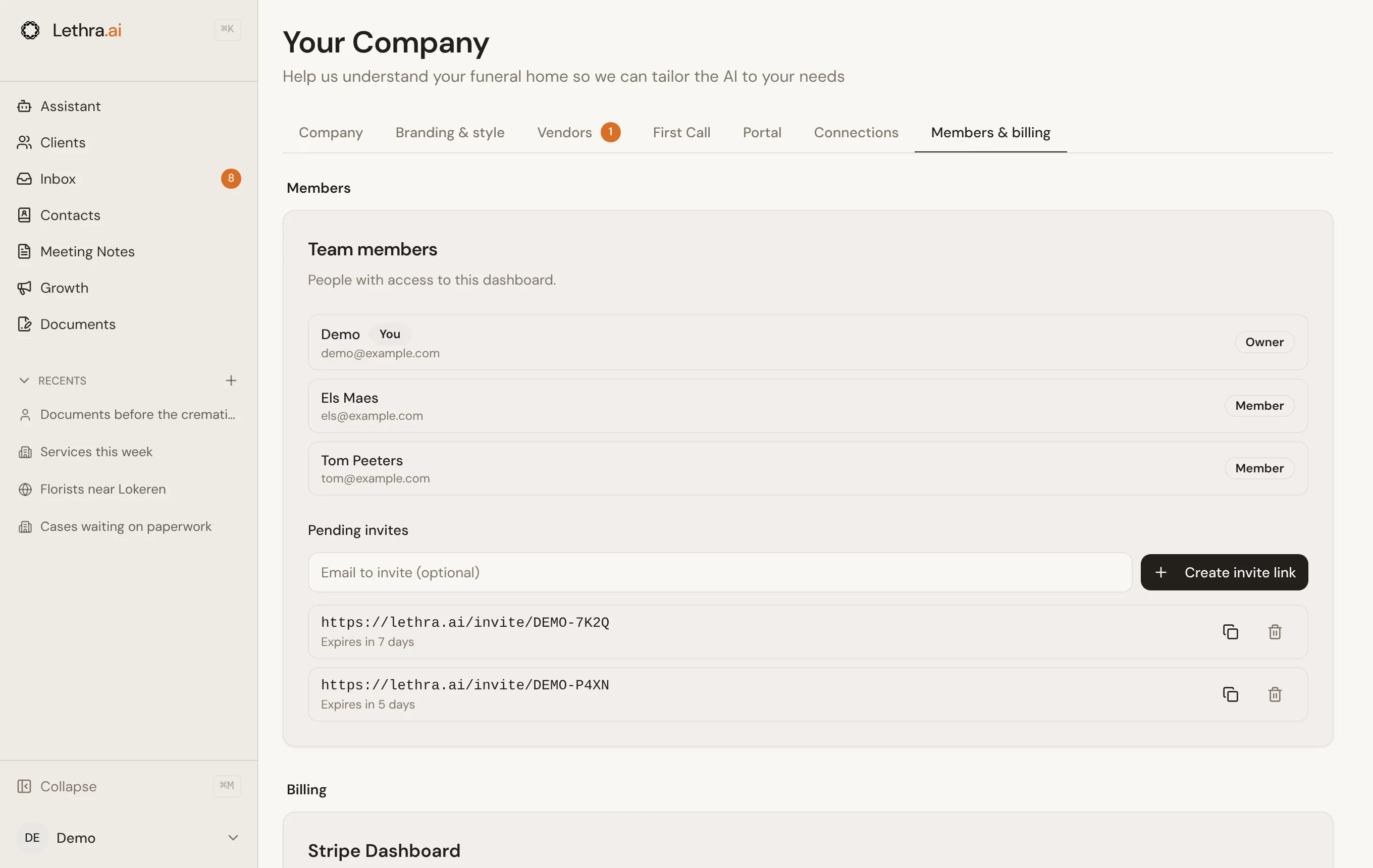
- Invite by email. Enter the address and choose Send invite.
- Create an invite link instead. Leave the email field blank, choose Create invite link, and Lethra creates a link you can copy and send yourself, useful if you would rather it arrived inside a message you have already written.
Each invite link has an expiry, shown next to it, and you can revoke a pending invite at any time if it was sent by mistake or is no longer needed.
The person you invite follows the link, creates their own account with their own password, and joins your firm automatically. There is nothing for you to approve afterwards; joining through a valid invite is what grants access.
What a colleague can do
Section titled “What a colleague can do”Once someone has joined, they see the same dashboard you do: cases, the inbox, the assistant, documents, growth, and Your Company. A signed-in account belonging to your firm has access to every case at the firm, not just the ones a person happens to be working on.
What lands in someone’s inbox is narrower: items on the cases they created or have an open task on, items on cases shared with the whole team, and anything urgent. See The inbox.
This is why the invite itself is the point of control. Only invite people who should be able to see every family’s case, and revoke a pending invite you no longer want to use.
Signing in
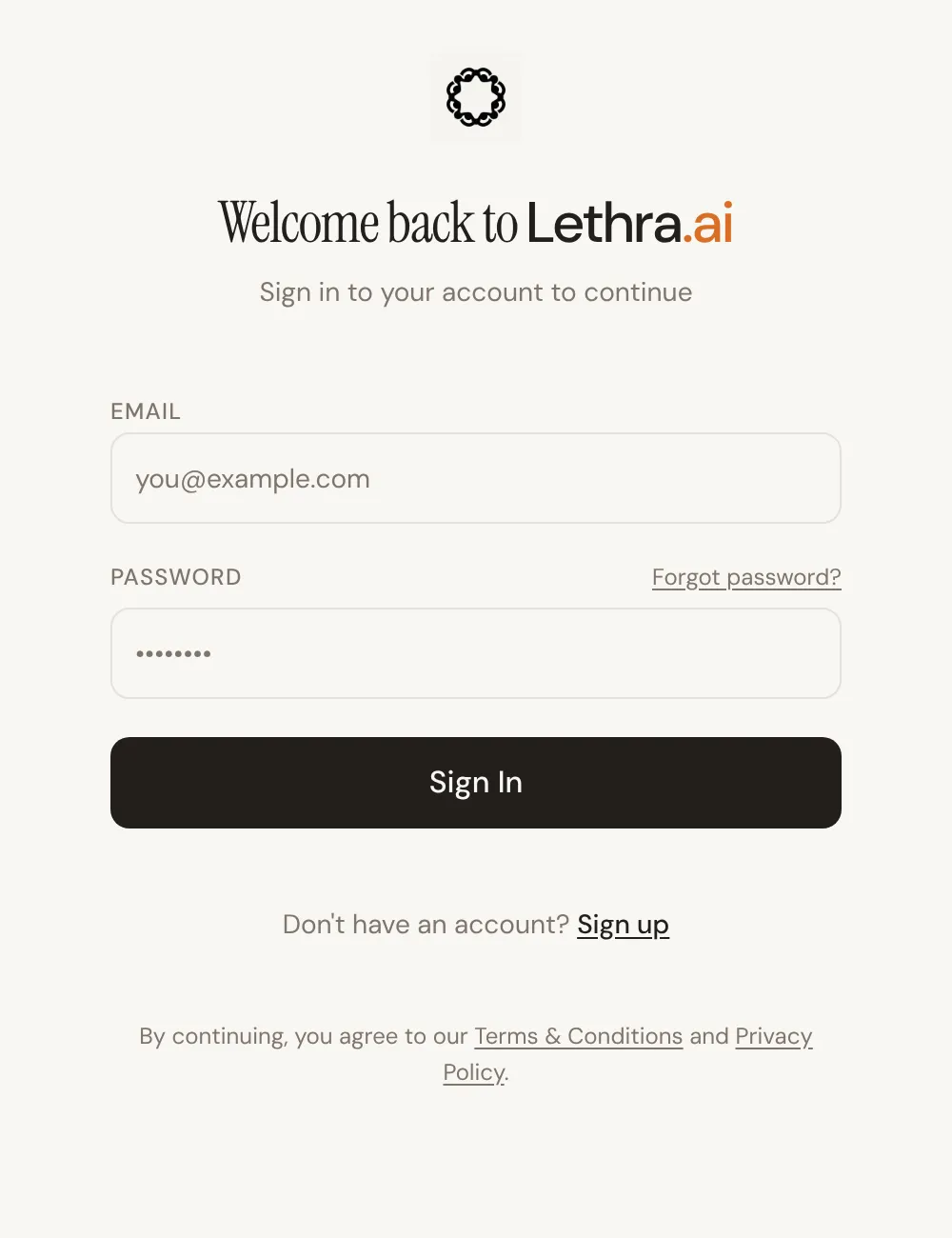
Section titled “Signing in”Staff sign in at your firm’s Lethra address with a work email and password. Forgot password? on that screen sends a single-use reset link to the work email on the account.
Sessions and signing out
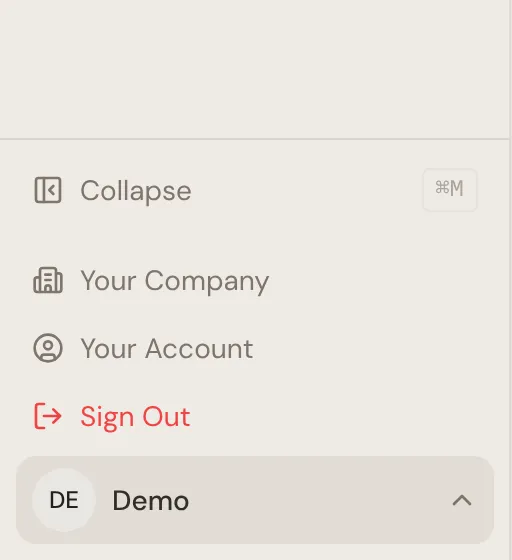
Section titled “Sessions and signing out”A signed-in session gives access to every case in the firm, including family contact details. Sign Out, in the menu under your name at the bottom of the sidebar, ends that session. Use it whenever you are on a shared or public machine.
Set the languages your firm and its families work in: Language and region.
Was this page helpful?
Thank you. We read every reply and use it to improve the guides.