

Documents
Documents live in two places: the company-wide Documents page in the main sidebar, and the Documents tab on each case. The Documents page holds everything drafted in Lethra. The case tab shows that family’s drafts, together with the files uploaded to the case.
The Documents page
Section titled “The Documents page”The main Documents page lists every document your firm has drafted, split into two tabs:
- All documents shows every document, whether or not it is linked to a case.
- Templates shows your reusable templates, covered in Document templates.
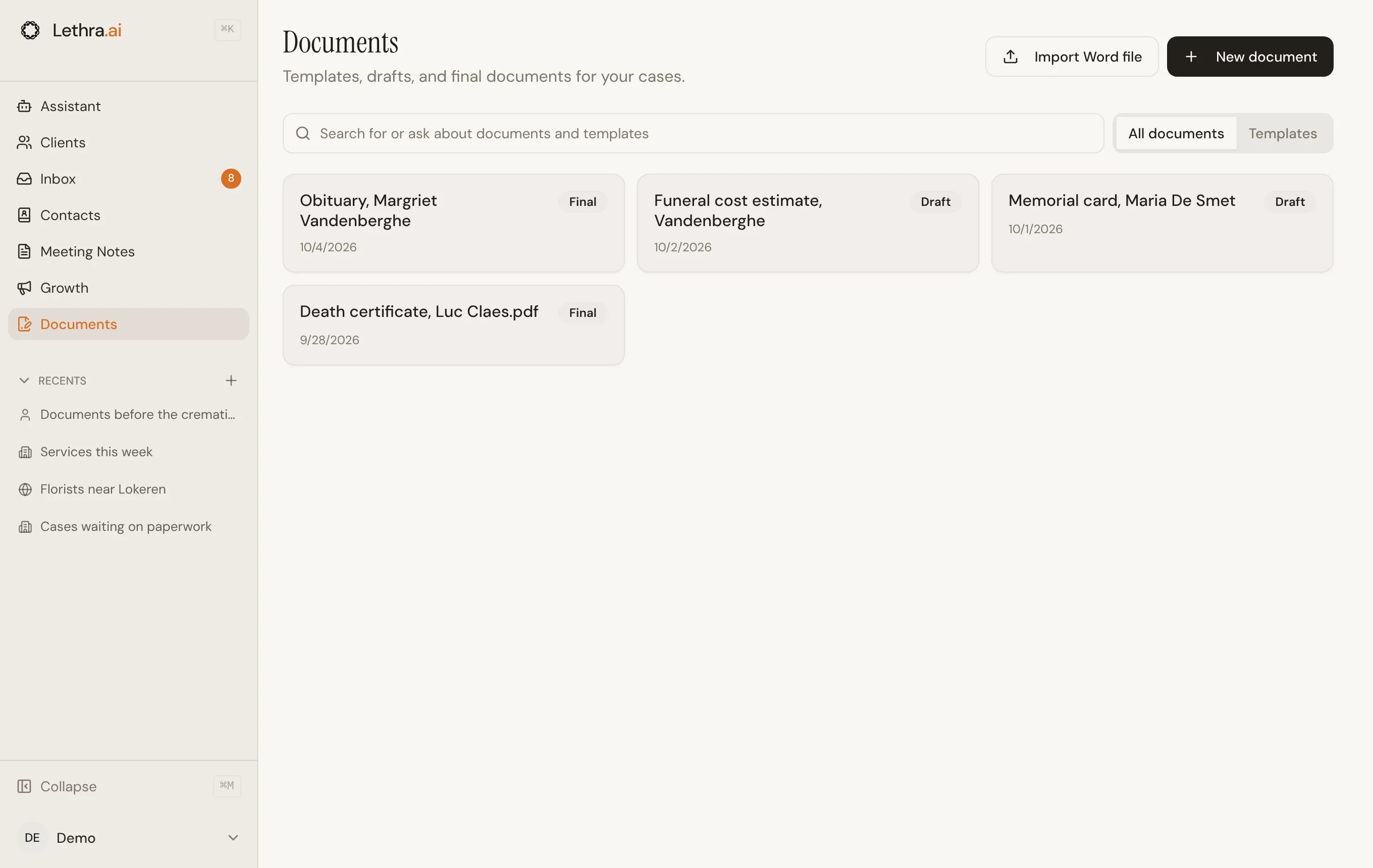
From here you can start a blank document with New document, import an
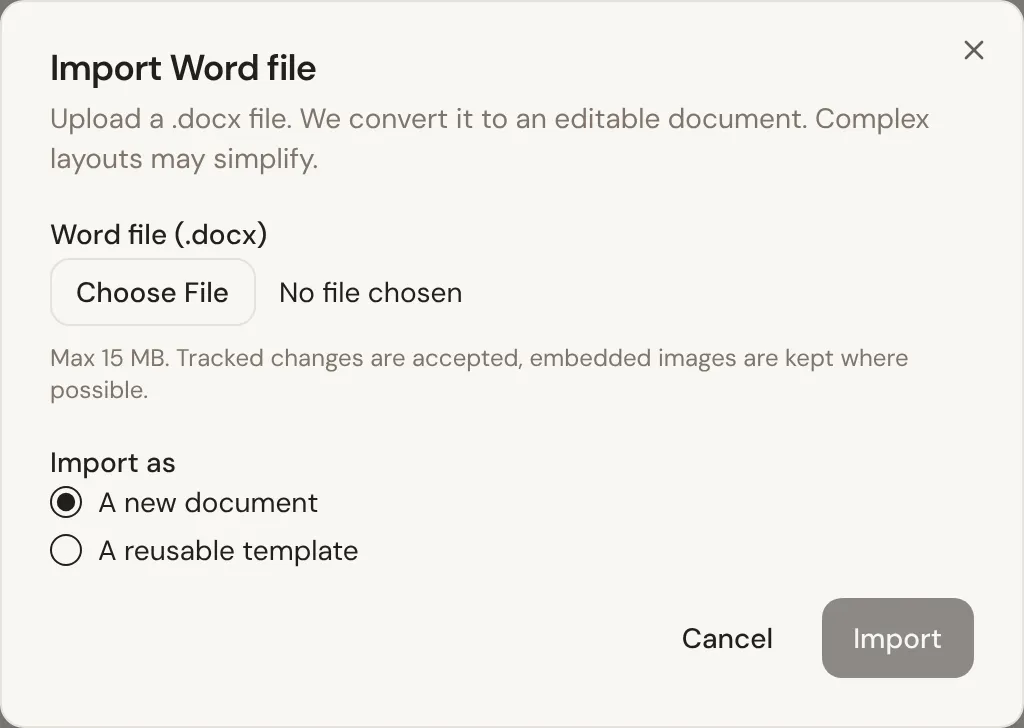
existing .docx file with Import Word file, or open anything you already
have. Use the search bar to find a document by title, or to ask the
assistant about your documents.
The per-case Documents tab
Section titled “The per-case Documents tab”Open a case and go to its Documents tab to see everything for that family in one place. It is split into three sections.
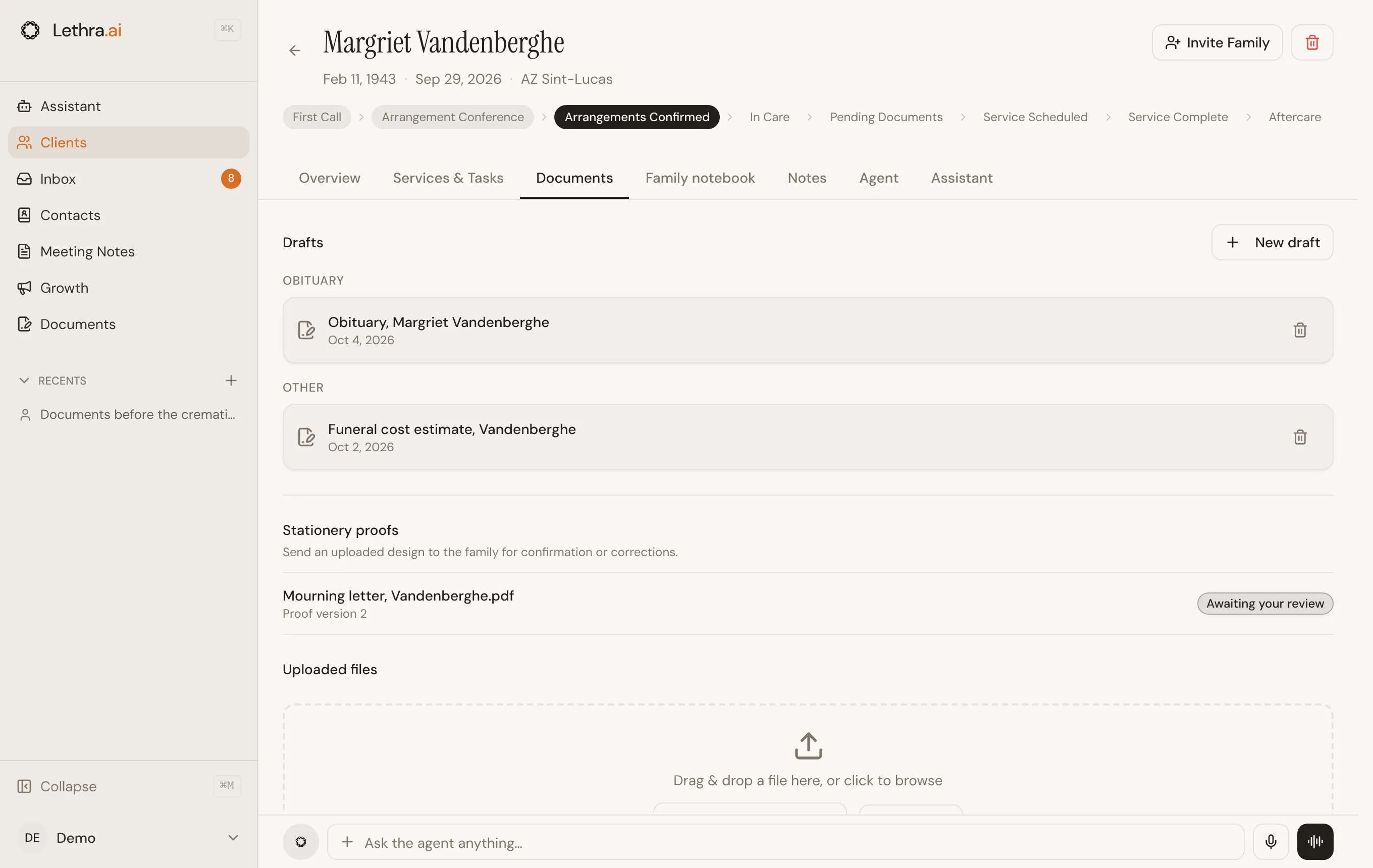
- Drafts are documents created in Lethra’s editor and linked to this case. Use New draft to start a Blank document or one From template. Clicking a draft opens it in the document editor.
- Stationery proofs are designs you have sent to the family to check, covered below.
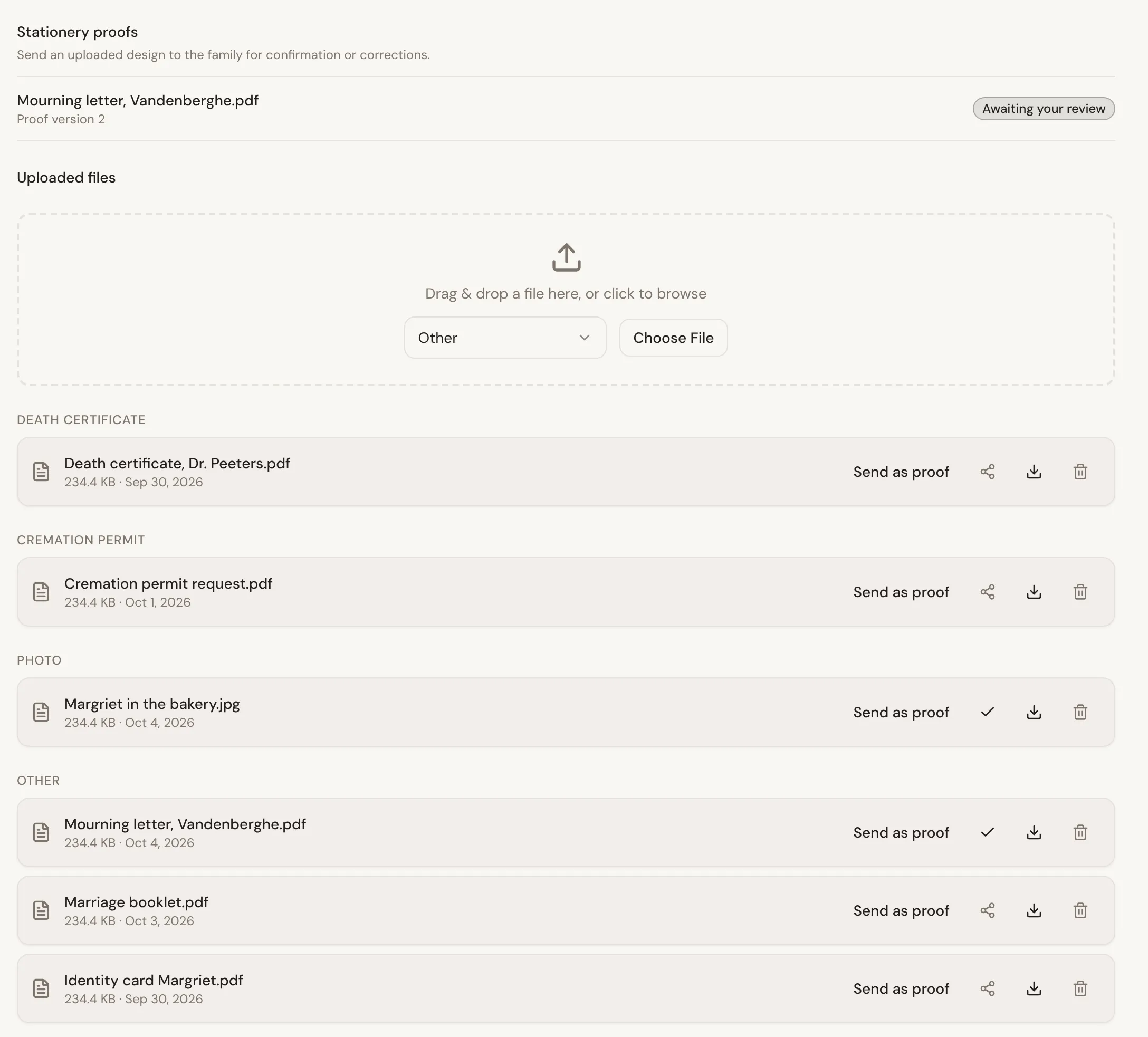
- Uploaded files are files added to the case: scanned certificates, signed forms, photos, anything that did not start life inside Lethra.
Drafts and uploaded files are grouped by document type (death certificate, burial permit, service contract, and so on), using the types configured for your firm.
Uploading a file
Section titled “Uploading a file”In the Uploaded files section, choose the document type from the dropdown, then either drag a file onto the drop zone or click Choose File to pick one from your computer. The upload shows its progress and appears in the matching group as soon as it finishes.
Previewing without leaving the app
Section titled “Previewing without leaving the app”Click any uploaded file to open it in a preview dialog. PDFs render directly in the dialog, so you do not need to download a file just to check what is in it. If a file cannot be previewed, Lethra tells you rather than showing a blank screen.
Use the download button next to a file if you need a copy on your own computer.
Sharing a document with the family
Section titled “Sharing a document with the family”Each uploaded file has a share toggle. Turning it on makes that file visible to the family in the family portal; turning it off removes it again. The icon tells you the state at a glance: a share icon means the family cannot see it yet, a check mark means they can.
Sending a proof to the family
Section titled “Sending a proof to the family”For a mourning letter, prayer card or other printed item, upload the design and click Send as proof next to it. It then appears under Stationery proofs with its version and status. The family reviews it in their portal, on The farewell tab, and either confirms it or asks for a correction.
Editing and versions
Section titled “Editing and versions”A draft opens as a Word document, shown page by page. To change it, ask the Assistant in the panel beside it, in plain language. Its edits arrive as tracked changes, which you accept or reject one by one, or all at once, under Edits.
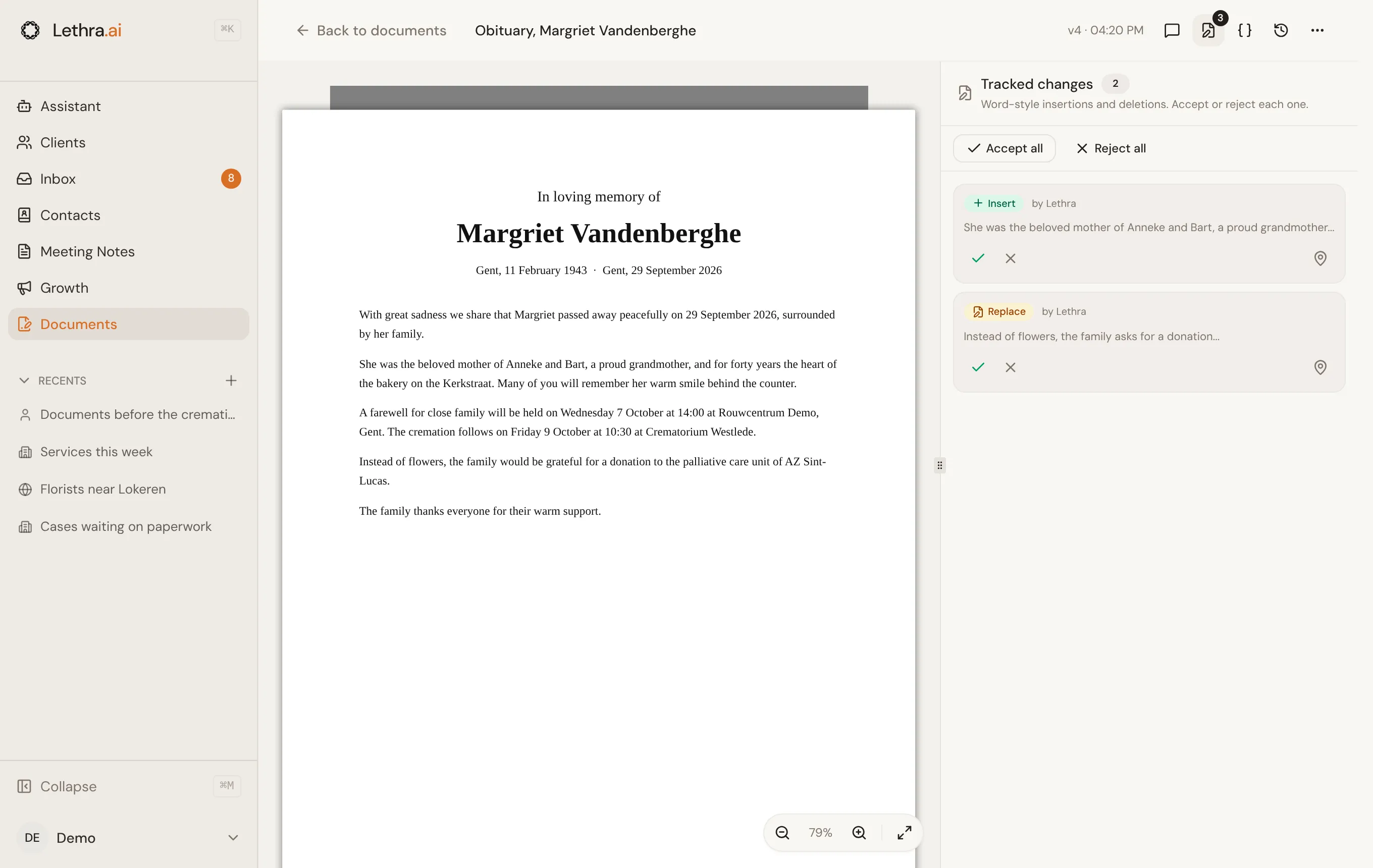
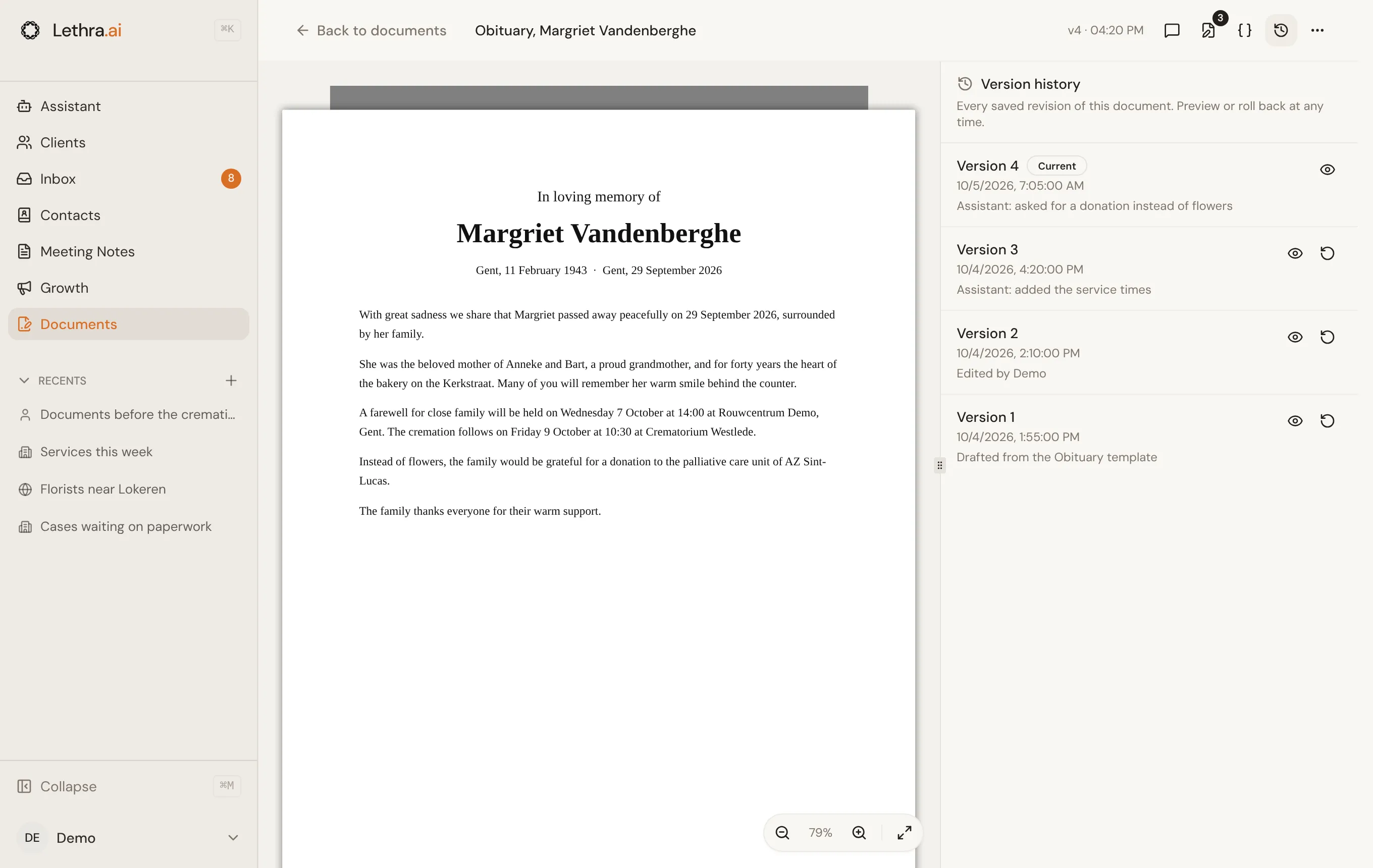
Every change saves a new version of the document. The editor header shows the version number and when it was last saved, and History lists every version, so you can preview an older one and restore it.
Deleting
Section titled “Deleting”Drafts and uploaded files can be deleted from their trash icon, and an open document from Delete document in the editor’s menu. Lethra asks you to confirm first, since deleting a draft removes the document itself and deleting an upload removes the file from storage. Neither can be undone.
Building reusable documents: Document templates.
Was this page helpful?
Thank you. We read every reply and use it to improve the guides.