

Ads
Once Ads is turned on, the Ads tab in Growth is where campaigns get created, reviewed and published. Lethra writes the campaigns; you decide what runs and when money is spent.
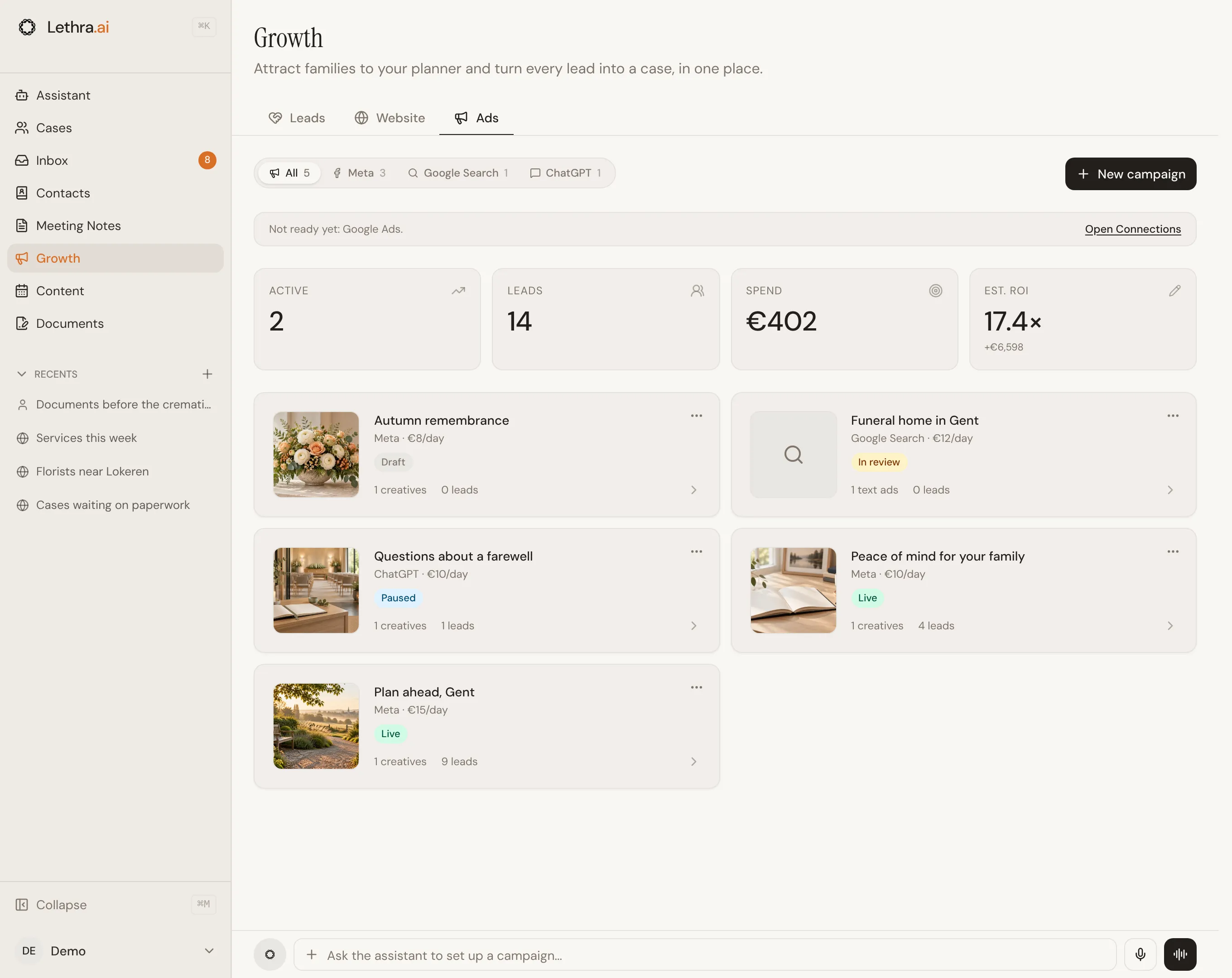
At the top you see your active campaigns, the leads they brought in, what they spent, and an estimated return. Once you have campaigns on more than one channel, a filter lets you look at one channel at a time. If a channel you use is not fully set up yet, a short line says so with a link to Open Connections.
The three channels
Section titled “The three channels”- Meta runs one campaign across Facebook and Instagram. Ads have an image, or a carousel of several cards.
- Google Search shows text ads to people searching for a funeral home near them. There are no images.
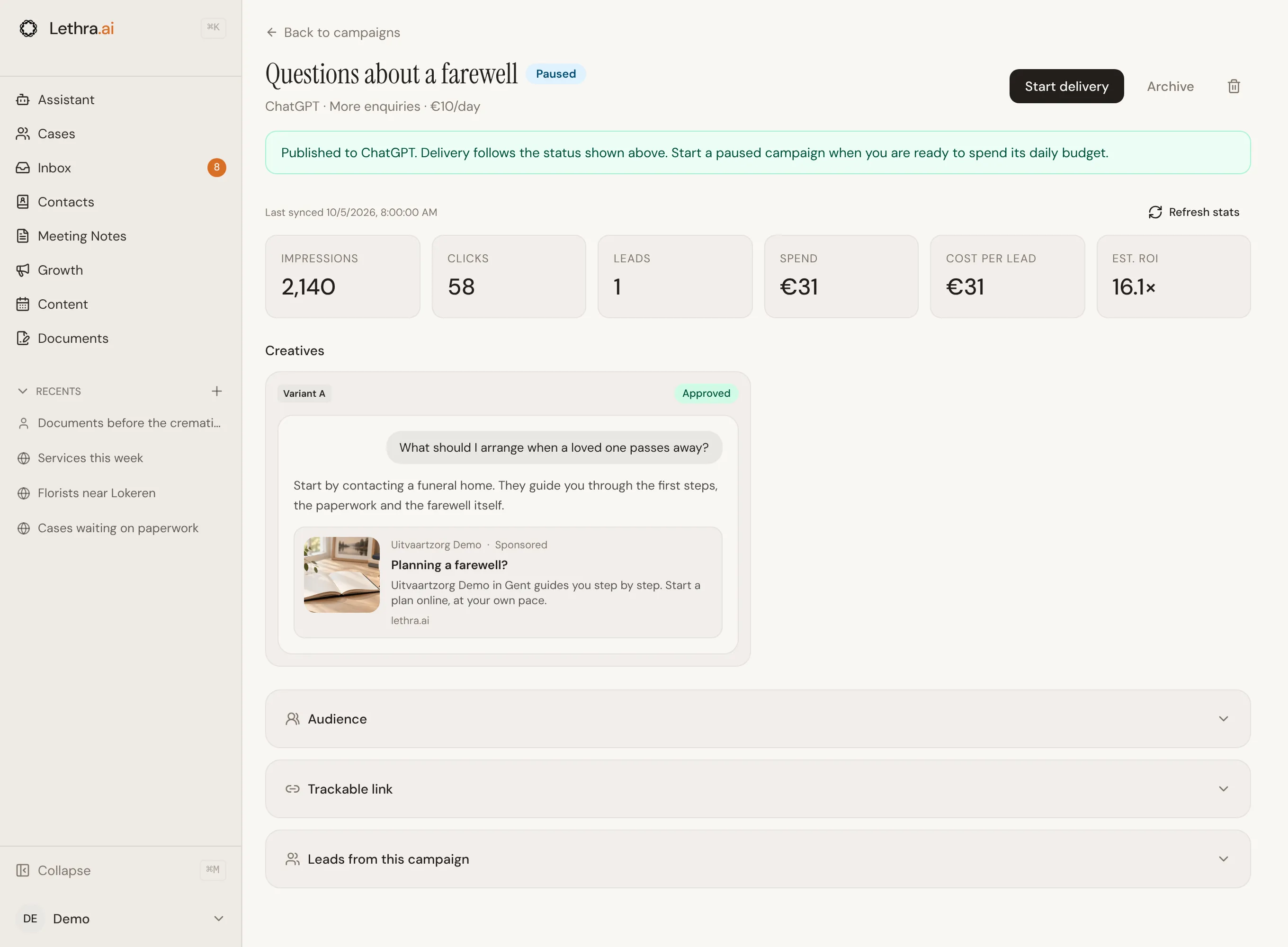
- ChatGPT shows a sponsored card, with a square image, a short title and one or two lines of text, next to relevant answers in ChatGPT.
Connecting your ad accounts
Section titled “Connecting your ad accounts”Ad accounts live under Your Company, on the Connections tab. Each channel has one row with its status, and opens to show two ways to set it up and a short checklist: account linked, billing set up and measurement on.
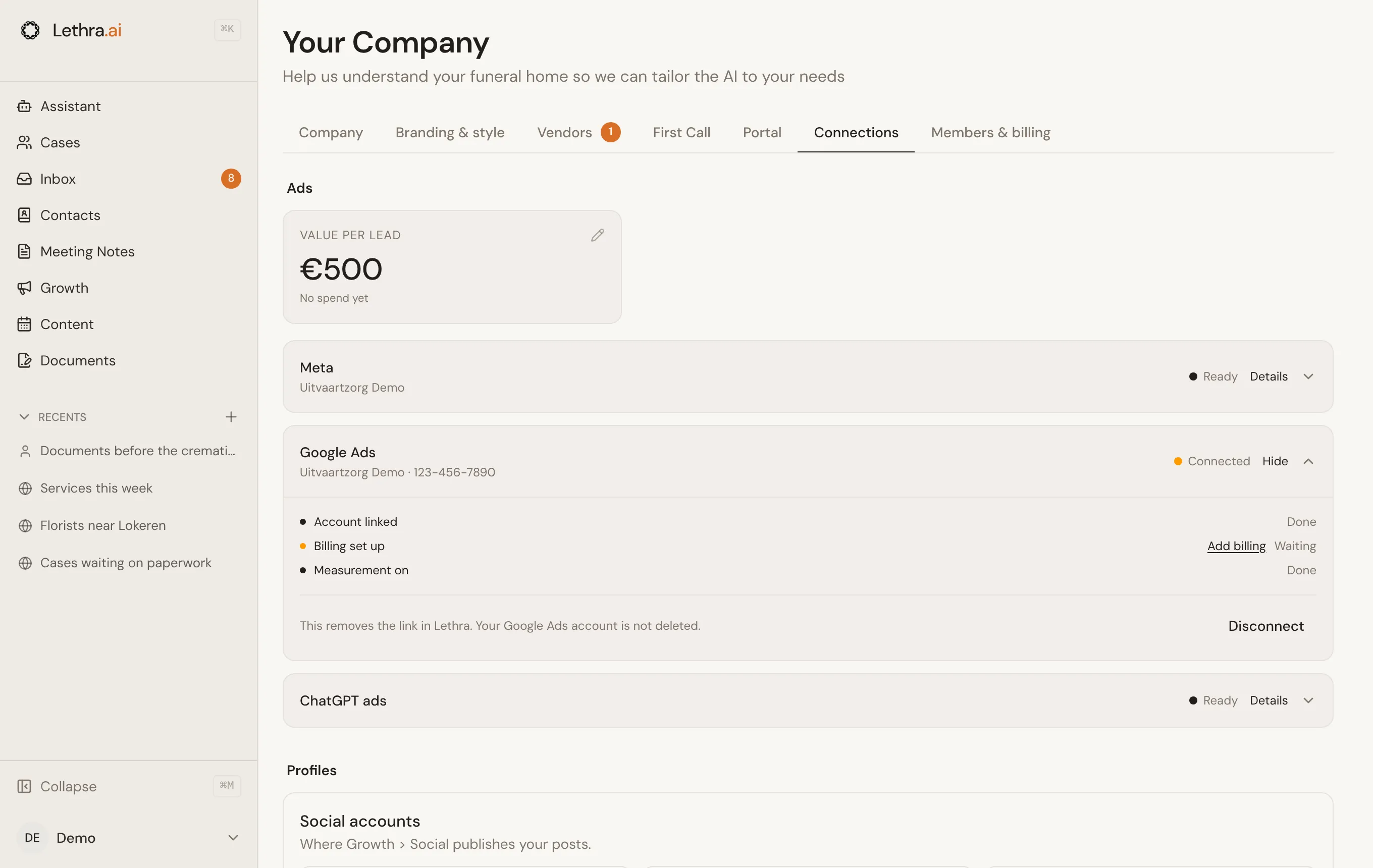
- Meta: connect the Facebook Page you already have, or click Let Lethra set it up and Lethra creates and runs your ad presence. You do not need an Instagram account either way. Lethra emails you when a new setup is ready.
- Google Ads: link the account you already use by entering its 10-digit customer ID and clicking Send invitation. Then, in Google Ads, open Admin, then Access and security, then Managers, and accept the request from Lethra. Or let Lethra create a new account for you; choose the currency first, because it cannot be changed later. Either way, you add billing yourself in Google Ads with Add billing.
- ChatGPT: runs on Lethra’s own advertiser account, so there is nothing to connect.
Measurement counts what your ads bring in on your website: enquiries in the chat, contact forms sent, and taps on a call button (a phone number link). It works on a website Lethra built for you once it is published, and on your own website once the First Call chat button is on it. Every enquiry, form and call tap is counted for its campaign in Lethra. Meta, Google and ChatGPT are only told about visitors who accept cookies, so they can show your ads to more families like them. Nothing a family types is ever sent to them.
The same tab holds your Value per lead: a rough average of what an enquiry is worth to you. Lethra uses it to estimate the return on your ad spend. You can also change it with the pencil on the Est. ROI tile in the Ads tab.
Generating a campaign
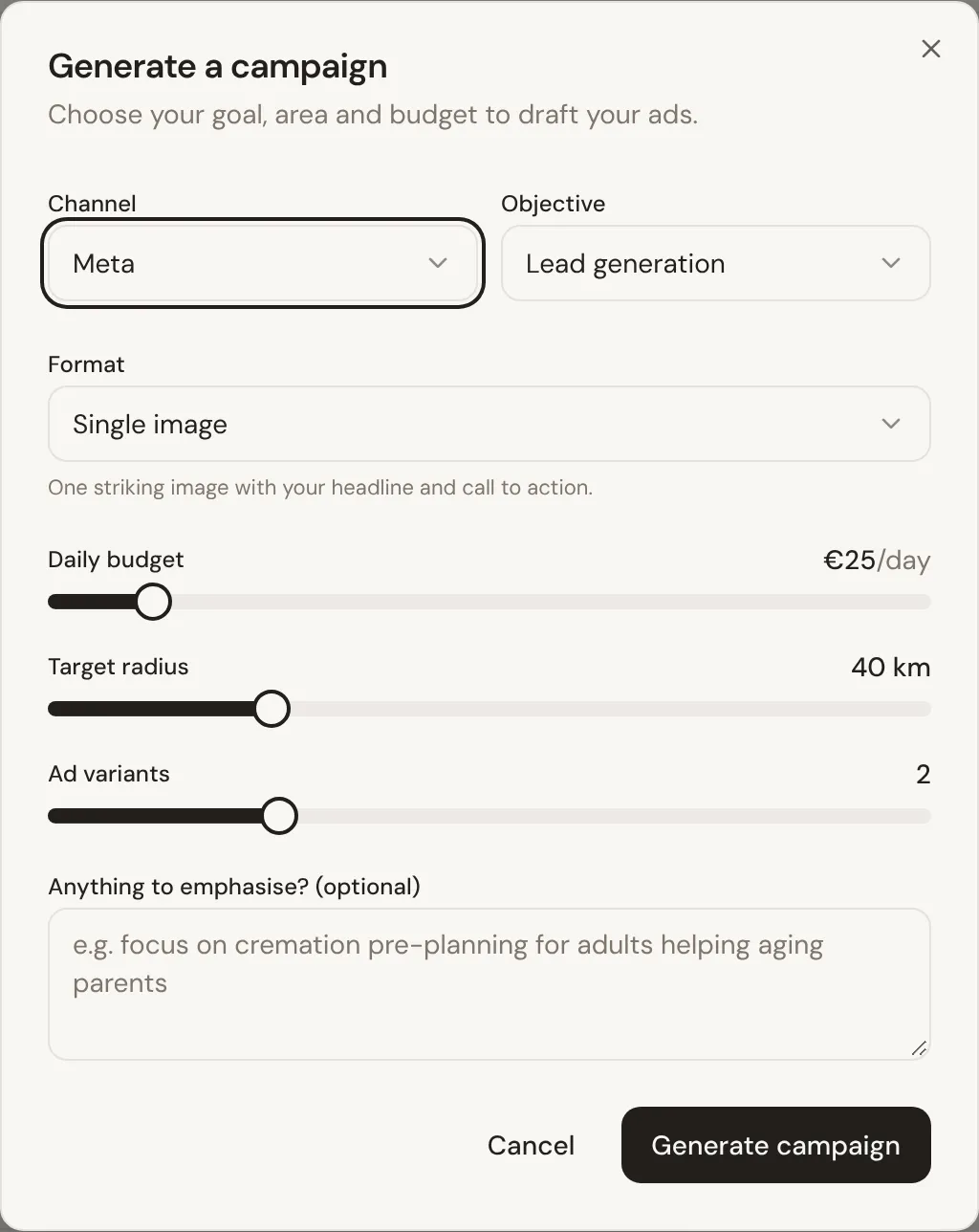
Section titled “Generating a campaign”Click New campaign and choose:
- the Channel and Objective, for example more enquiries, clicks to your website or visibility;
- for Meta, the Format: a single image or a carousel of two to five cards;
- the Daily budget and the Target radius around your address;
- for Meta and ChatGPT, how many Ad variants to compare;
- optionally, anything to emphasise, such as a service or a season.
Lethra drafts the campaign and opens it straight away: a strategy with positioning and key message, a suggested audience, and the ads themselves. For Meta and ChatGPT it also starts designing the images on its own, so they appear within a few moments.
You can also ask the assistant in plain words, for example “create a campaign for pre-planning aimed at families within 30 km”.
The assistant can also work on existing campaigns. It can rewrite ad text, make or refine an image, edit the headlines and keywords of a Google Search ad, and fetch the latest results. If you ask, it pauses a running campaign straight away, because pausing only stops spending. Anything that spends money waits for you: to start delivery or change a published campaign’s daily budget, the assistant shows a button and nothing happens until you click it.
Meta and ChatGPT ads
Section titled “Meta and ChatGPT ads”Each variant shows as a card with its image, headline, text and button. Click one to open the ad designer.
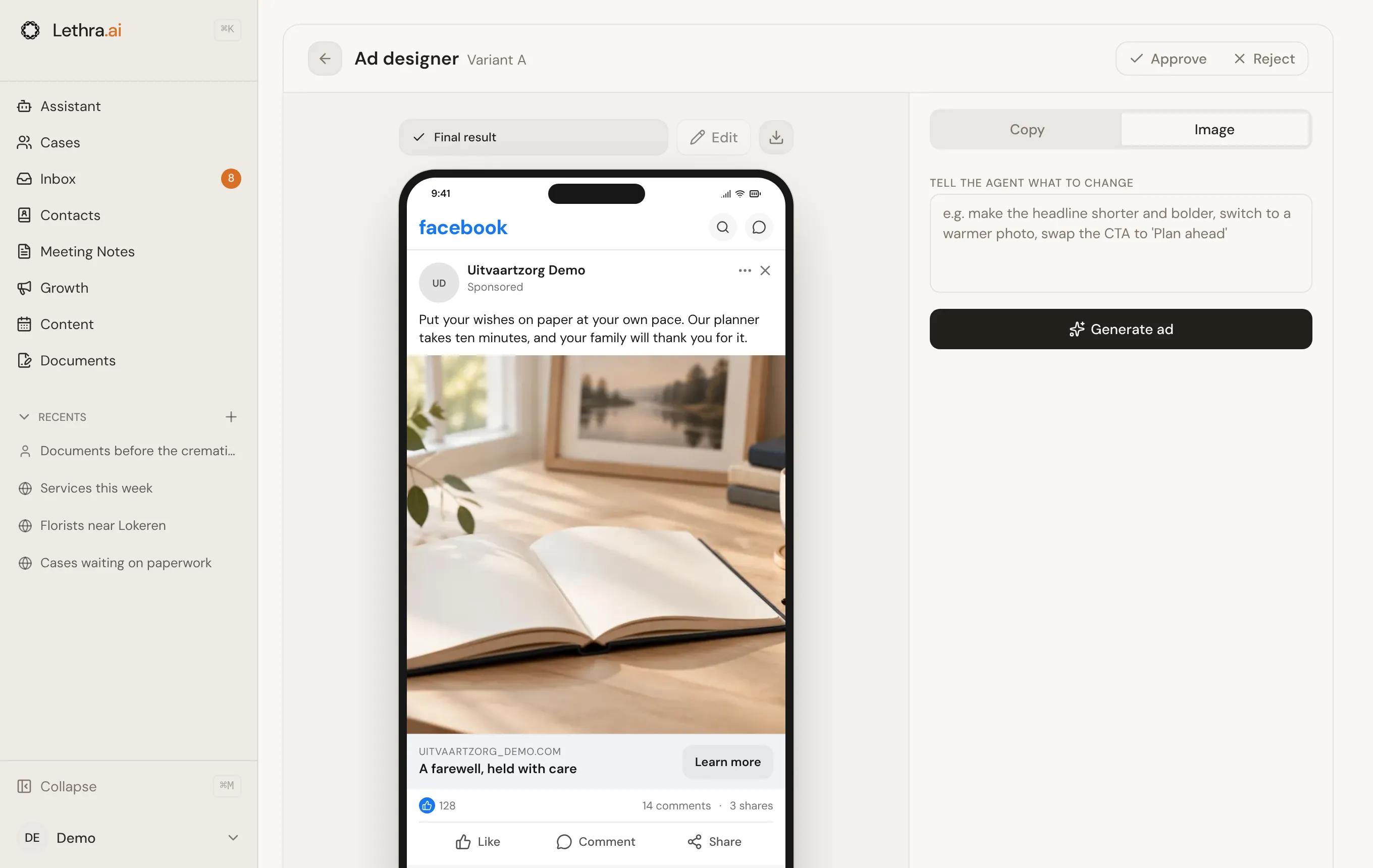
In the designer you can:
- give a brief: audience, tone, what to include and what to avoid;
- pick another layout that reuses the same photo, or ask for a new photo;
- click Edit to change the image yourself: double-click a text to rewrite it, drag the text block to the other side, drag the photo to reframe it, or switch between text on the photo and text beside it. Changes apply only to the format you are editing; untick Only this size to change every format at once. Save changes updates the images;
- ask for changes in plain words, or use a quick edit such as Tighter copy or More serene, for one format or all of them;
- edit the headline, text and button on the Copy tab, which saves straight away;
- preview the ad in each placement: Facebook feed, Instagram feed, Instagram story and landscape;
- save all formats to the campaign, or download a PNG.
Every design is built from a fixed layout in your brand colours, with your logo. Lethra looks at the photo first and places the text on its calm side, away from faces, and out of the areas that Instagram and Facebook cover with their own buttons. If the photo has no calm area, the text goes on a plain panel next to the photo instead. A badge on the card, such as Needs attention, warns you when the ad text breaks a platform limit. The designer keeps every version, so you can go back to an earlier one.
ChatGPT ads follow ChatGPT’s own limits: a title of up to 50 characters and text of up to 100. The card preview shows how the ad looks inside a ChatGPT conversation, and warns you if the text is too long.
Google Search ads
Section titled “Google Search ads”A Google Search campaign has one text ad. Google combines its headlines and descriptions into the ad people see, so you write several of each. The campaign also has keywords, which decide which searches show your ad, and excluded searches, such as “jobs”, for searches you never want to appear for.
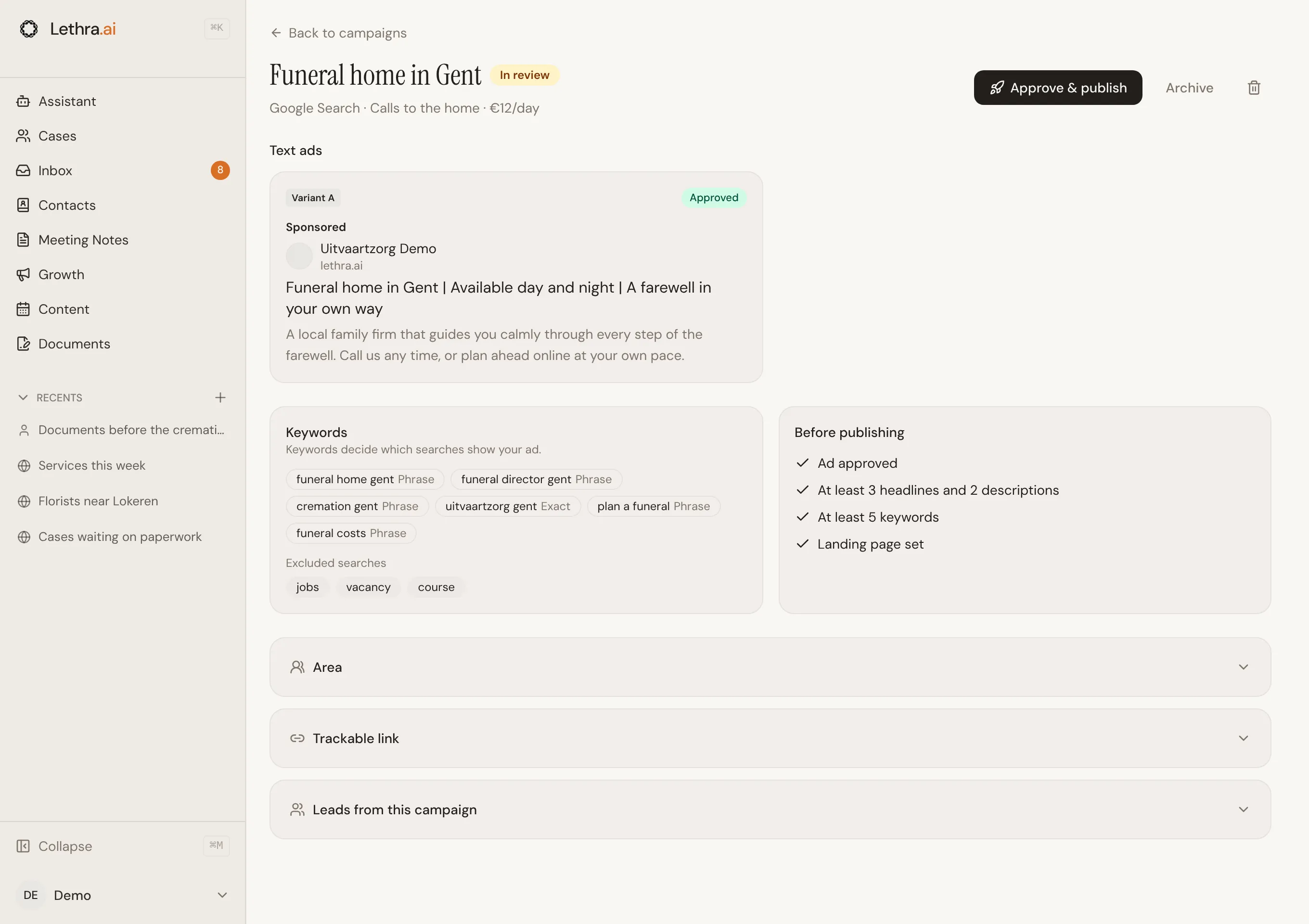
Click the ad to edit it. Lethra checks Google’s limits as you type, such as 30 characters for a headline and 90 for a description. The Before publishing checklist shows what is still missing: an approved ad, at least 3 headlines and 2 descriptions, at least 5 keywords and a landing page.
Google charges per click, and your daily budget is an average, not a hard cap on a single day.
The campaign lifecycle
Section titled “The campaign lifecycle”A campaign moves through a small number of states:
- Draft: generated but not yet published. You can change anything.
- In review: you sent it to review to look at it more closely. You can still change anything.
- Publishing…: Lethra is sending it to the platform.
- Paused: published, but not spending. Every campaign starts here.
- Live: running and spending its daily budget.
- Completed or Archived: finished campaigns, kept for their history and results but out of your active list.
Archived campaigns are hidden by default. A link at the bottom of the list shows them, and Restore in a campaign’s menu brings one back.
Publishing a campaign
Section titled “Publishing a campaign”To publish a campaign, approve at least one creative (on Google Search, the text ad) with the tick on its card, then click Approve & publish. Lethra checks that the channel is set up and sends only the approved creatives.
The campaign arrives on the platform paused, so nothing is spent yet. When you are ready, click Start delivery and confirm the daily budget. From then on you can Pause it again at any time. Meta and Google review new ads before they are shown, which can take a while.
Results and leads
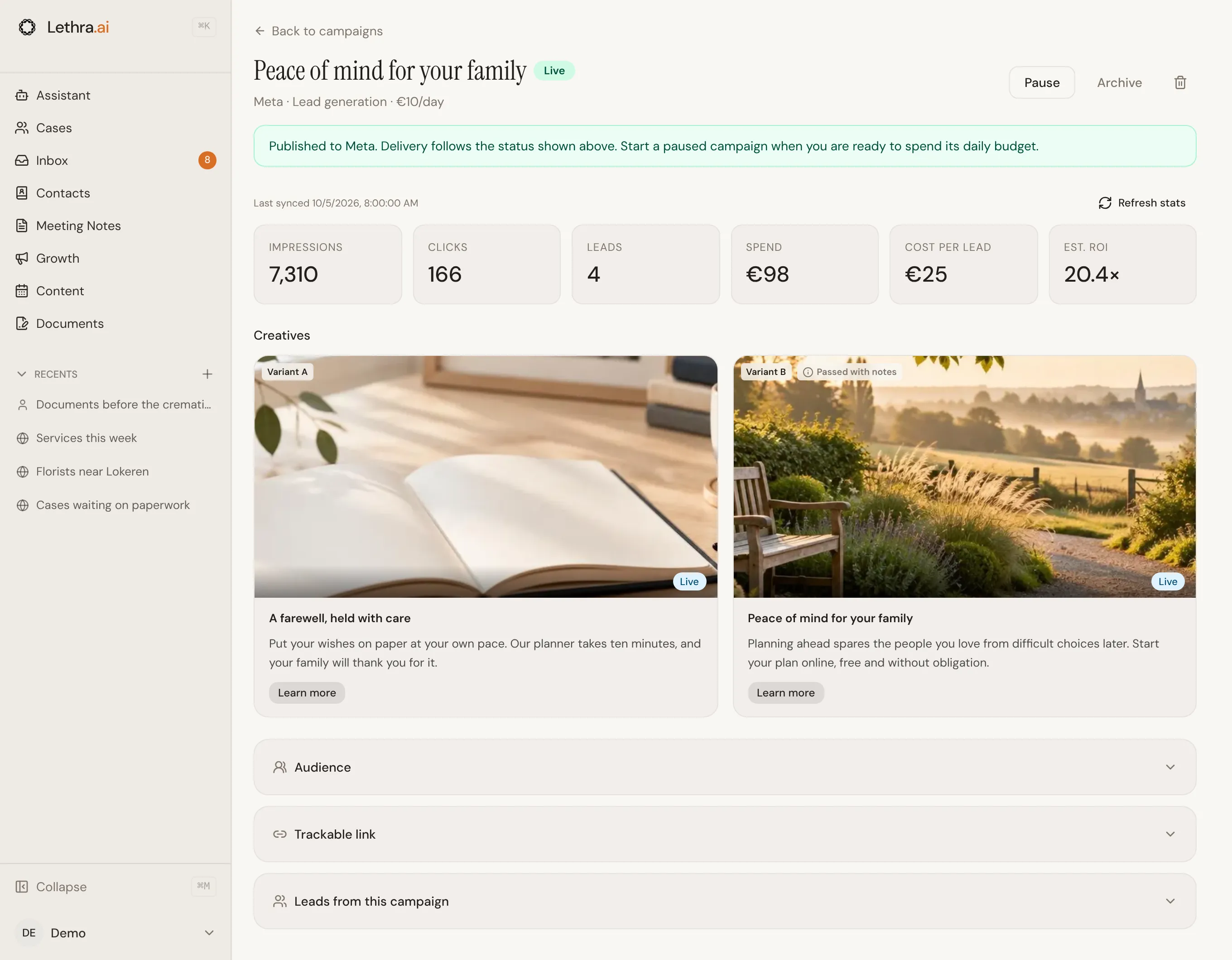
Section titled “Results and leads”A published campaign shows its impressions, clicks, leads, spend, cost per lead and estimated return. Click Refresh stats to fetch the latest numbers.
Under the creatives you find:
- Audience: the age range, area and interests the campaign targets.
- Trackable link: where people land when they click, tagged so every lead is counted for this campaign. Leave it empty to use your planner page. You can change it while the campaign is a draft or in review.
- Leads from this campaign: the families who started a plan through it. They also appear in the Leads tab.
Under the results, a short line counts the taps on a call button and the contact forms sent on your website by people who came from this campaign. It appears once there is at least one.
Alerts and new leads
Section titled “Alerts and new leads”Lethra keeps an eye on your ads so you don’t have to.
- A new lead from an ad appears in your Inbox as a call back, marked with the campaign it came from, and your team gets an email straight away. Families who reach out from an ad are best contacted the same day. The item leaves on its own when the lead becomes a case.
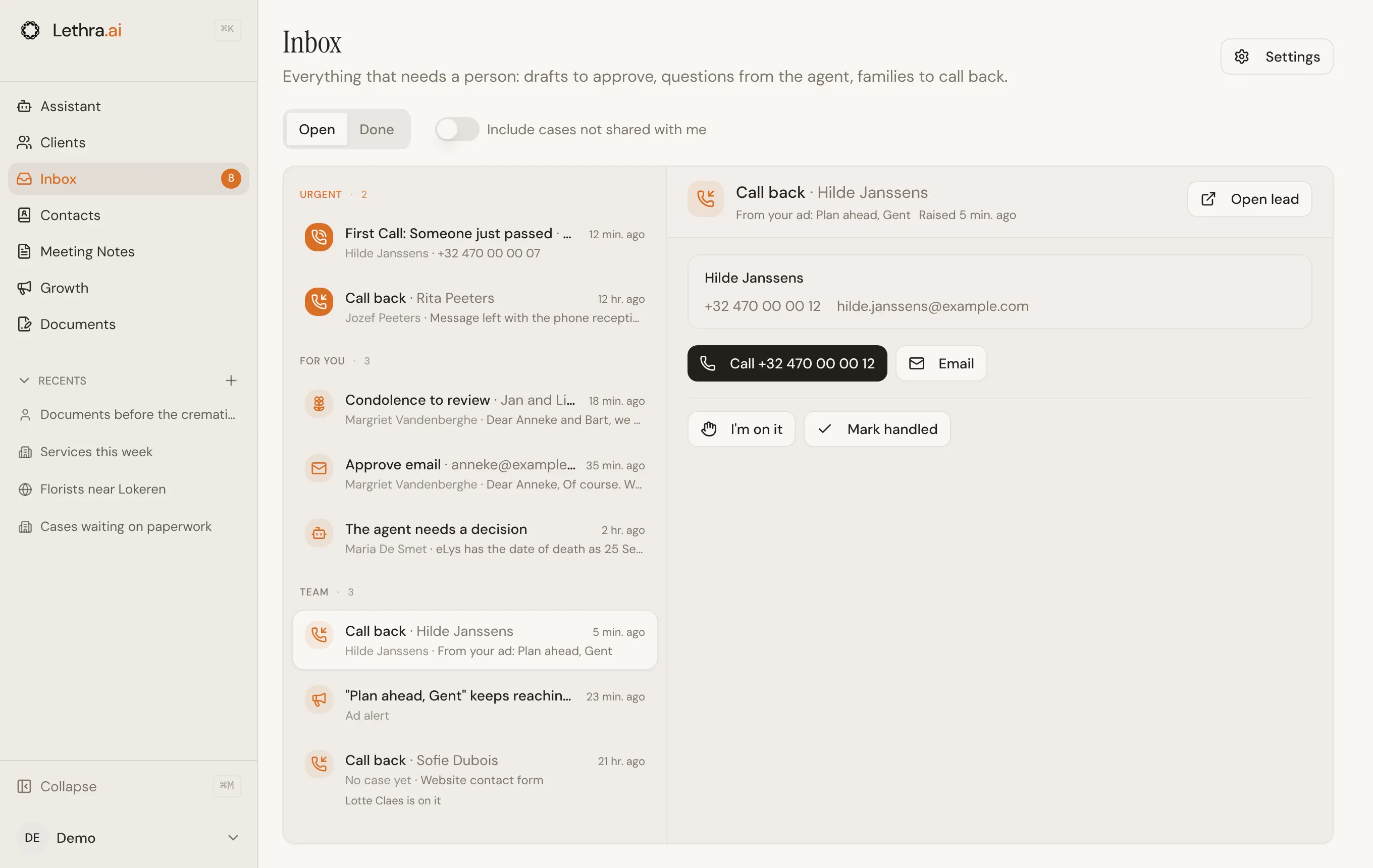
- Every morning the assistant reviews your campaigns the way an ad specialist would, and adds an ad alert to the Inbox only when something needs you: for example a publish that failed, approved ads that were never published, a campaign that spends without bringing in leads, or results that stopped updating. Most days there is nothing to raise. It adds at most three alerts a day, shows the numbers it based each one on, and never changes anything itself.
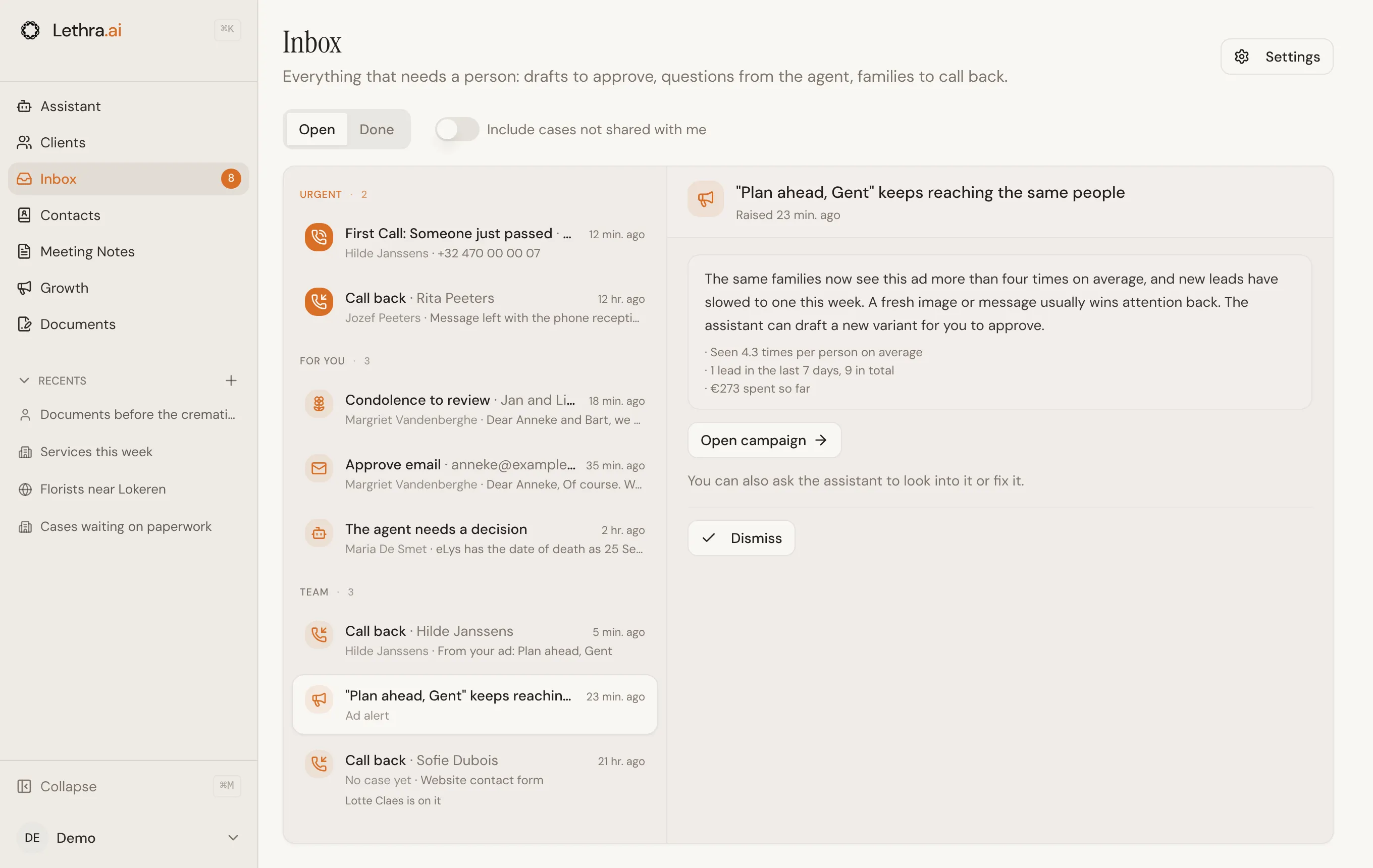
Each alert explains what to do and links to the campaign. You can also ask the assistant about it: it knows which alerts are open and can help fix them.
Keep families in touch between visits: Social media.
Was this page helpful?
Thank you. We read every reply and use it to improve the guides.