

Meeting notes
Meetings with a family carry information you cannot get any other way: what they actually want, in their own words. The Notes tab exists so that conversation does not just live in your memory.
Starting a recording
Section titled “Starting a recording”From a case’s Notes tab, or from Meeting Notes in the main sidebar, click New note. It starts capturing straight away: a live waveform and a timer show the microphone is active, and a transcript builds up in real time as people speak. Click the arrow next to the timer to show or hide it.
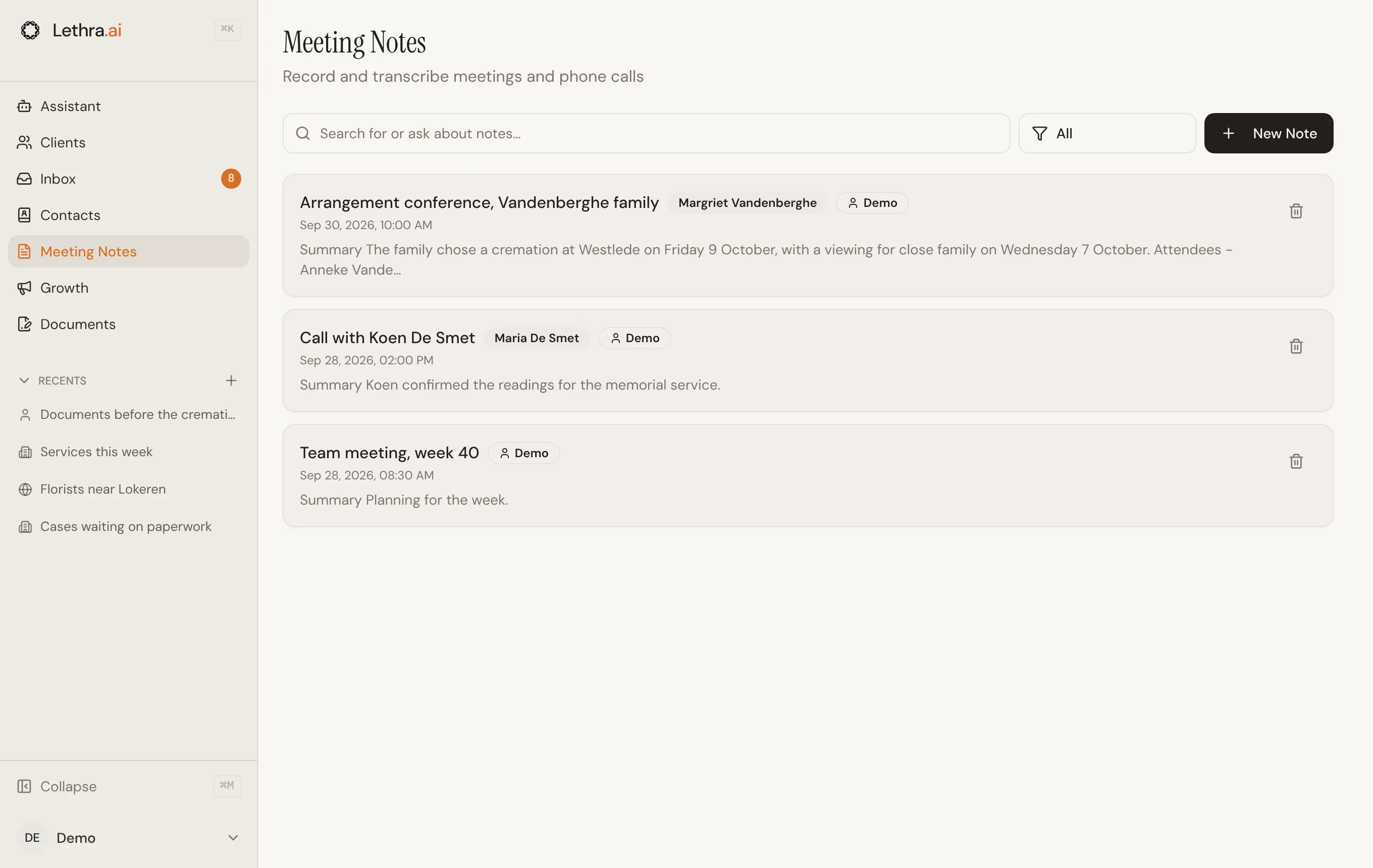
You can also start a recording pre-linked to a specific meeting or call. From a calendar event or a logged call on the Services & Tasks tab, use Transcribe & note, and the recording opens already attached to that event, with the title and attendees filled in from it.
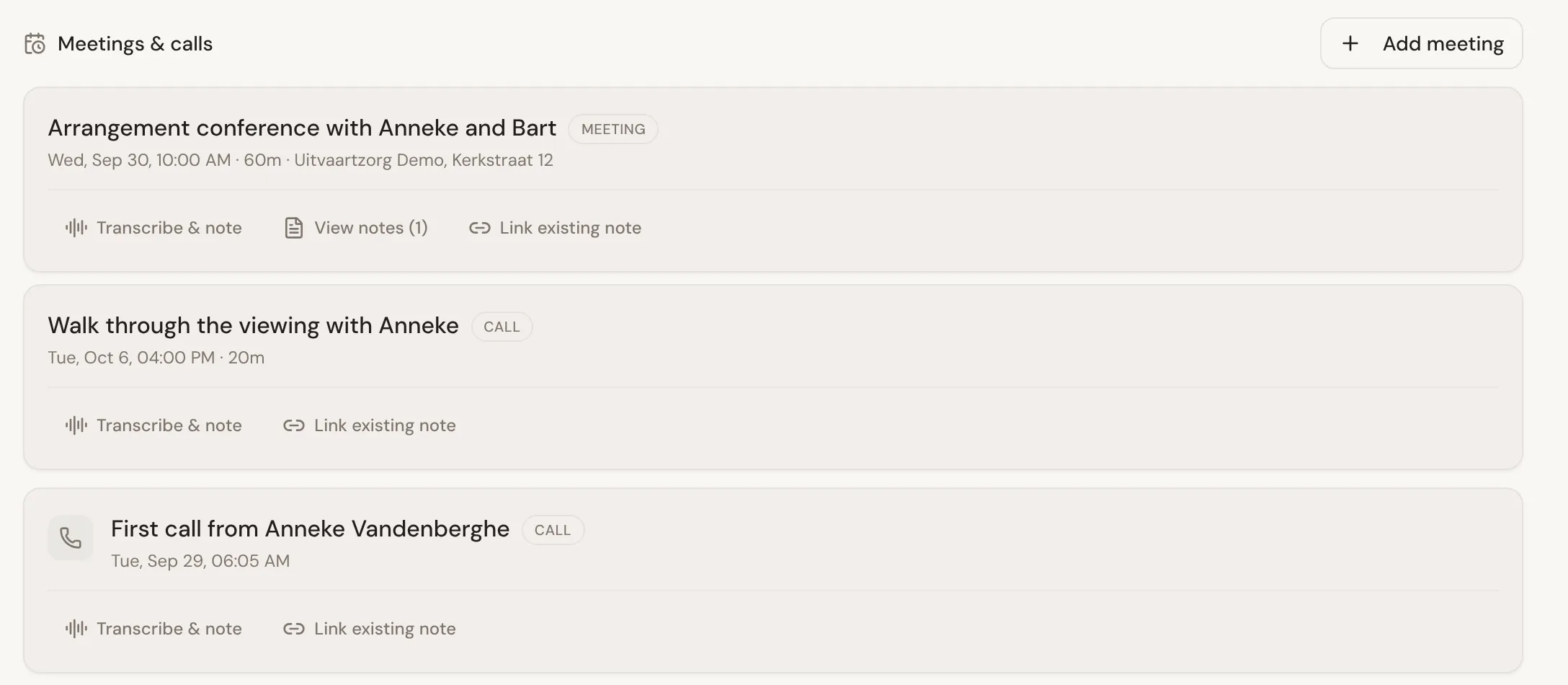
While recording, you can:
- Type alongside it. The main writing area is for anything you want to write in your own words as the conversation happens.
- Give it a title, or leave it blank and let the title be generated once you have content.
- Pick the case. From the Meeting Notes page, a case selector sits under the title. Leave it on General if the note does not belong to a case.
- Pause. Stop pauses the microphone, and Resume picks it up again.
- Stop and come back. Leaving the recorder with Back to notes saves what you have as a note rather than discarding it, unless it is entirely empty.
Diarisation and transcription
Section titled “Diarisation and transcription”The live transcript you see while recording is a first pass. When you click Generate notes, Lethra runs the recorded audio through a second, more careful transcription that separates speakers, so the write-up can say “Speaker A” and “Speaker B” rather than a single run-on block of text. If that step fails for any reason, it falls back to the live transcript rather than losing the recording.
What the agent extracts
Section titled “What the agent extracts”Once there is a transcript, typed notes, or both, stop the recording and click Generate notes to have it turned into a structured note. It is written in the language you use Lethra in and always follows the same shape:
- Summary, a few sentences of what the meeting was about.
- Attendees, who was there.
- Key Decisions, what was actually agreed.
- Action Items, what needs doing next, and by whom if that was said.
- Next Steps, and Other Notes for anything left over.
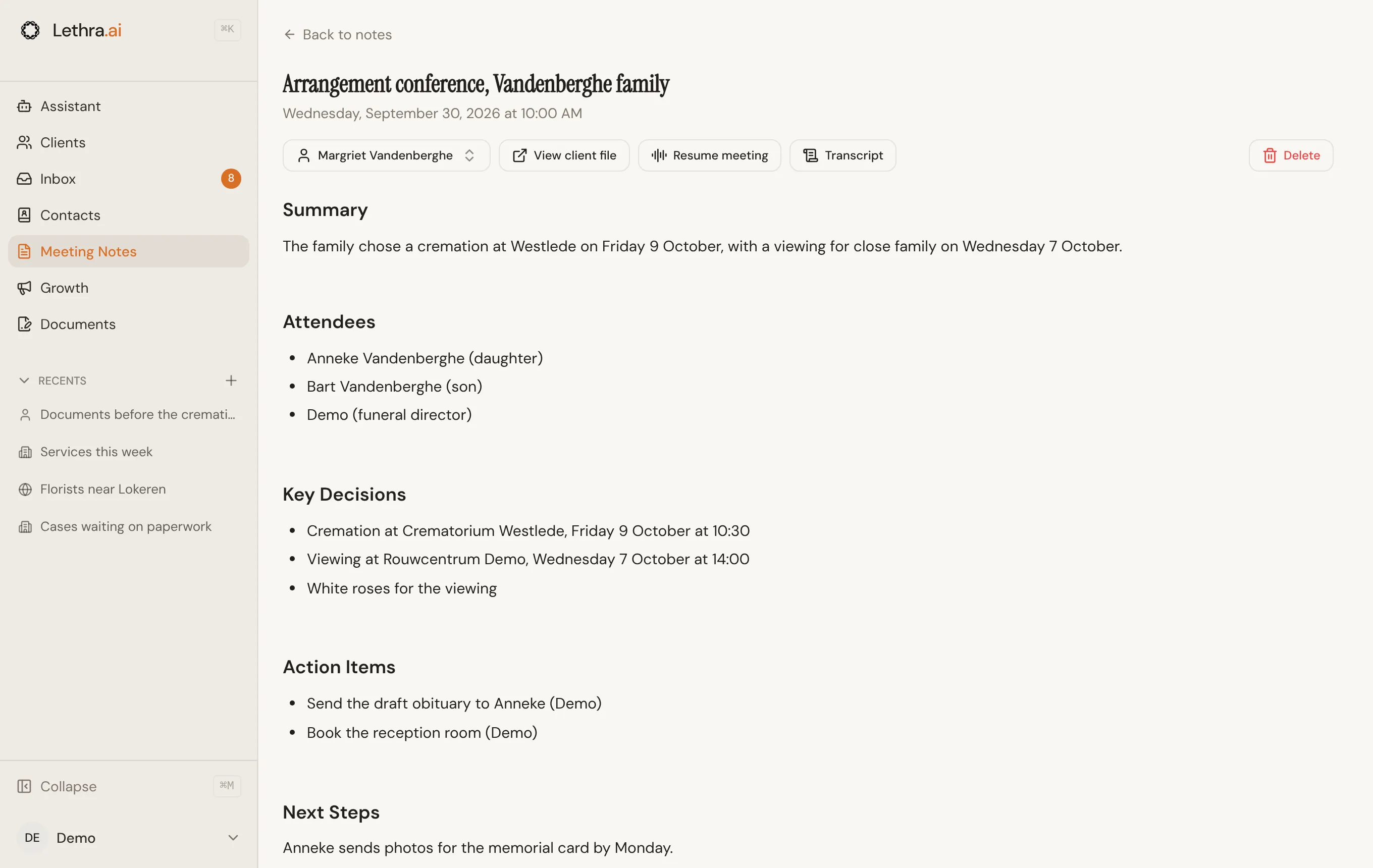
This structured note becomes the note’s main content. The raw transcript and your typed notes are kept alongside it, so you can always go back to what was actually said if the summary leaves something out.
If the note belongs to a case, the structured note is also shared with that case’s agent, so it can pick up the follow-ups. Lethra confirms this with a “Shared with agent” message.
Resuming an existing recording
Section titled “Resuming an existing recording”Open any note and choose Resume meeting to pick the conversation back up: the microphone starts again, the previous transcript is kept, and new audio is appended to it rather than replacing it. This is the way to handle a meeting that pauses and picks up later, or a follow-up call about the same subject, without ending up with two disconnected notes.
The notes editor
Section titled “The notes editor”Every note opens in an editor where the body text can be edited directly like any other document. It saves as you type. The buttons above it show Transcript and Original notes (your typed notes) underneath, so you can check them against the summary. A note that has not been organized yet offers Organize notes instead. Delete removes the note outright. On a phone, these actions sit in the menu at the top right.
A note can be attached to a case at any time, whether it started there or was created from the general Meeting Notes page: use the case selector on the note, and View case to jump to the case. Once attached, it appears alongside that case’s other notes, and can be linked back to the calendar event or call it came from.
The Meeting Notes page shows only your own notes at first. Use the filter next to the search bar to see your colleagues’ notes, or narrow by author or case. Typing in the search bar filters the list, and pressing Enter asks the Assistant your question across all your notes.
Where a task or a service you discuss in a meeting ends up: Cases and tasks.
Was this page helpful?
Thank you. We read every reply and use it to improve the guides.