

Scheduling
Every date attached to a case, a viewing on Thursday, a cremation on Friday, comes from the same place: the services and calendar entries on that case. This page covers how to add them and what happens once they are there.
Services
Section titled “Services”A service is a thing that happens at a time and a place: Burial, Cremation, Direct Cremation, Memorial Service, Graveside Service, Viewing, Celebration of Life, or Other. Your firm can change this list under Your Company, in Workflow & Types. A case often has more than one, and each is added from the Services & Tasks tab with its own date, time, and duration.
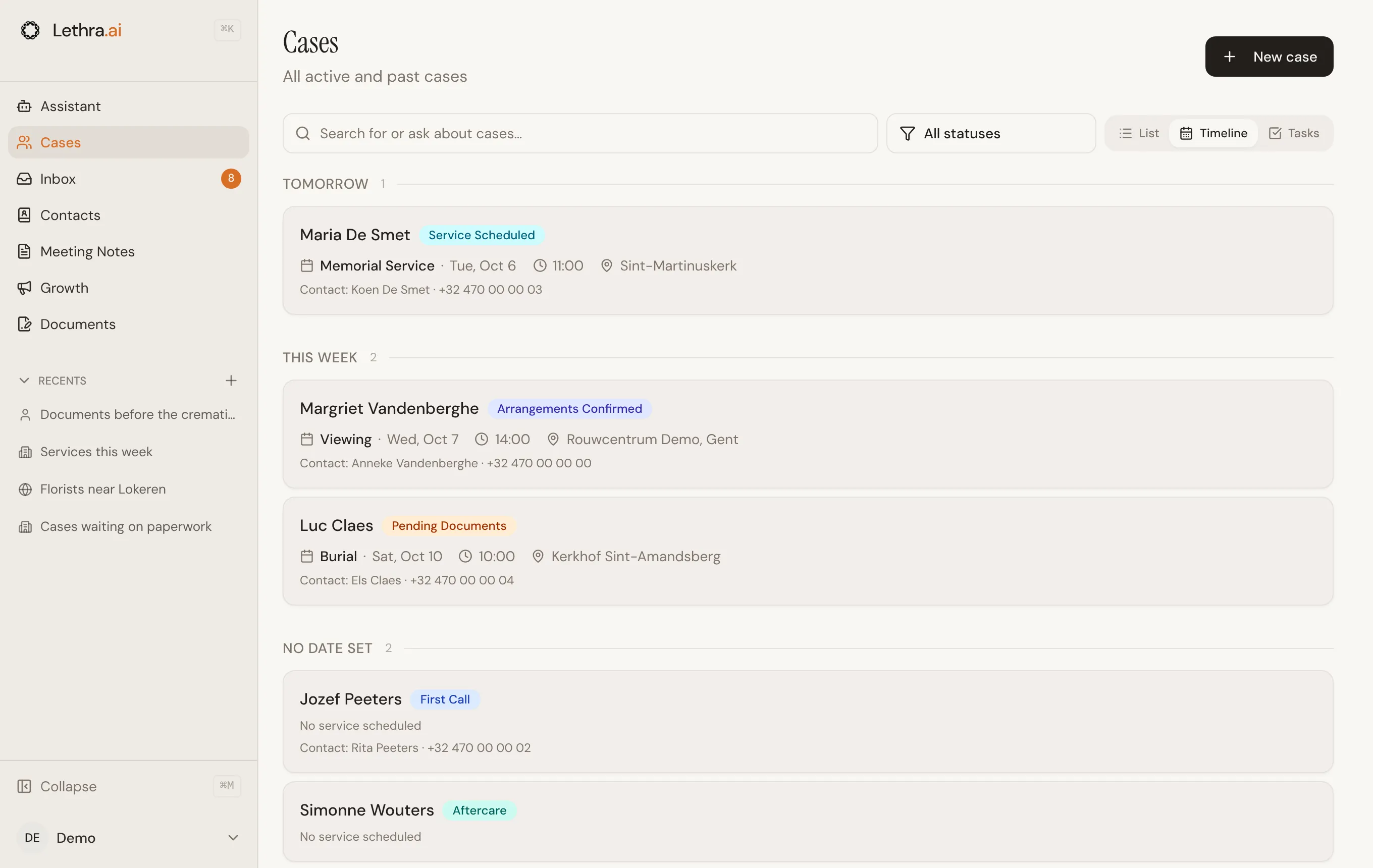
To see what is coming up across every case, switch the Cases page to Timeline. It lists the next service of each case by day.
Add the location, officiant, cemetery and plot, casket or urn, and any special requests as you learn them. Everything is collapsed behind a Show details toggle so the card stays readable when there is a lot on it, and everything is editable later by opening the same form again.

Each service card also has a Guest registration switch. Turn it on to open registration for that service. The card shows how many responses have come in.
Arranged services
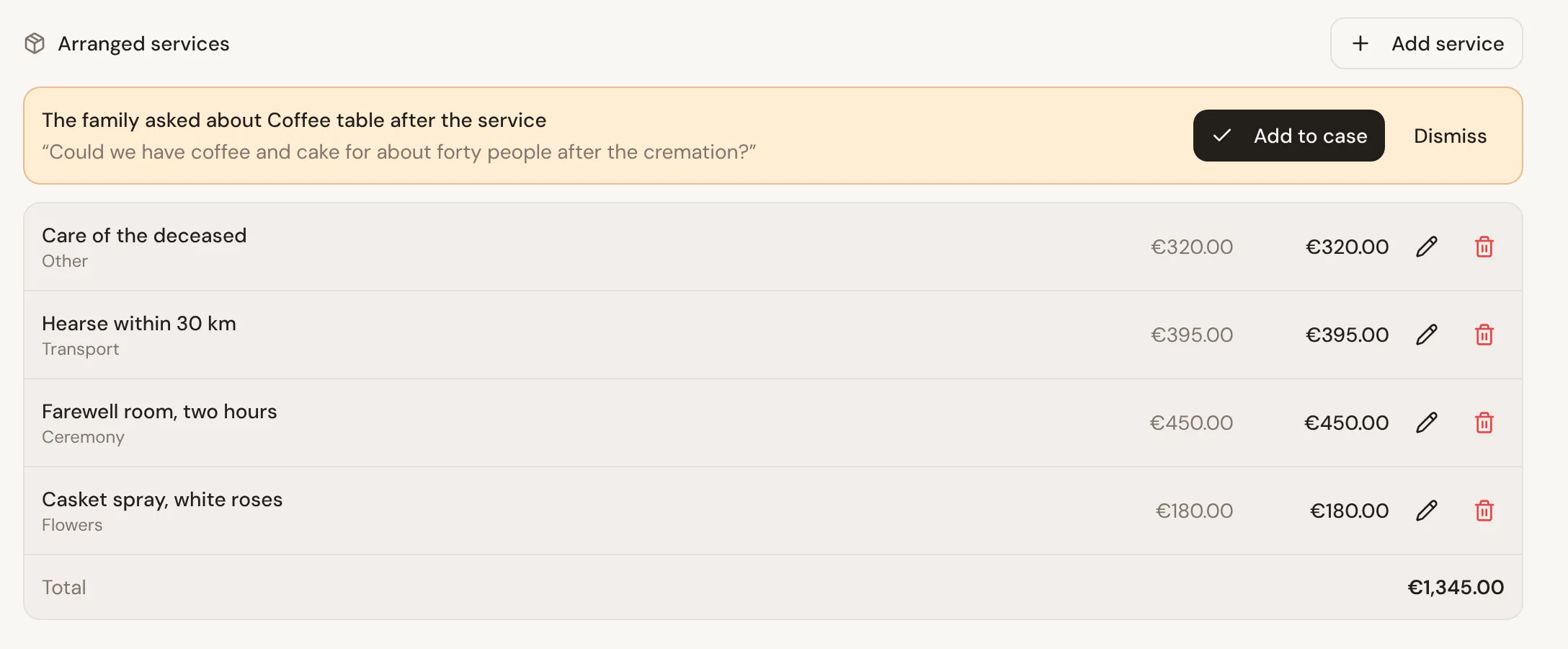
Section titled “Arranged services”At the top of the Services & Tasks tab, Arranged services lists what has been arranged for the case from your firm’s service catalogue, with quantity, price and a total. Use its Add service button to pick an item from the catalogue, or add a custom line with your own description and price.
When a family asks about a service from their portal, the request appears here as well. Choose Add to case to arrange it, or Dismiss. Families see what is arranged in their portal, but never the prices.
Internal calendar events
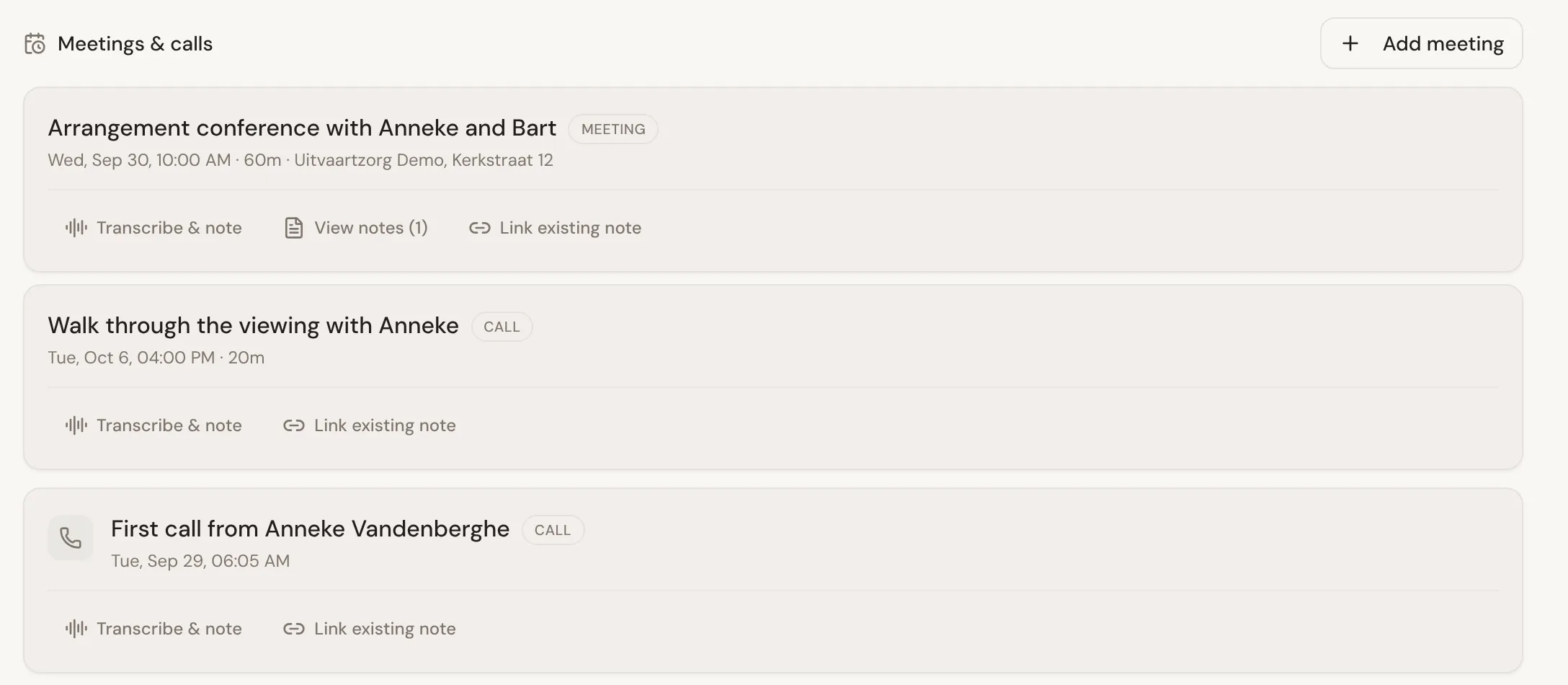
Section titled “Internal calendar events”Alongside services, a case can also hold calendar events for your own team: internal meetings, calls, or anything else worth putting a time on that is not itself part of the funeral. Each event has a title, a type (meeting, call, or other), a date, time, duration, location, and a free-text description. Calls logged on the case show up in the same Meetings & calls list.
These events are internal. They exist to help your team keep track of when something is happening on a case, not to tell the family anything, and they never appear in the family portal.
Creating and editing
Section titled “Creating and editing”From the Services & Tasks tab, use Add Service under Services for anything the family should see, and Add meeting under Meetings & calls for anything that is purely internal. Both open the same way: fill in the fields, save, and the entry appears as a card. Click the pencil on a card to edit it, or the trash icon to remove it.
Linking a meeting to notes
Section titled “Linking a meeting to notes”A calendar event or a logged call can be linked to meeting notes directly from its card. If you are about to sit down with a family, or you have just gotten off the phone, use Transcribe & note to start a recording pre-linked to that event, or Link existing note to attach one you already wrote. Once a note is linked, View notes opens it. See Meeting notes for how the recording itself works.
What the family sees
Section titled “What the family sees”In the family portal, the Overview tab has a Schedule section that lists the services on the case, with their date, time and location. Families can add any dated service to their own calendar with Add to calendar, which downloads a standard calendar file rather than requiring an account with any particular calendar provider.
Above it, under “Here’s where things stand”, the portal shows the earliest upcoming service, so a family checking in does not have to hunt through a full schedule to find the thing they actually came to check. Before any date is set, it tells them the funeral home will share the date soon.
Recording and organizing what a family tells you: Meeting notes.
Was this page helpful?
Thank you. We read every reply and use it to improve the guides.