

Social media
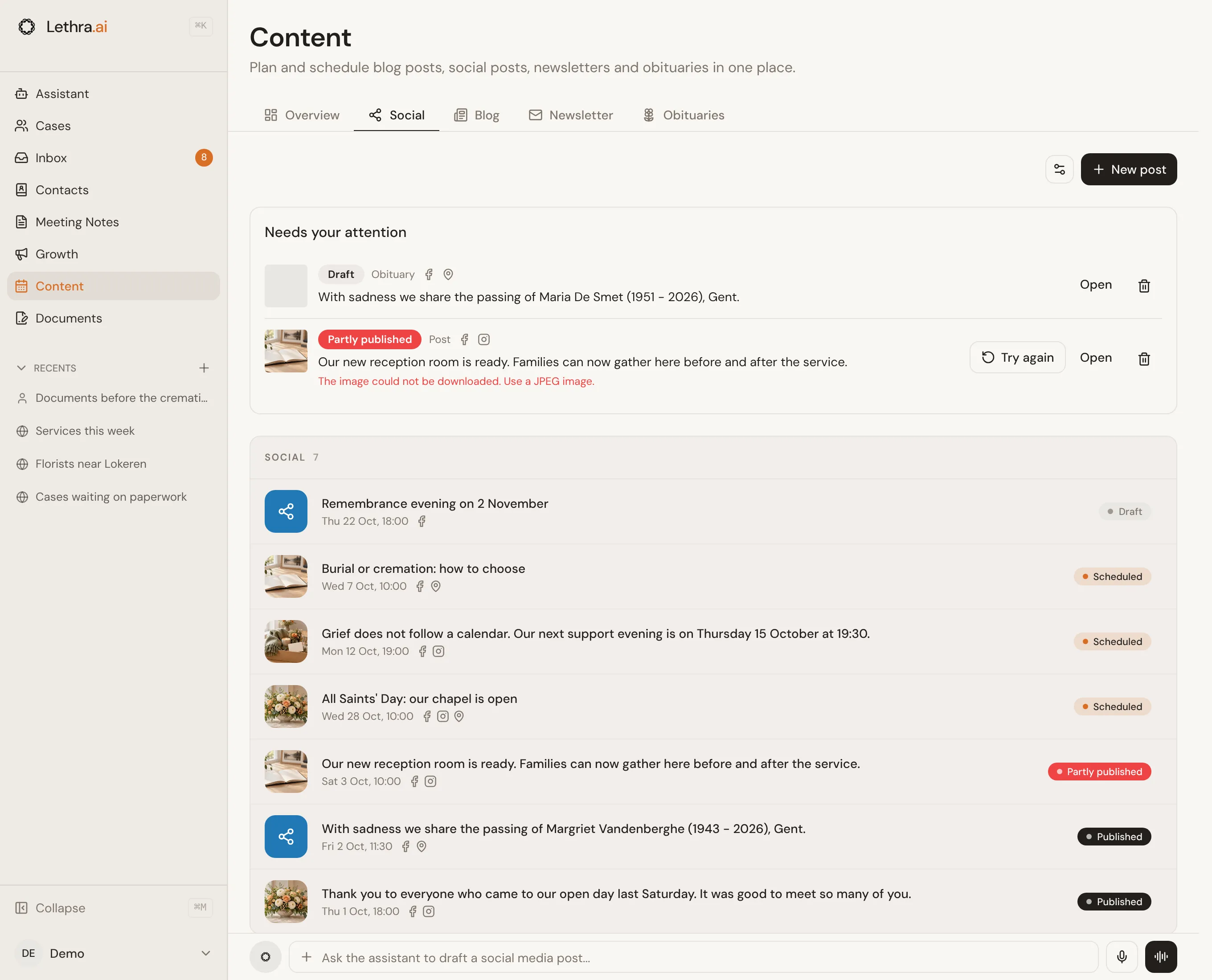
The Social tab in Content is where you post to your funeral home’s Facebook Page, its Instagram account and its Google listing, all from one place. Write a post once, choose where it goes, and publish it now or plan it for later. New obituaries and blog articles can be shared for you.
Connecting your accounts
Section titled “Connecting your accounts”Your accounts are connected in Company settings > Connections, under Social accounts. As long as a network is not connected, the Social tab shows a banner with an Open Connections button that takes you there.
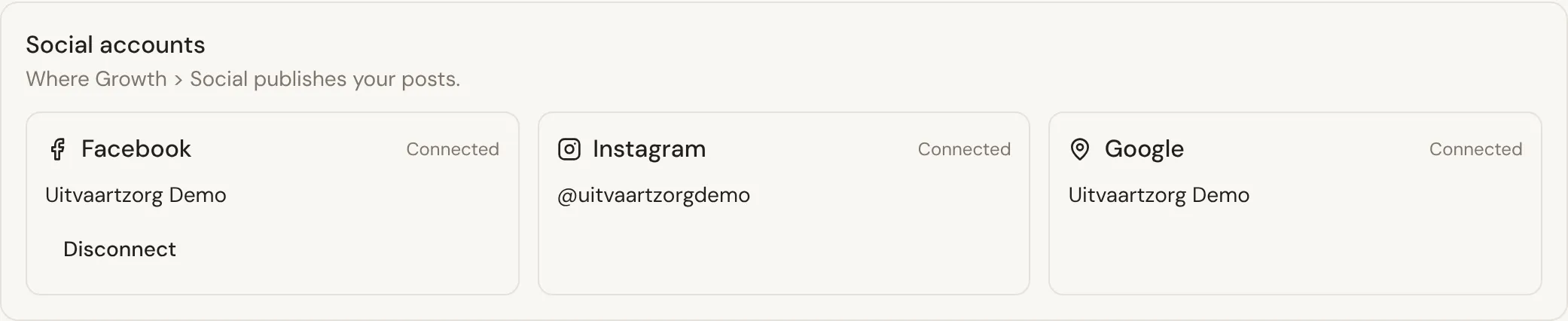
- Facebook and Instagram: click Connect Facebook and Instagram and sign in with a Facebook account that is an admin of your funeral home’s Page. Allow every permission Facebook asks for: Lethra needs them to publish on your Page. Instagram is connected at the same time when an Instagram professional account is linked to that Page.
- Google: posts go to the Google listing linked on the same page, under Profiles.
If you manage more than one Facebook Page, choose the right one in the Page list on the Facebook card. Disconnect removes Lethra’s access; your Page and its posts stay as they are.
Writing a post
Section titled “Writing a post”Click New post at the top of the Social tab.
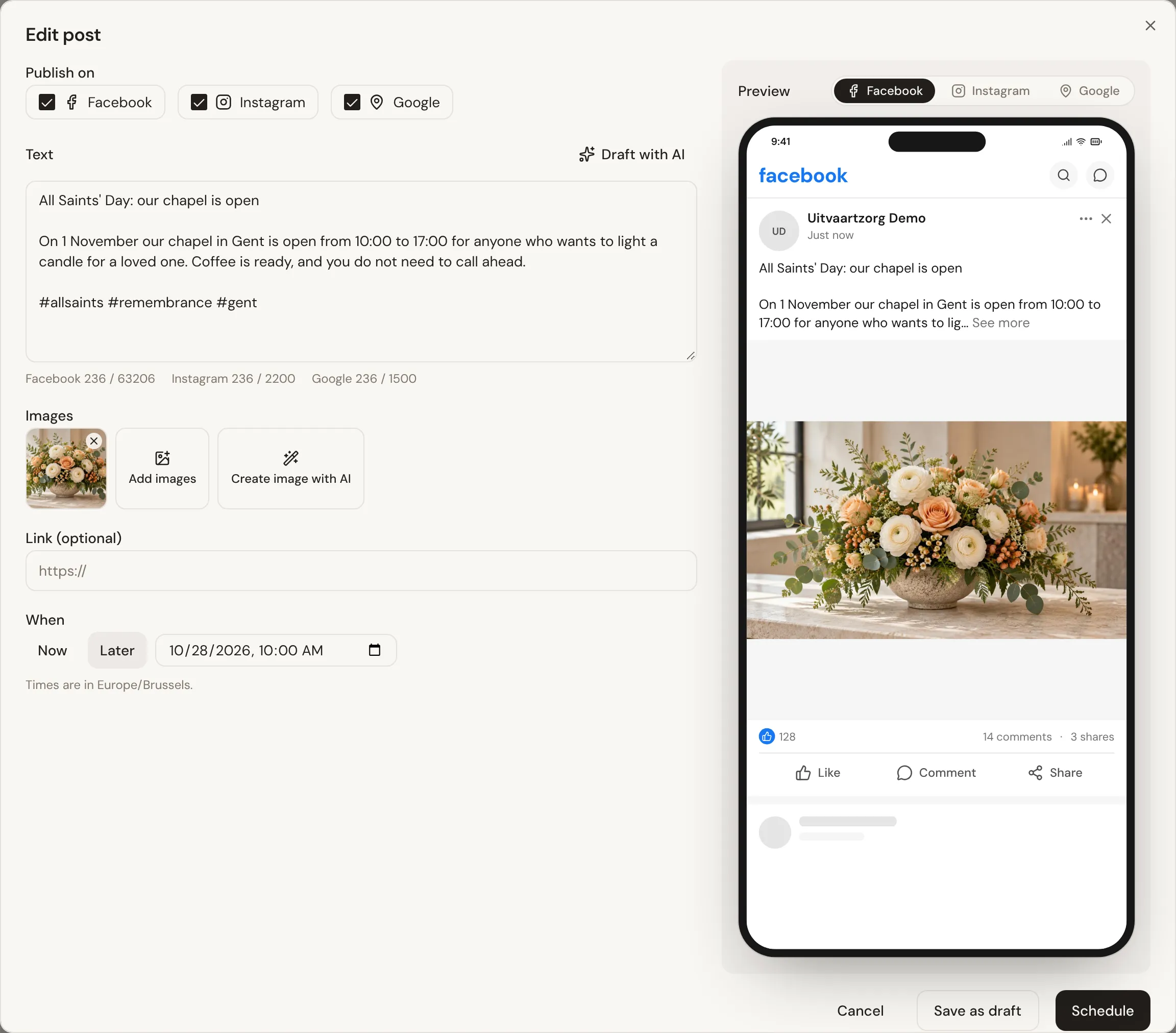
- Under Publish on, tick the networks the post is for.
- Write the text. Under it you see how many characters each network allows. Not sure what to write? Click Draft with AI, describe what the post is about, and Lethra writes a draft in your company’s language. If you already wrote something, it improves your text instead.
- Add images if you like. Instagram needs at least one image; Google shows only the first one. No suitable photo at hand? Click Create image with AI: Lethra makes a branded square image in your company’s style, with a short headline and your logo, based on the post’s text. It takes a minute or two and appears with the other images; click it again for a new version.
- Add a link if the post points somewhere, such as an obituary or an article on your website. Instagram links are not clickable, so Lethra adds the link to the text there.
- Under When, choose Now, or Later and pick a date and time. Times are in your company’s time zone.
On the right, the Preview shows what the post looks like. Switch between networks with the icons above it.
Click Publish now or Schedule. Save as draft keeps the post without publishing it. If something would stop a network from accepting the post, such as a missing image for Instagram, Lethra tells you before you publish.
Asking the assistant
Section titled “Asking the assistant”You can also ask the assistant, from the bar at the bottom of the tab or anywhere else in Lethra. For example: “write a post about our remembrance evening on 2 November for Facebook and Instagram”, “what is planned on social media next week?” or “move Thursday’s post to Friday at 10:00”.
The assistant can list and read your posts, write and change drafts, and delete posts that are not published. Ask it for an image and it creates a branded one for the draft, which appears on the post a minute or two later. It never publishes on its own: it shows a card with a Publish now or Schedule button, and nothing goes out until you click it. If it changes a post that was already scheduled, the post becomes a draft again and you confirm it once more. Click Open in Social on the card to see the post in the editor.
Your posts
Section titled “Your posts”Below that, the tab lists every post: drafts, planned posts and what was already published, each with its date, time, networks and status. Click a post to open it.
A published post opens read only, with a View link to it on each network. Editing or deleting it in Lethra does not change what is already on Facebook, Instagram or Google.
To see your posts in a calendar, next to your blog articles, newsletters and obituaries, open the Overview tab in Content. See Growth.
Needs your attention
Section titled “Needs your attention”Posts waiting for you are listed at the top of the tab:
- Drafts, including obituary and article shares Lethra prepared for you to check. Click Open to review and publish them.
- Posts that did not reach every network. Lethra tries a failed network again twice, a few minutes apart. If it still fails, the reason is shown in red. Fix the cause and click Try again: only the networks that failed are tried, so nothing is posted twice.
Sharing obituaries and articles automatically
Section titled “Sharing obituaries and articles automatically”Click the settings button next to New post to open Automatic sharing. Choose what happens when you publish a new obituary or blog article, then click Save.
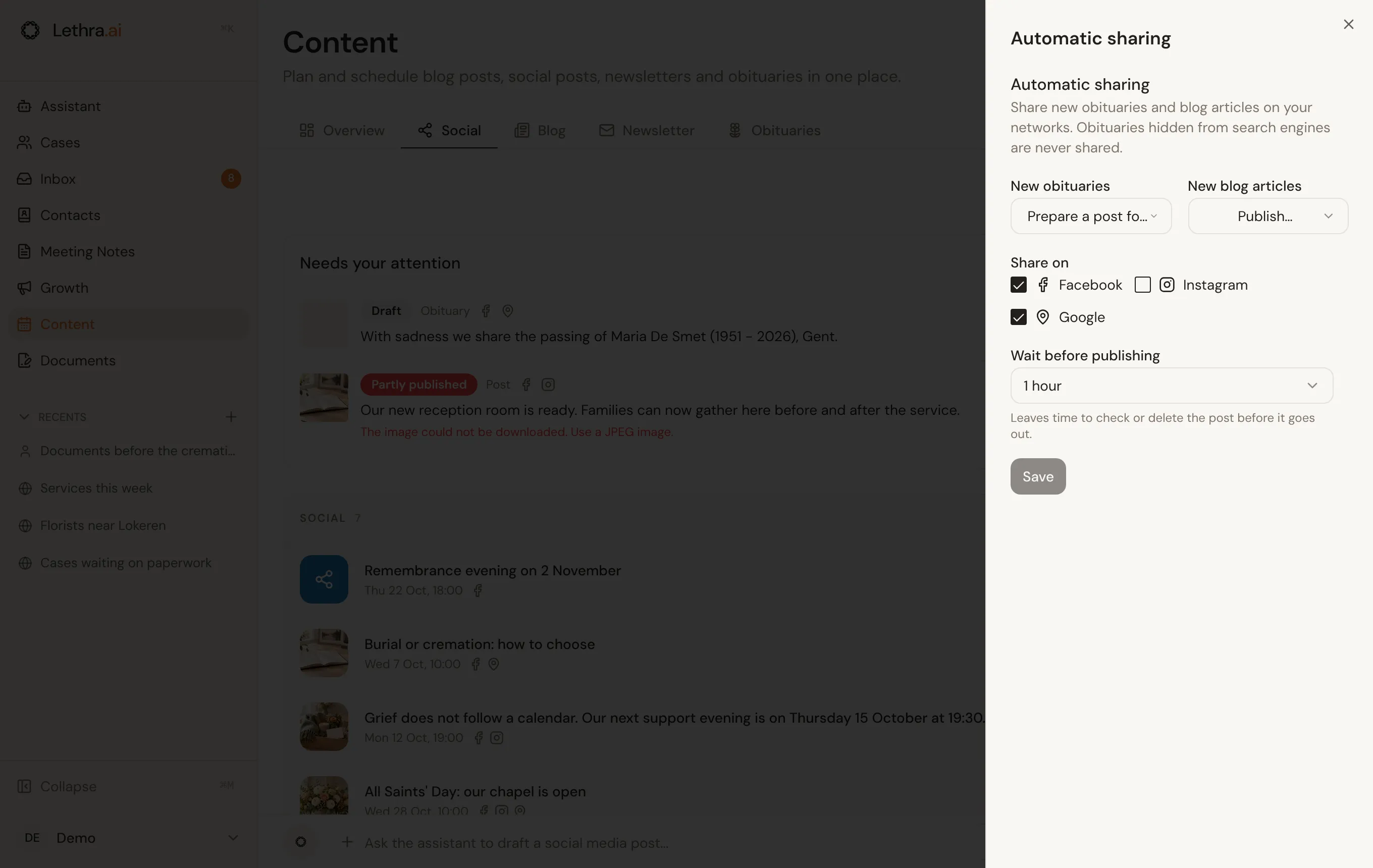
- Off: nothing is shared.
- Prepare a post for me to check: Lethra writes the post and puts it under Needs your attention. Nothing is published until you do it.
- Publish automatically: Lethra writes the post and publishes it after the time you set under Wait before publishing. Until then you can open it from the list to change or delete it.
Lethra writes these posts from the obituary or article itself: the name, years and place, the service details if you added them, and a link to the condolence register or the article on your website. The obituary photo or the article’s cover image is used as the image. Without an image, the post is not sent to Instagram.
Write articles worth sharing: Blog.
Was this page helpful?
Thank you. We read every reply and use it to improve the guides.