

Document templates
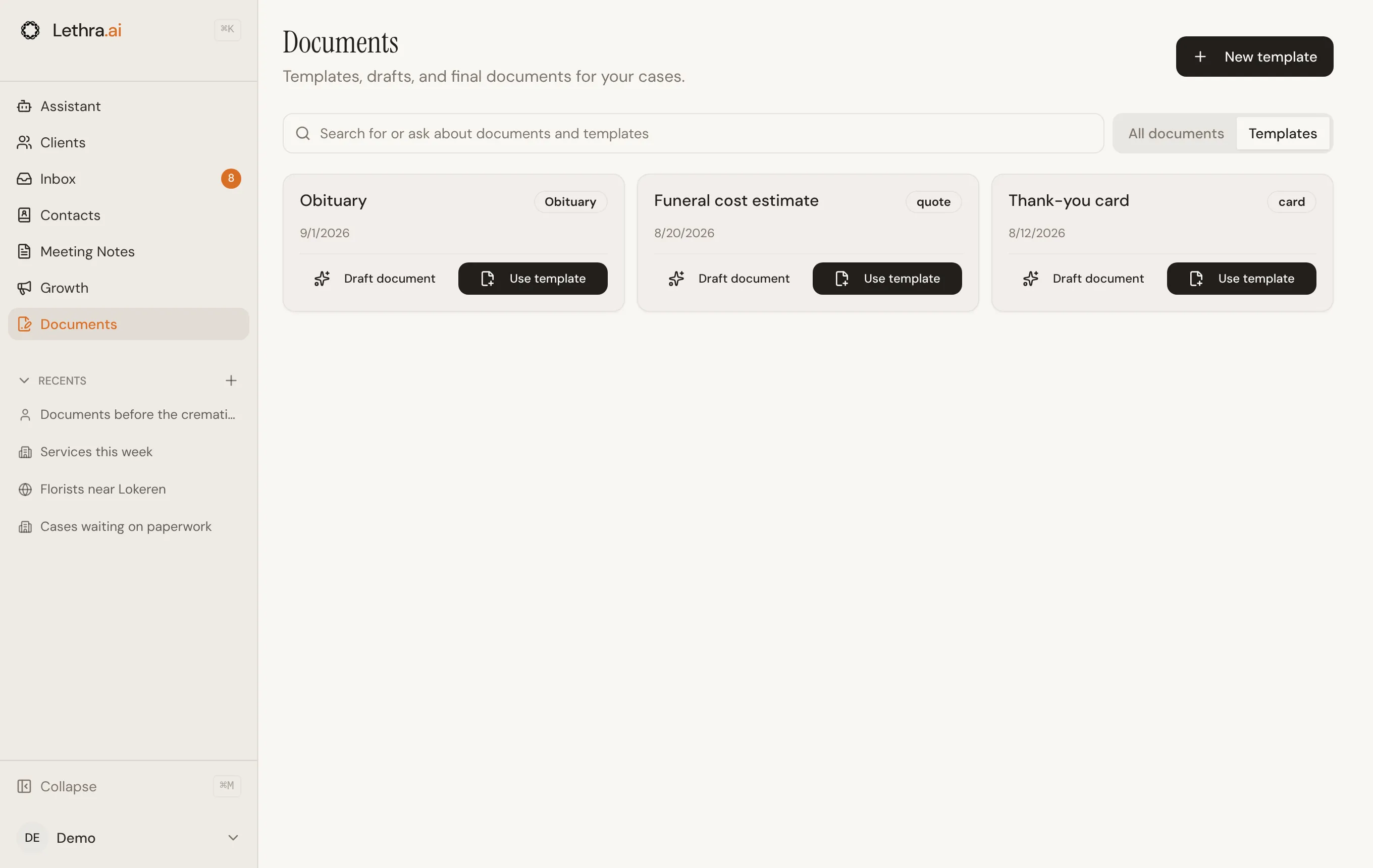
A template is a document you intend to reuse, such as a service contract or a standard letter, with placeholders for the details that change from one case to the next. Templates live under the Templates tab of the Documents page.
Creating a template
Section titled “Creating a template”Start a new template with New template on the Templates tab, or turn an existing document into one from its menu (Save as template and back again with Convert to document). Give it a name and a document type, so it groups correctly alongside your other document types on the case tab and in the create-from-template menu.
You can also import an existing .docx file as a starting point instead of
building one from scratch.
Variables
Section titled “Variables”A template can contain {{variable}} placeholders that Lethra fills in from
the case and company. The Variables panel in the document editor lists what
is available:
- Case variables, such as the deceased’s name, dates of birth and death, and the primary contact’s name, email, phone and relation.
- Company variables, such as your firm’s name, address, phone and website.
- General variables, such as today’s date and the signed-in user’s email.
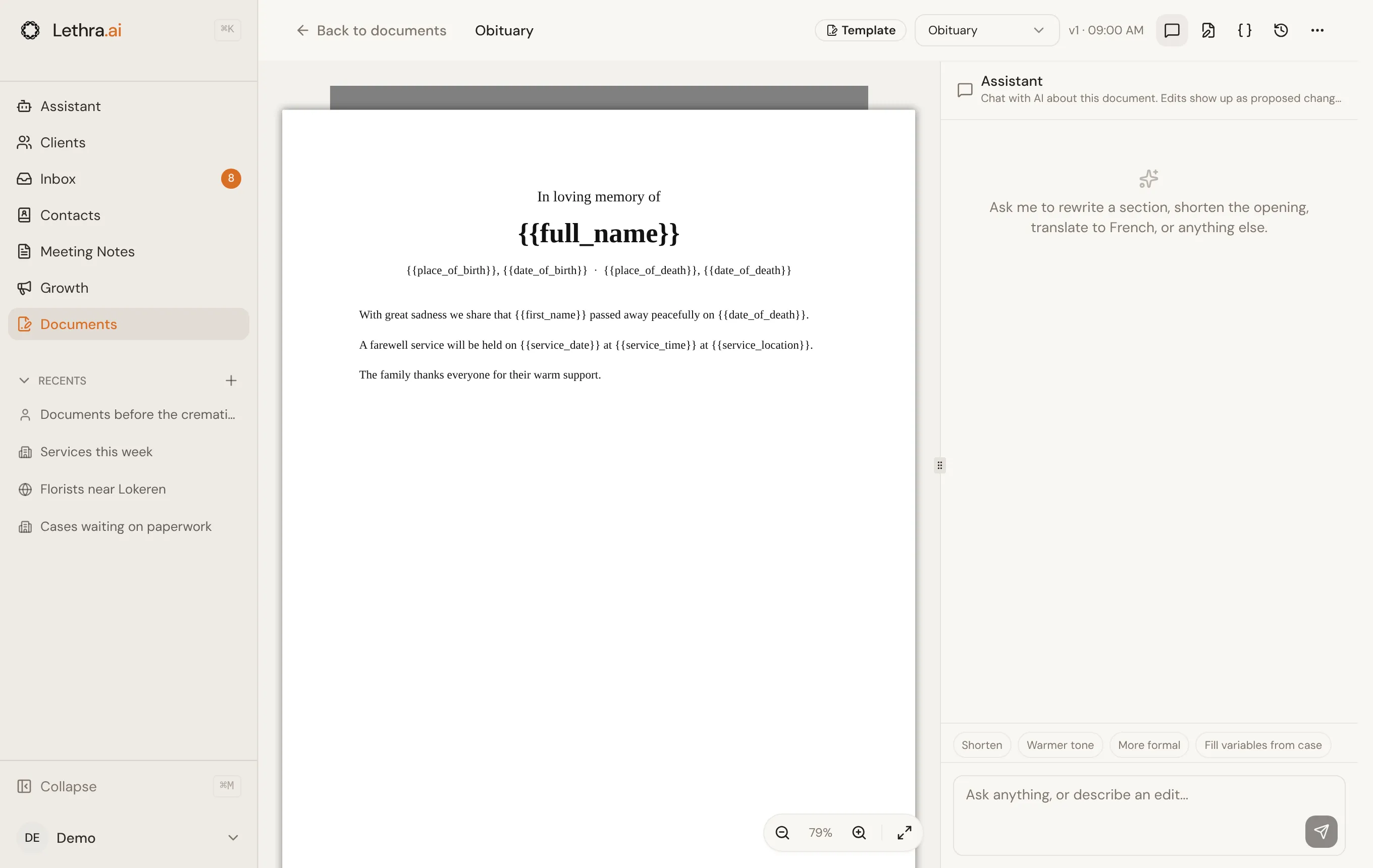
From the panel you can click a variable to add it to the end of the document, pick the Linked case, and use Resolve all to fill in every variable already in the document from that case at once. Values that cannot be found are left blank rather than guessed.
Using a template
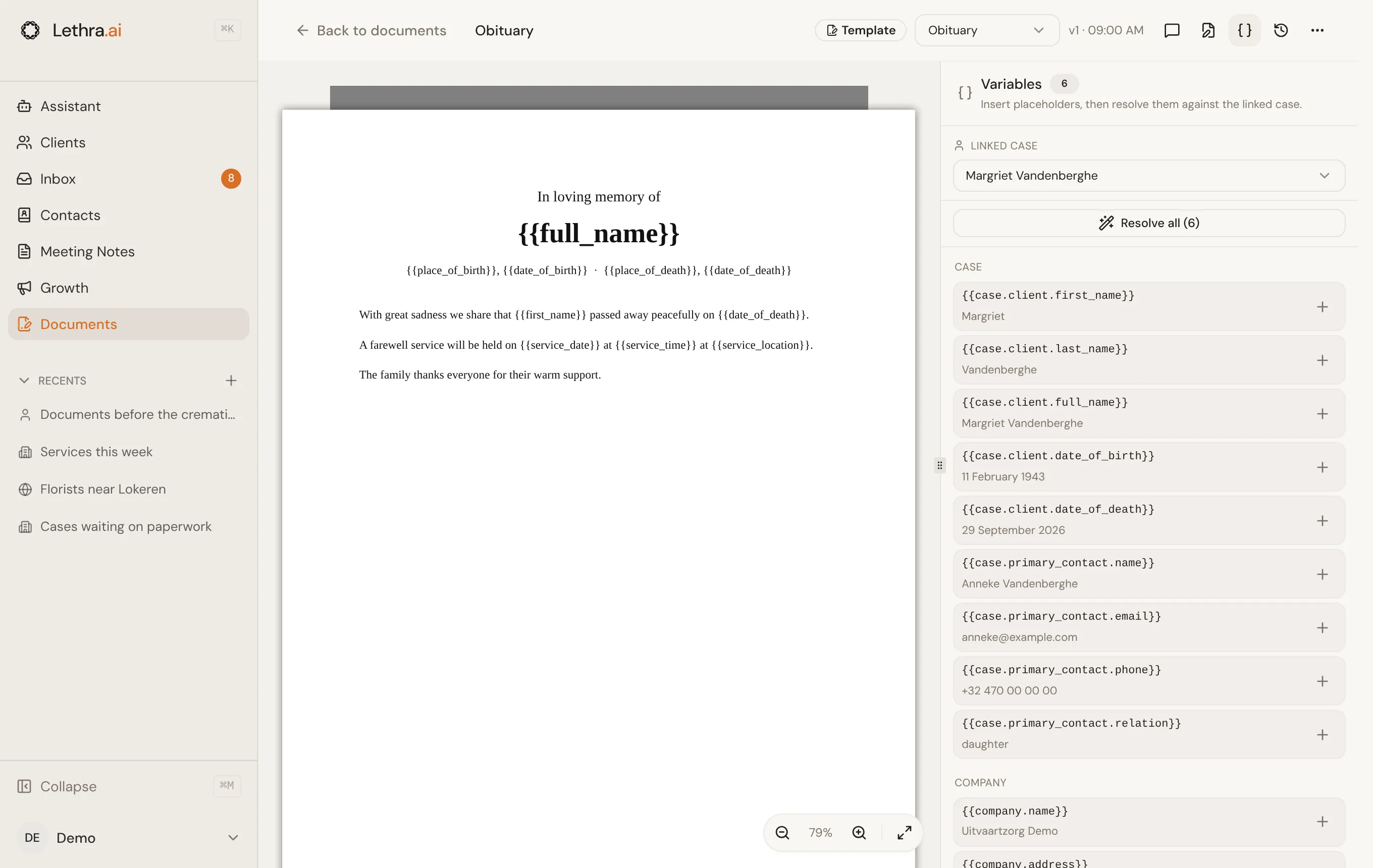
Section titled “Using a template”On the Templates tab, each template has two buttons. Use template makes a fresh copy for you to work on, and Draft document has the agent fill it in, as described below. You can also start from a template on a case, with New draft and From template on its Documents tab.
Drafting with AI from a template
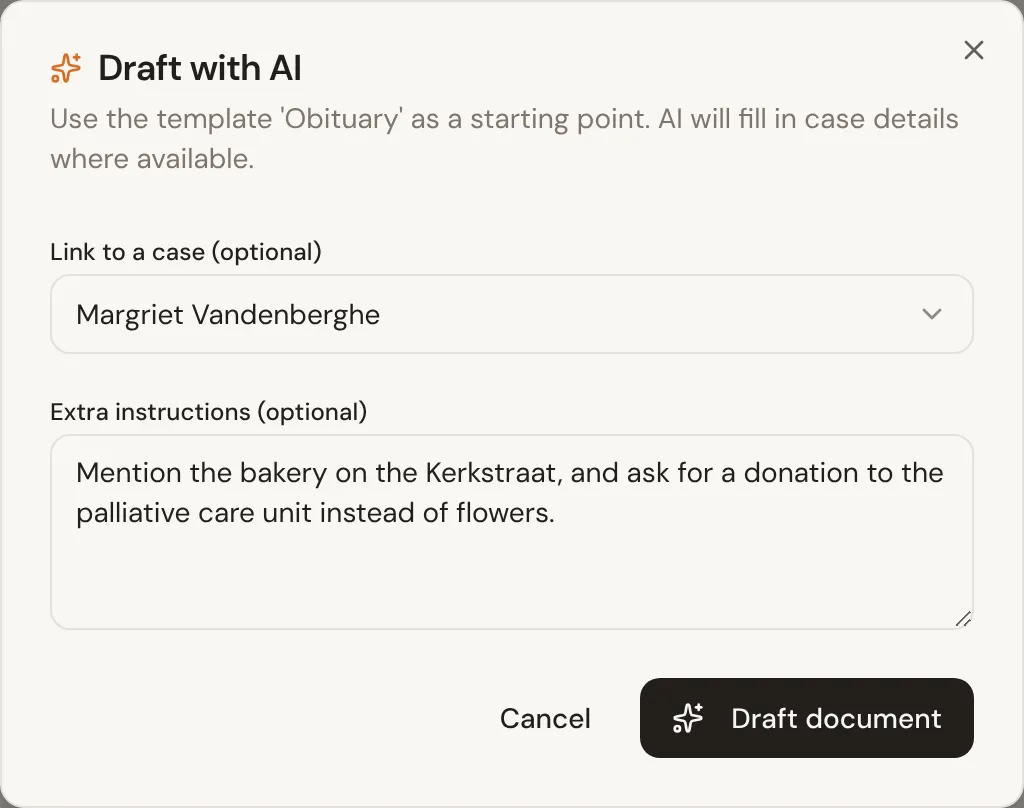
Section titled “Drafting with AI from a template”Click Draft document on a template to have the agent produce a filled-in draft in one step. In the Draft with AI window, pick the case it should draft for (or none), add any extra instructions in plain language, and Lethra generates a new document from the template and opens it in the editor, ready to check.
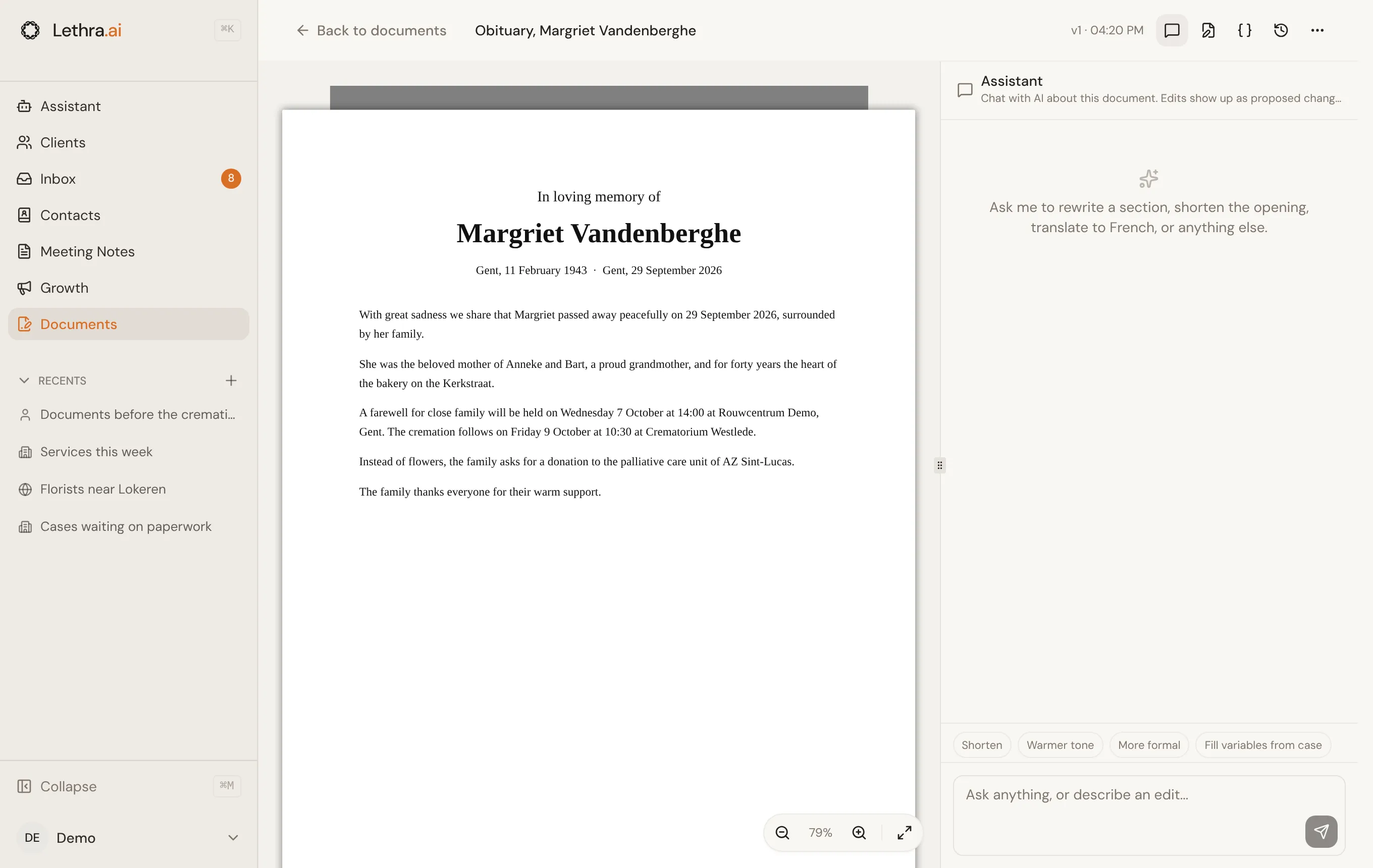
Generating a PDF or DOCX
Section titled “Generating a PDF or DOCX”From the document editor’s menu you can:
- Export Word (.docx), which gives you the file as Word would save it.
- Export PDF, which uses your browser’s print output to produce a PDF of the document exactly as rendered on screen.
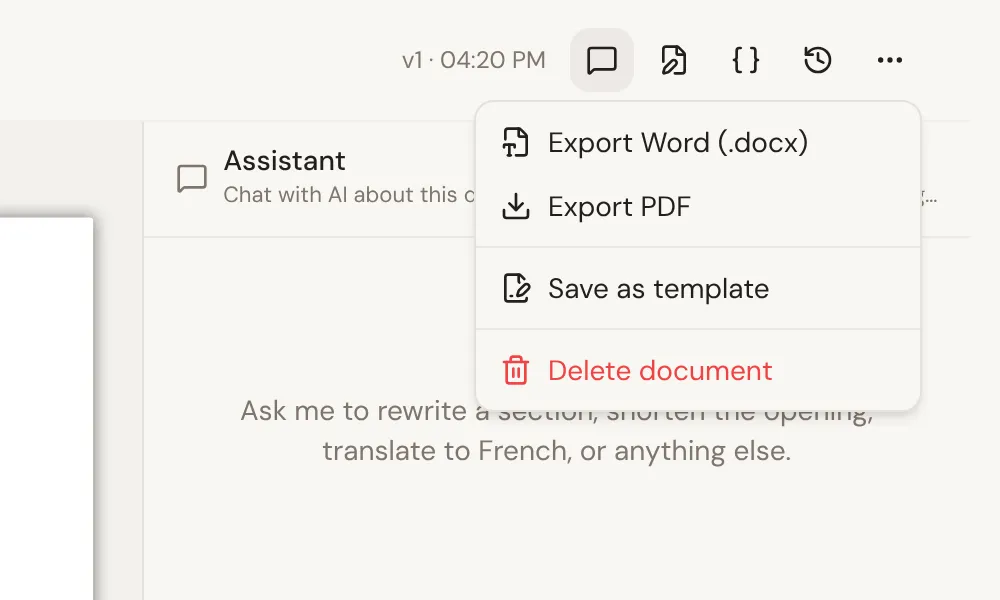
There is no separate print or export hub. Both options live in that one menu on the document itself, so exporting is always the last step after you have finished editing.
Uploading and sharing files: Documents.
Was this page helpful?
Thank you. We read every reply and use it to improve the guides.