

Brands and websites
The Brands page lists every funeral home in the group. The Websites page shows where each brand’s site stands. Both lead straight into the brand when there is work to do.
The Brands page
Section titled “The Brands page”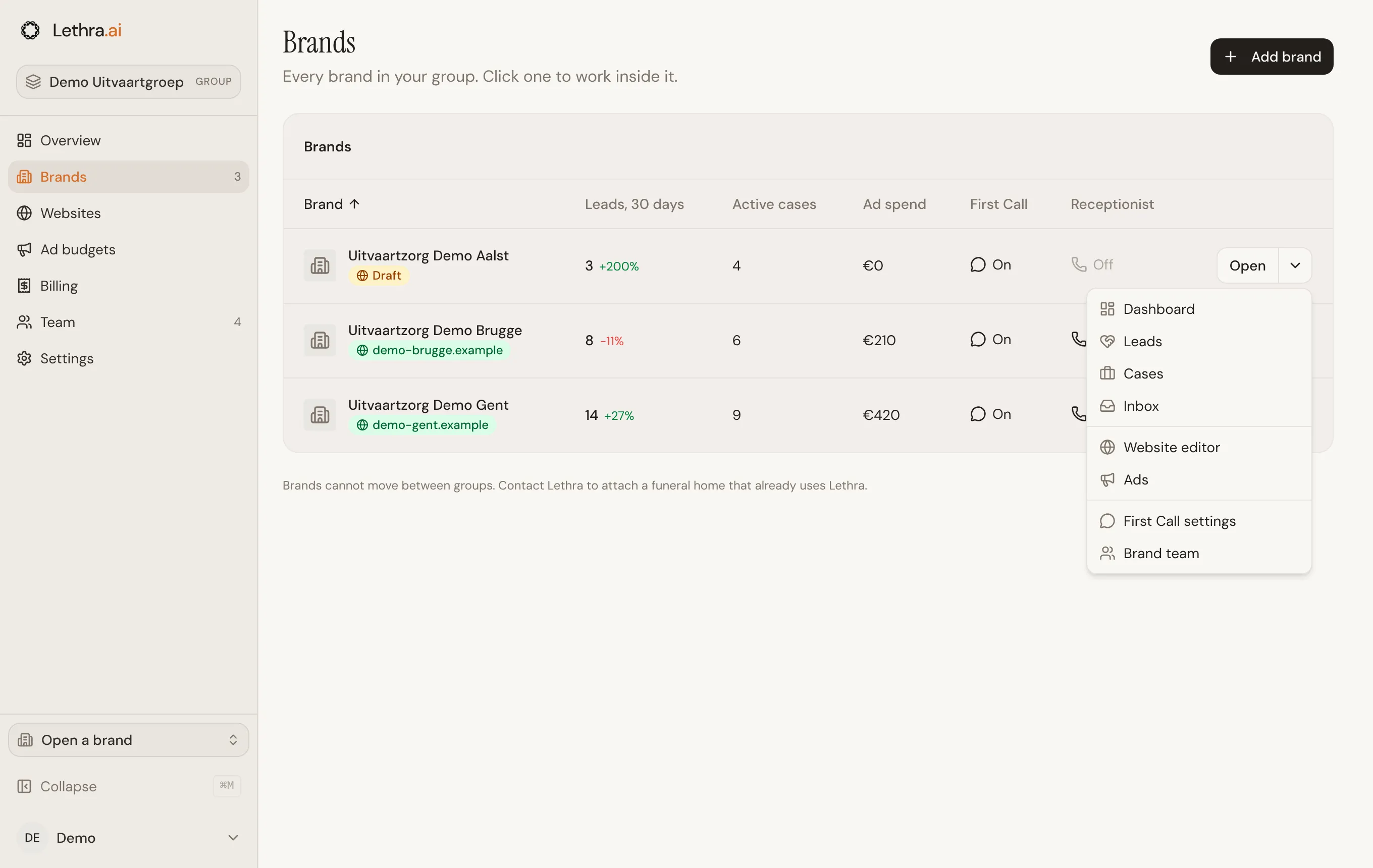
Each row shows:
- Brand: the name, with the website underneath. You see the custom domain once it is connected, otherwise Live, Draft or No website.
- Leads, 30 days: new leads in the last 30 days, with the change compared with the 30 days before.
- Active cases: cases that are not closed or archived.
- Ad spend: what the brand’s current ad campaigns have spent so far.
- First Call: on when families can reach the brand online.
- Receptionist: on when the phone receptionist is switched on and has a phone number.
Click a column heading to sort by it. Click it again to reverse the order. With more than five brands, a search box appears above the list.
Click a row to open the brand’s dashboard. Open does the same. The arrow next to it opens one page of the brand directly: dashboard, leads, cases, inbox, website editor, ads, First Call settings or brand team.
Adding a brand
Section titled “Adding a brand”Add brand, at the top of the Brands page or the overview, creates a new funeral home in the group.
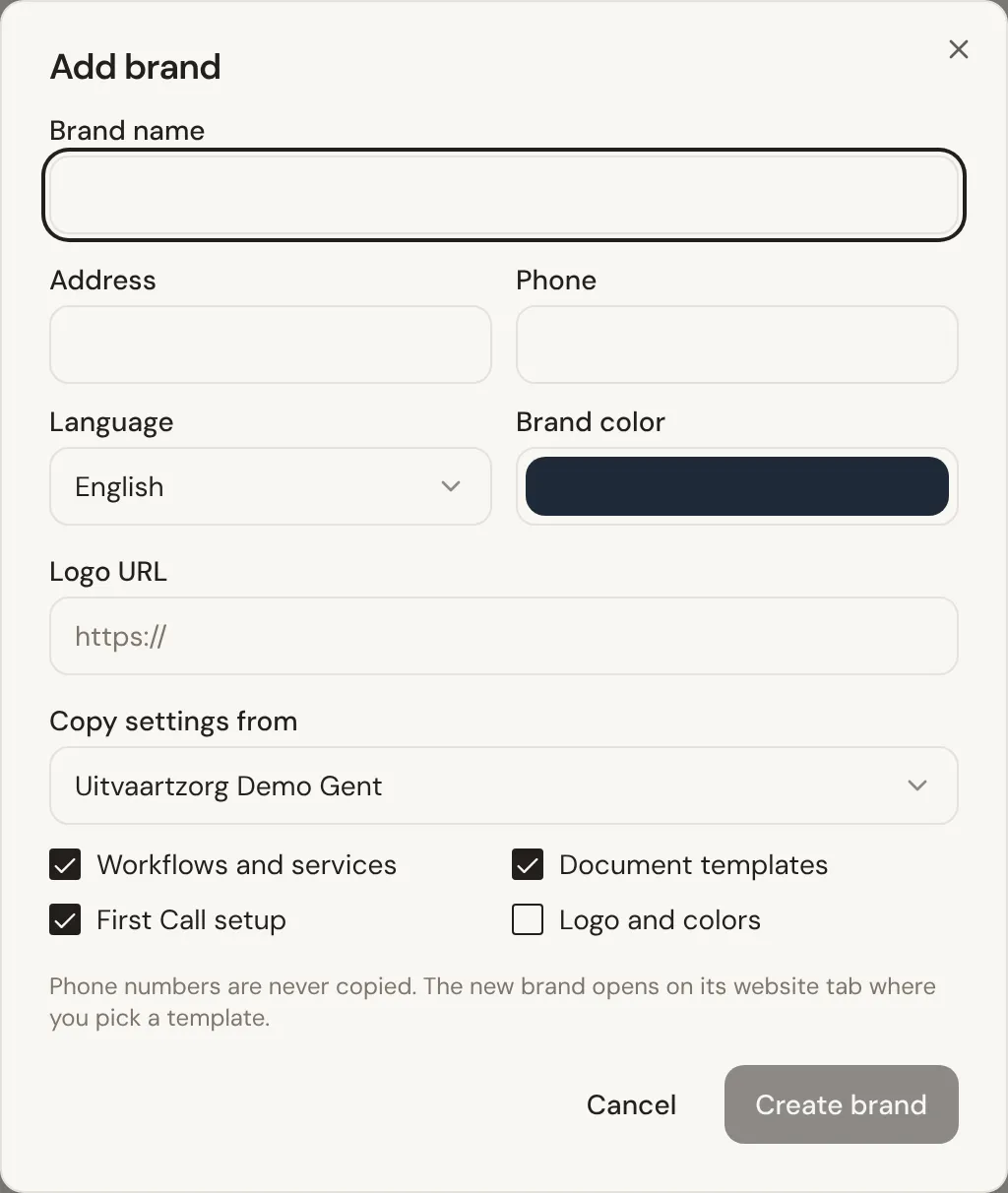
- Enter the Brand name. It is the only required field.
- Add the Address, Phone, Language, Brand color and Logo URL if you have them. The language starts as the group’s language.
- Under Copy settings from, pick an existing brand, or Start empty. The first brand in the list is picked for you.
- Choose what to copy, then click Create brand.
When you copy from a brand, the new brand also takes its time zone, region and plan. You can then tick:
- Workflows and services: services and processes, opening hours, case statuses, service and document types, and the lead and planner settings.
- Document templates: every template that is not archived.
- First Call setup: how First Call behaves on the website.
- Logo and colors: off by default. A logo or color you typed in the form wins over the copied one.
Phone numbers are never copied, and neither is the urgent contact or the escalation email. Each brand needs its own. Check them in the new brand’s First Call settings.
The new brand opens in its website editor, so you can pick a template and start its site. If your group has its own template, it is offered first. See Your group’s website template.
Websites
Section titled “Websites”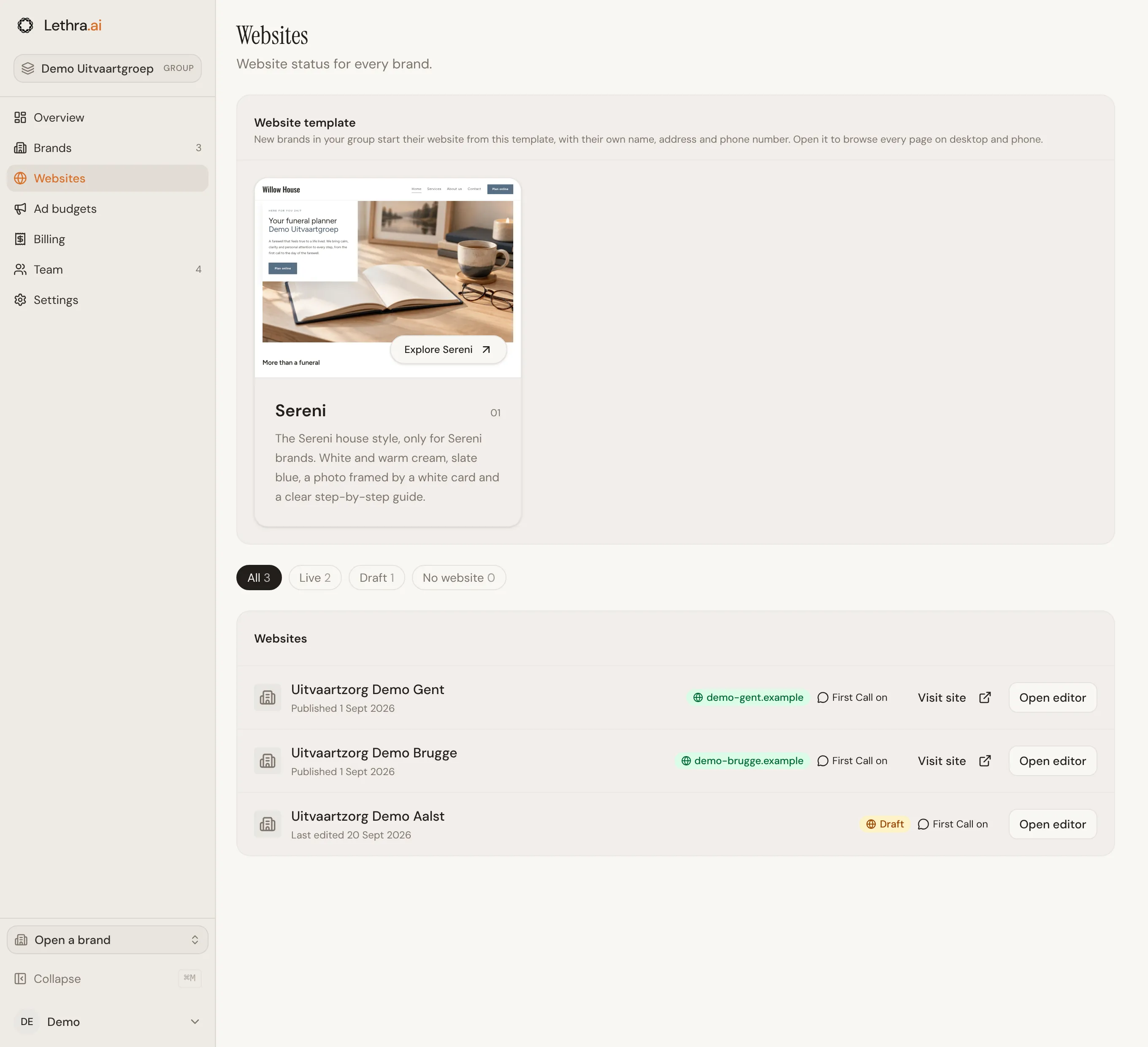
The filters at the top show how many brands are Live, Draft or have No website. Each row shows:
- when the site was published, or for a draft, when it was last edited
- the custom domain or the status
- Domain not connected, when a custom domain is set but not working yet
- whether First Call is on for that brand
Visit site opens a live site in a new tab. Open editor, or Create website for a brand without one, opens that brand’s website editor. How to build and publish a site is covered in Website.
Your group’s website template
Section titled “Your group’s website template”A group can have a website template of its own, designed in the group’s house style. When it does, it sits at the top of the Websites page under Website template, with its name and a short description.
- New brands start from it. When a brand in the group builds its website, the group template is the first one offered, and the website is filled in with that brand’s own name, address and phone number.
- It stays within the group. Only brands in your group can see or use it. Funeral homes outside the group never see it.
- Brands can still choose. The shared templates stay available next to it, for a brand that needs a different look.
Click the template, or Explore on it, to open the preview. It shows the template as a new brand would get it, with your group’s name filled in.
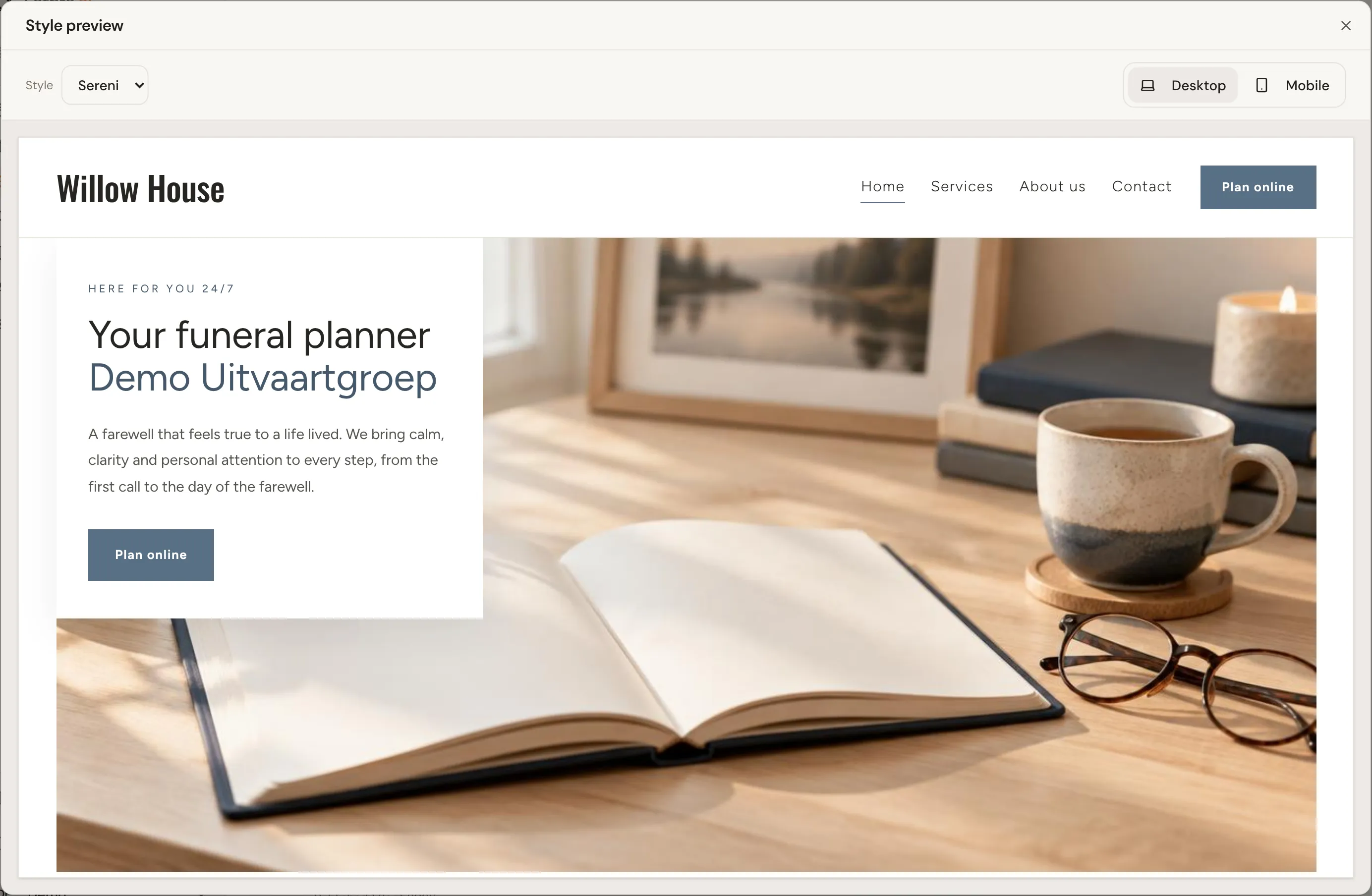
Use the menu inside the preview to browse every page, just as a visitor would. Switch to Mobile to check the same pages on a phone.
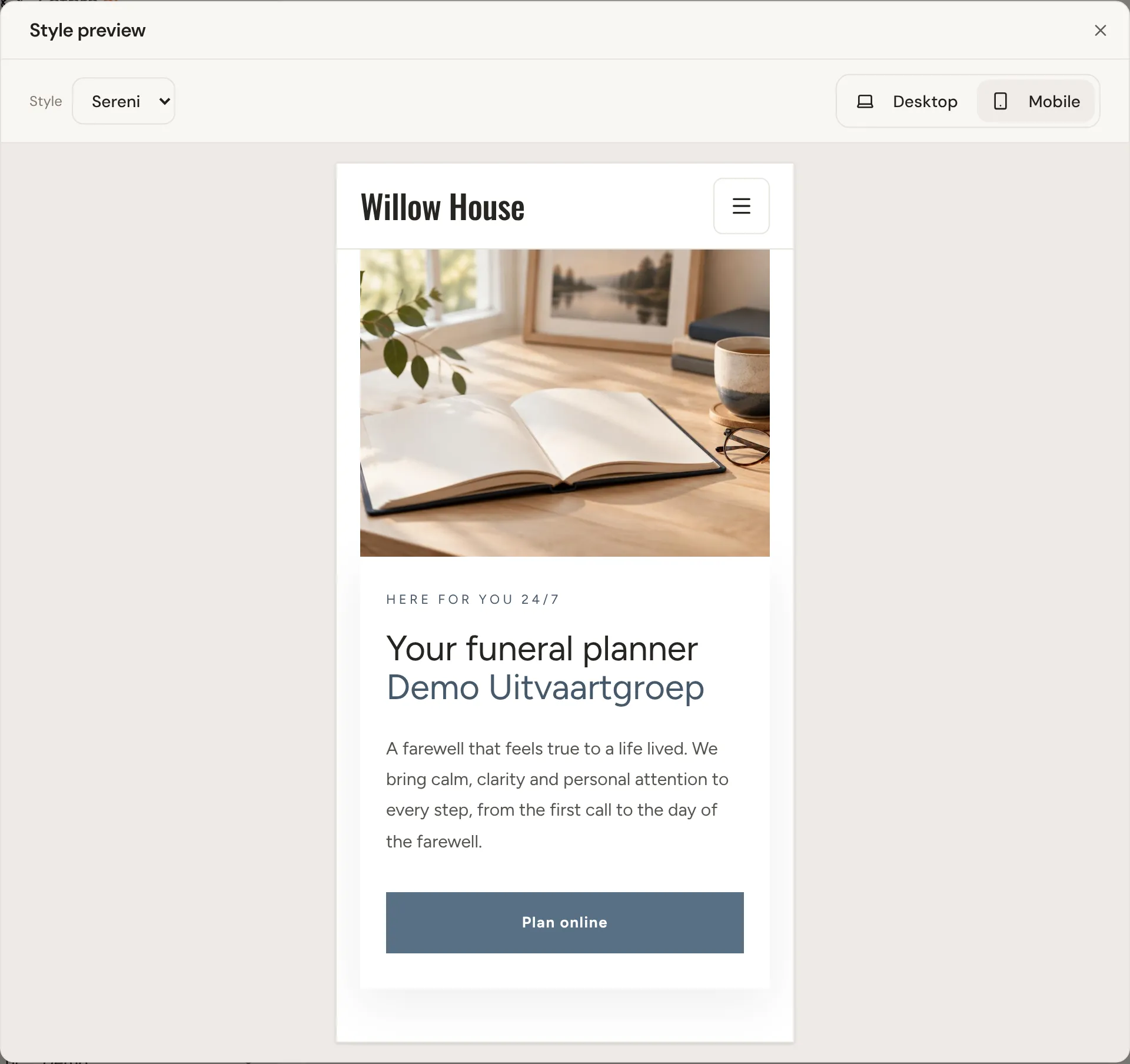
The preview is read only. To change the template itself, or to have one made for your group, contact Lethra.
Keep ad spending under control across the group: Ad budgets.
Was this page helpful?
Thank you. We read every reply and use it to improve the guides.