

Setting up your funeral home
After you sign up, Lethra walks you through seven short steps. Most of the work happens in the background while you answer the next question, so the whole setup takes about ten minutes. Nothing goes live without your approval: not your website, not your ads.
You can stop at any time with Finish later. The setup does not come back on its own; pick it up again from Your Account with Continue setup.
1. Your name and website
Section titled “1. Your name and website”Type the name of your funeral home and the address of your current website. If you do not have one yet, choose I don’t have a website.
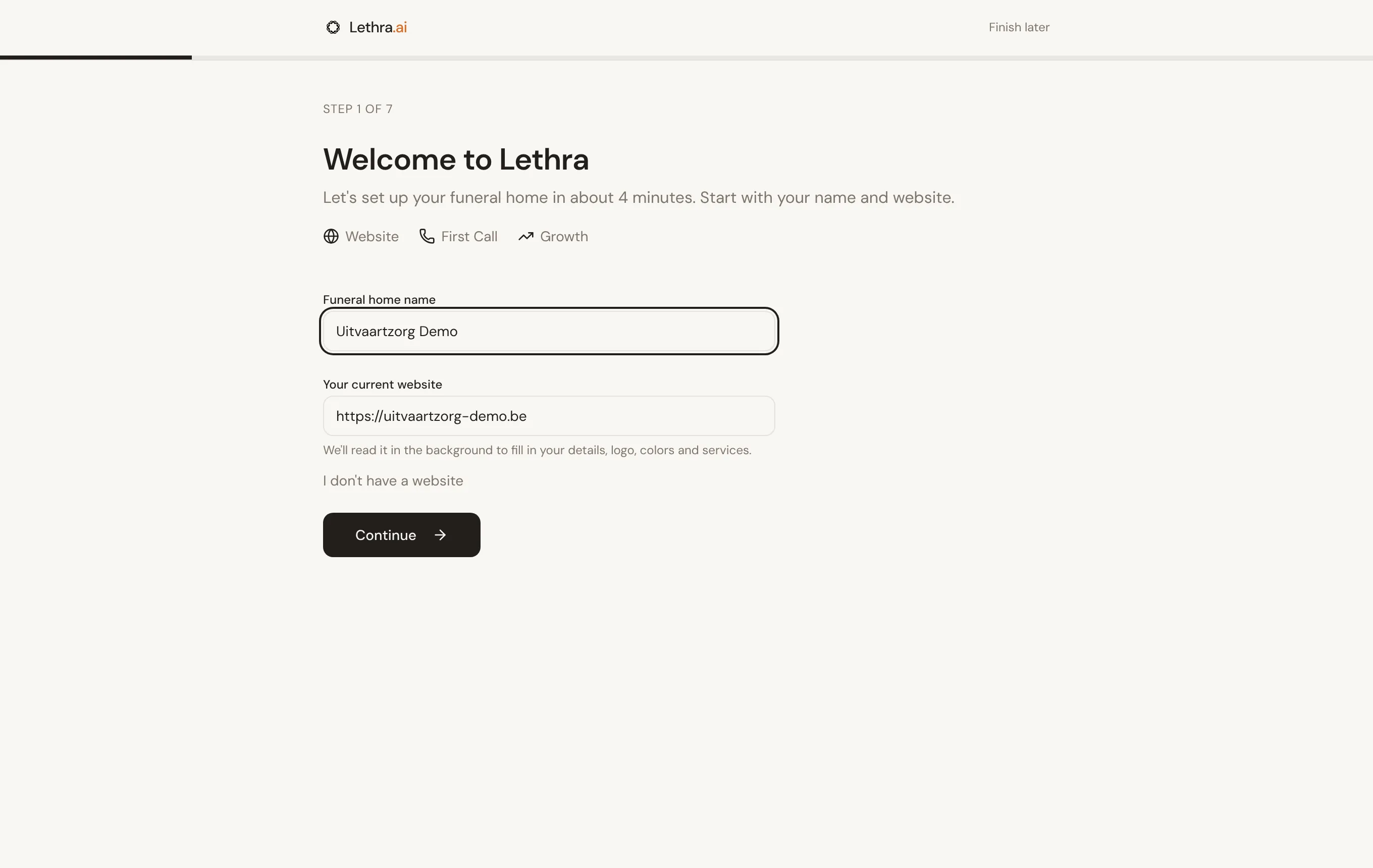
When you continue, Lethra starts reading your website. You do not have to wait for it.
2. Is this you?
Section titled “2. Is this you?”Lethra fills in what it found on your website: your address, phone number, email, a short description, your colors and your services. The card at the top shows how families will see you, and changes as you edit.
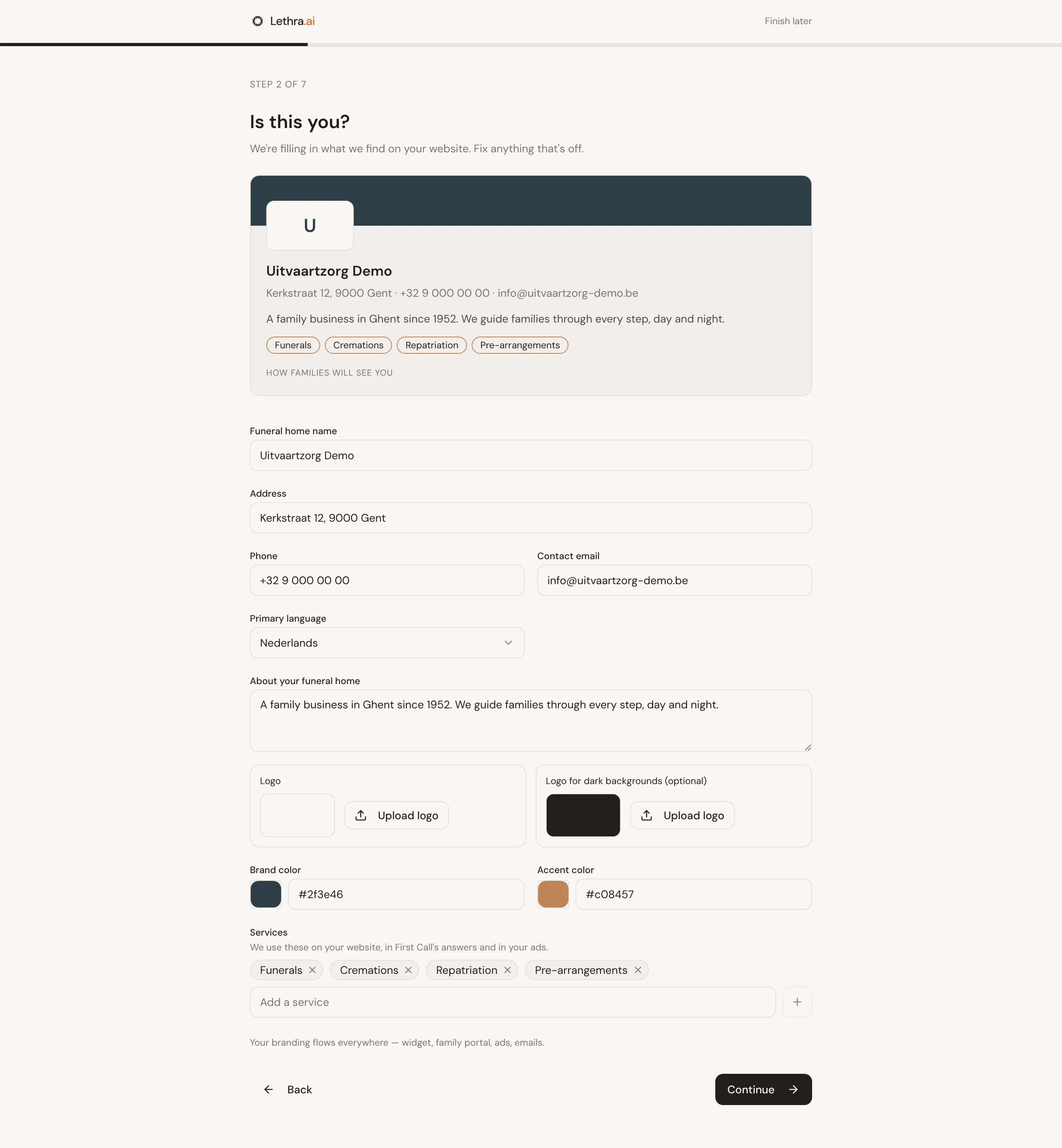
Anything you type yourself is kept, even if the website read finishes later. Upload your logo here too. If your logo is dark, add a light version for dark backgrounds.
Your services matter more than they look. Lethra uses them on your website, in First Call’s answers and in your ads.
3. Your website
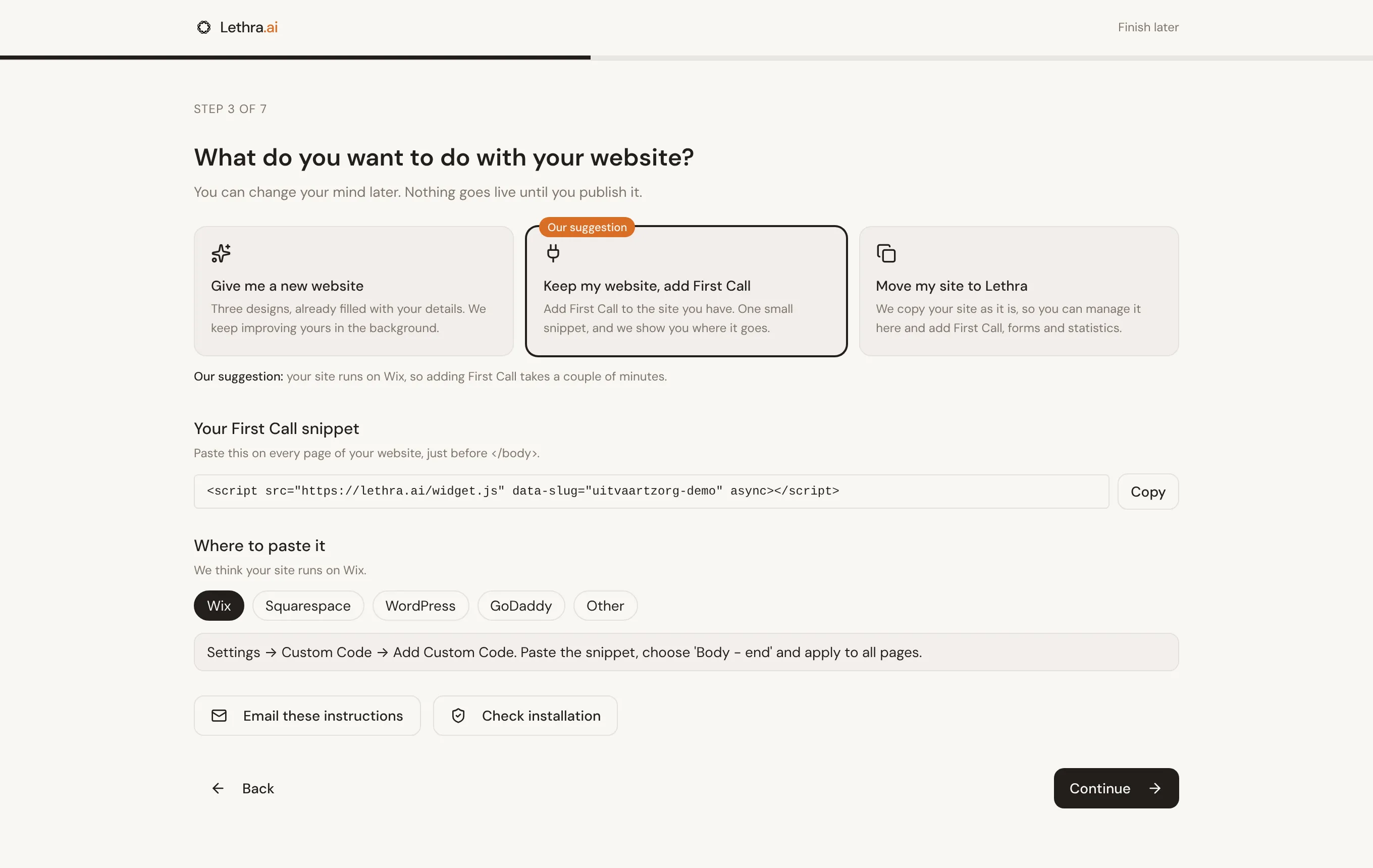
Section titled “3. Your website”Choose what to do with your website. Lethra marks one choice as Our suggestion, with the reason underneath. For example, a site that does not work well on phones gets a new website suggested.
- Give me a new website. Pick one of three designs. They are already filled with your name, details and colors. Lethra saves your pick as a draft and keeps improving it while you continue. You publish it yourself, from Website, when you are happy with it.
- Keep my website, add First Call. You get a small snippet to paste on your site, with the steps for your website builder (Wix, Squarespace, WordPress, GoDaddy or another). Email these instructions opens an email to your web developer with everything in it. Check installation tells you whether the snippet is on your site yet.
- Move my site to Lethra. Lethra copies your current site as it is, so you can manage it here. Your current site stays online and unchanged.
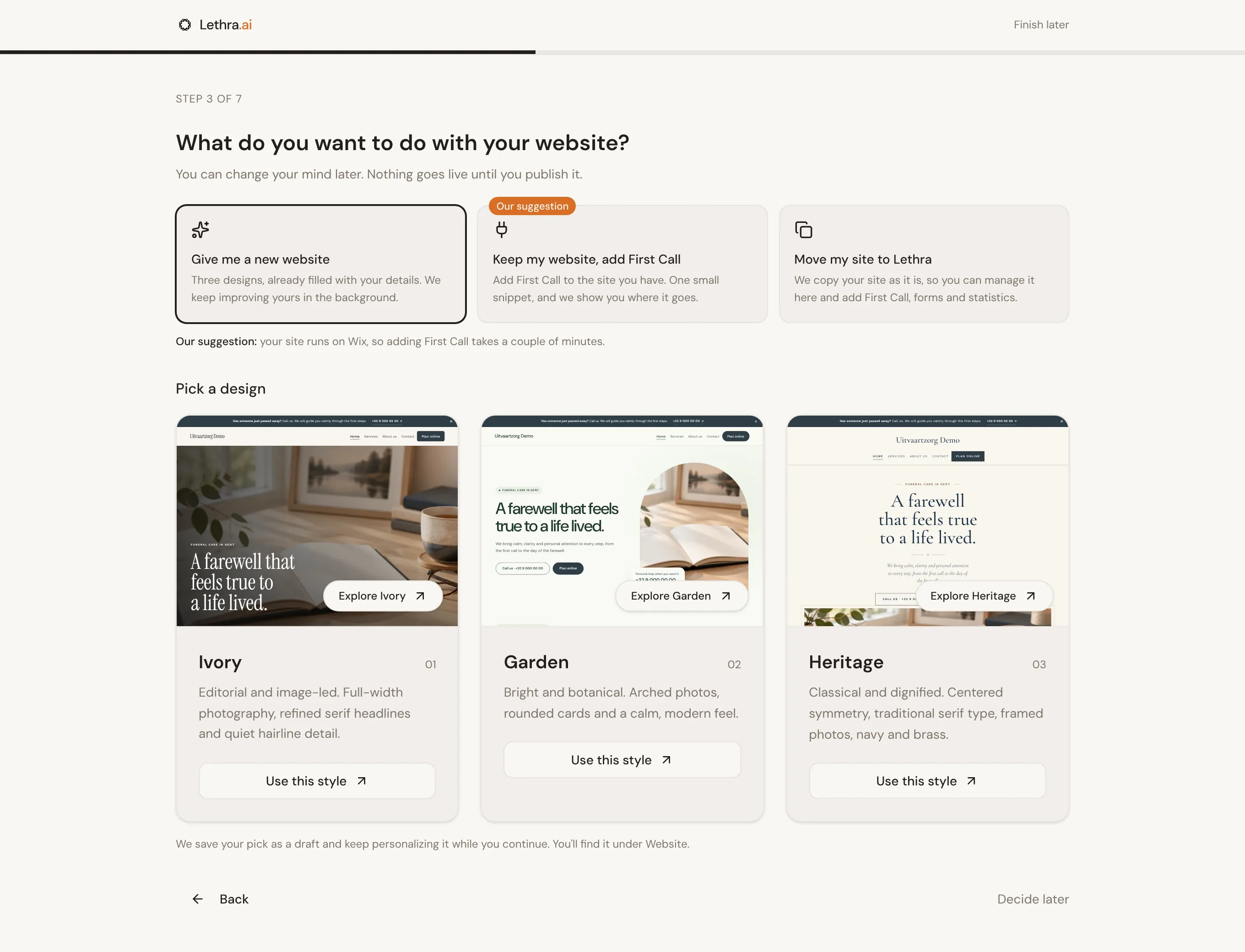
Not sure yet? Choose Decide later. You can always come back to it under Website.
4. First Call on your website and phone
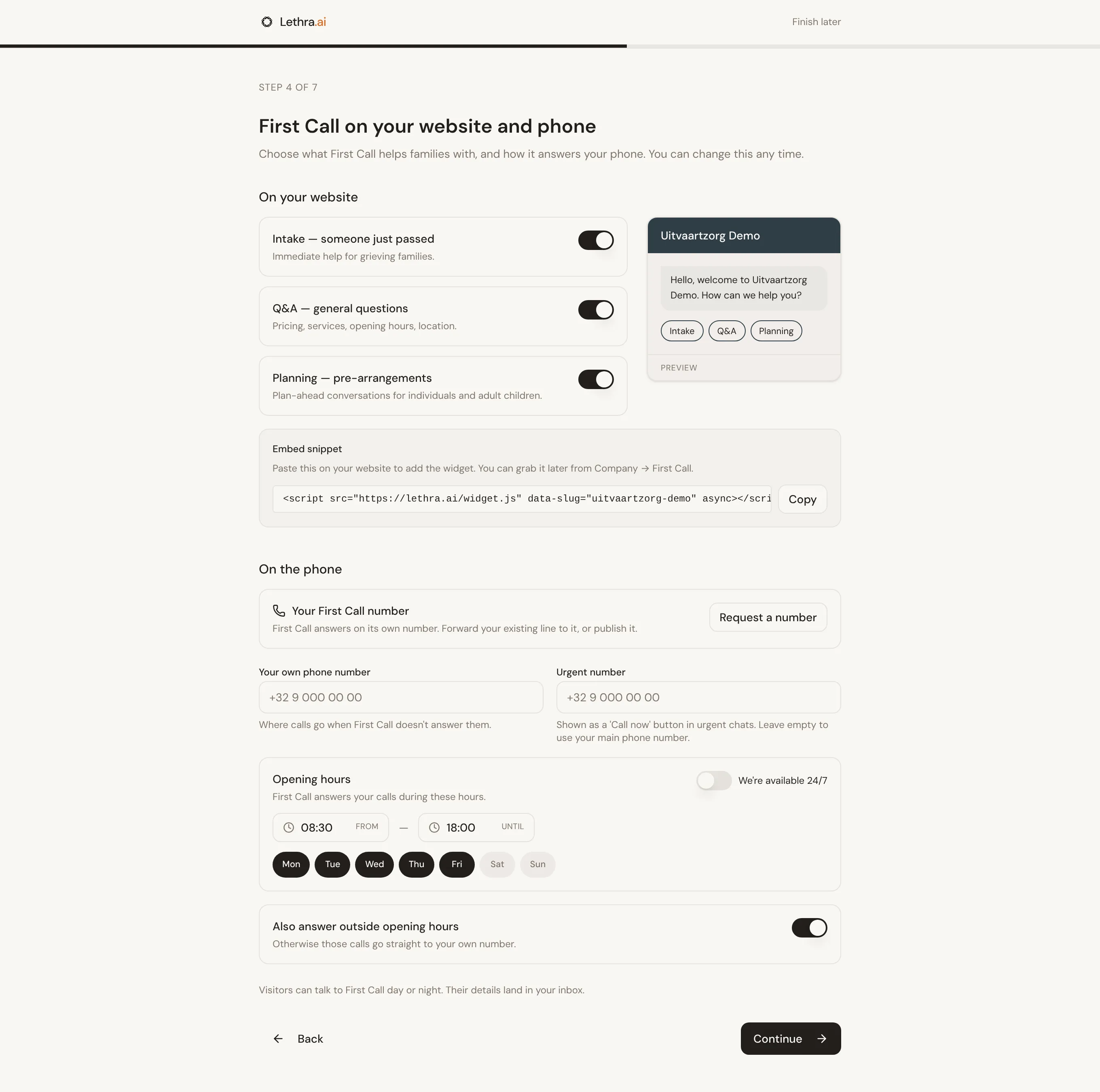
Section titled “4. First Call on your website and phone”On your website, choose what First Call helps families with: someone who just passed, general questions, or planning ahead. The preview shows what visitors see, in your colors.
On the phone, First Call answers on its own number. Choose Request a number and Lethra sets one up within one business day. You then forward your existing line to it, or publish it. Fill in:
- Your own phone number: where calls go when First Call does not answer.
- Urgent number: the number behind the Call now button in urgent chats. Leave it empty to use your main number.
- Opening hours: First Call answers your calls during these hours. Choose We’re available 24/7 if you never close.
- Also answer outside opening hours: switch this off to send calls outside your hours straight to your own number.
5. Team and mailbox
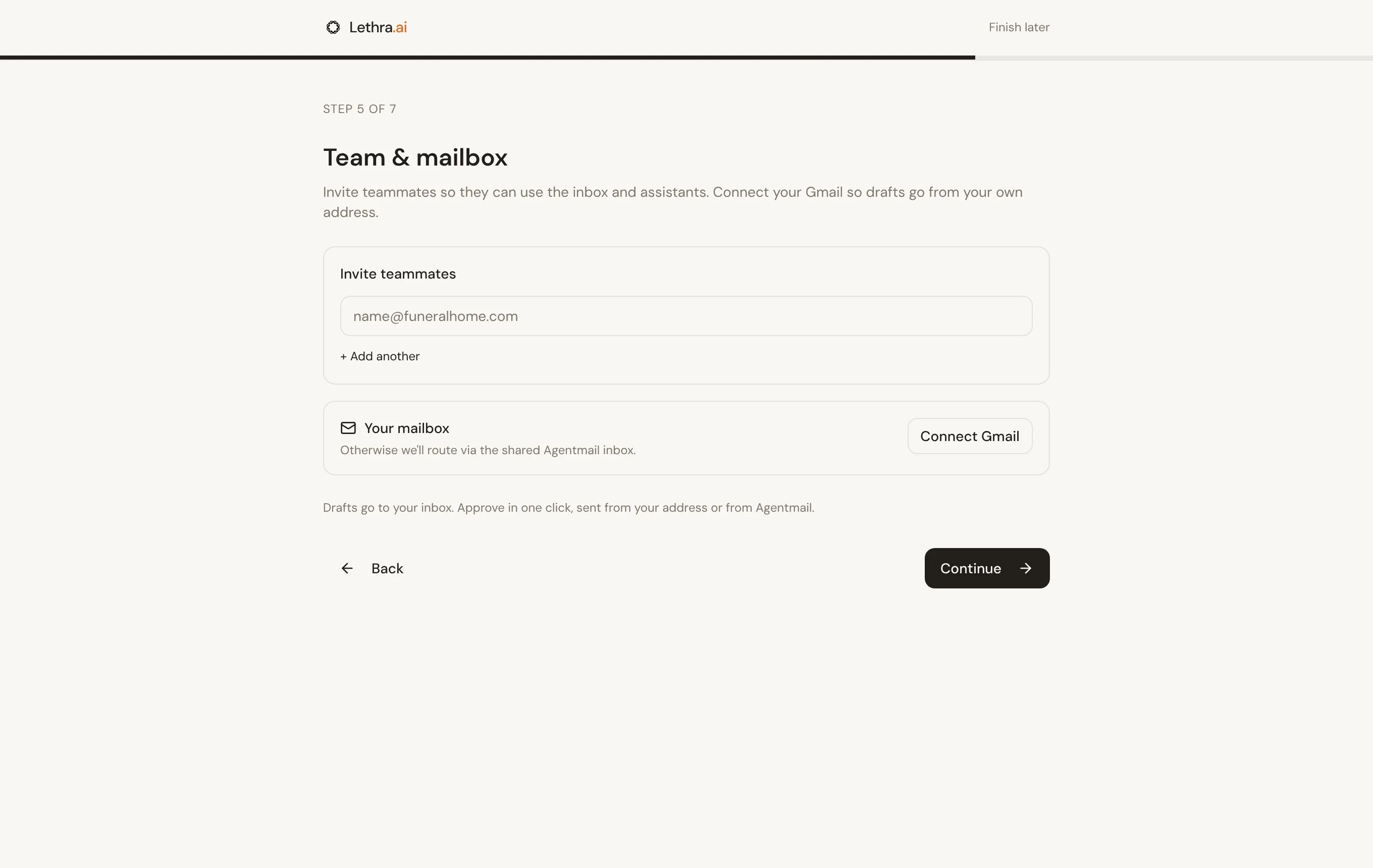
Section titled “5. Team and mailbox”Type your colleagues’ email addresses. Each one gets an invitation by email. Connect Gmail so drafts go out from your own address. Without it, Lethra sends from its shared mailbox.
6. Your first campaign
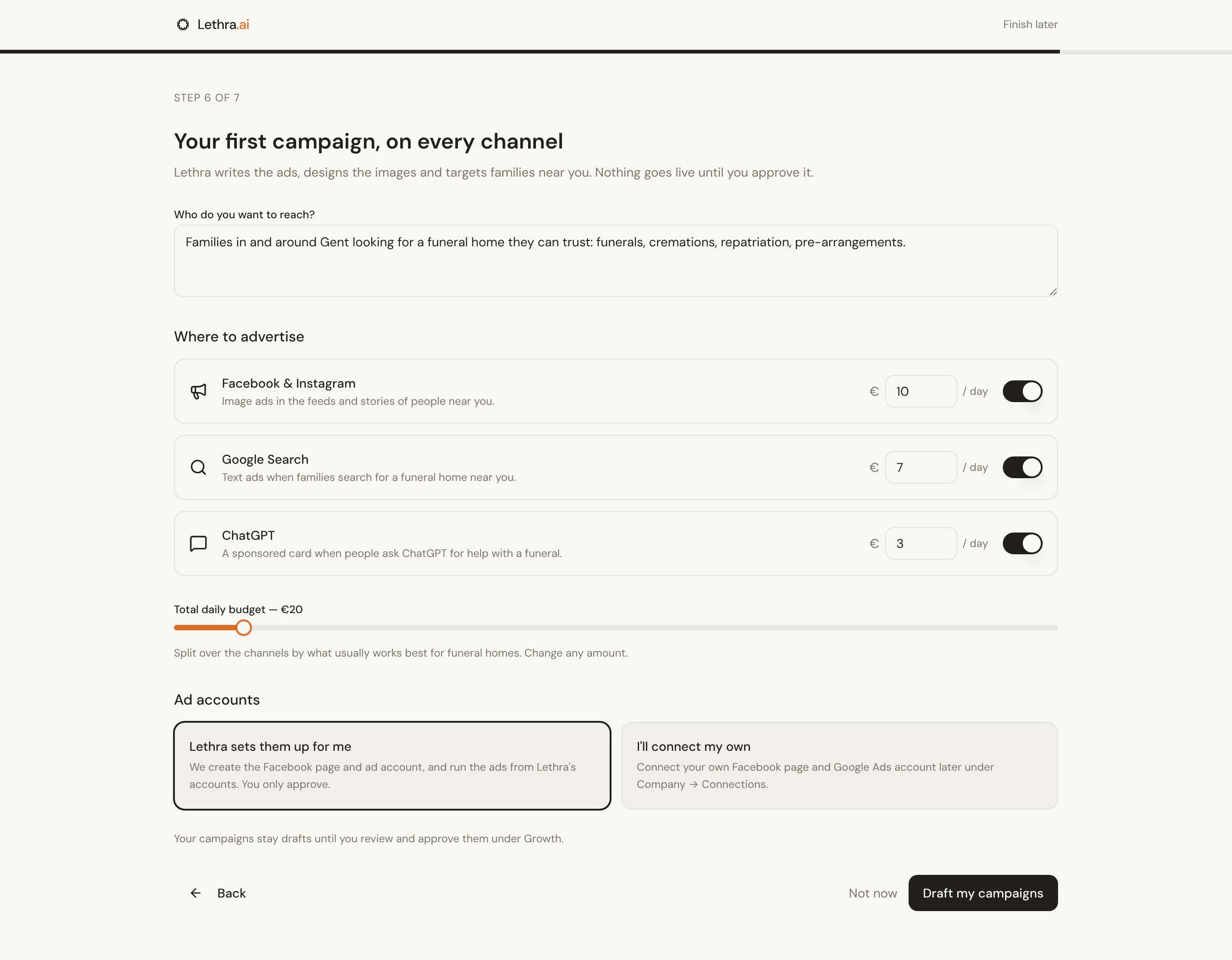
Section titled “6. Your first campaign”Lethra prepares one campaign on every channel at once:
- Facebook & Instagram: image ads in the feeds and stories of people near you.
- Google Search: text ads when families search for a funeral home near you.
- ChatGPT: a sponsored card when people ask ChatGPT for help with a funeral.
The brief is written for you from your services and your town. Set one total daily budget; Lethra splits it over the channels. Change any amount, or switch a channel off.
Under Ad accounts, choose Lethra sets them up for me and Lethra creates your Facebook page and ad account. Or choose I’ll connect my own and connect your accounts later under Your Company > Connections.
Choose Draft my campaigns and you see each ad appear in its real form while Lethra writes it and designs the image.
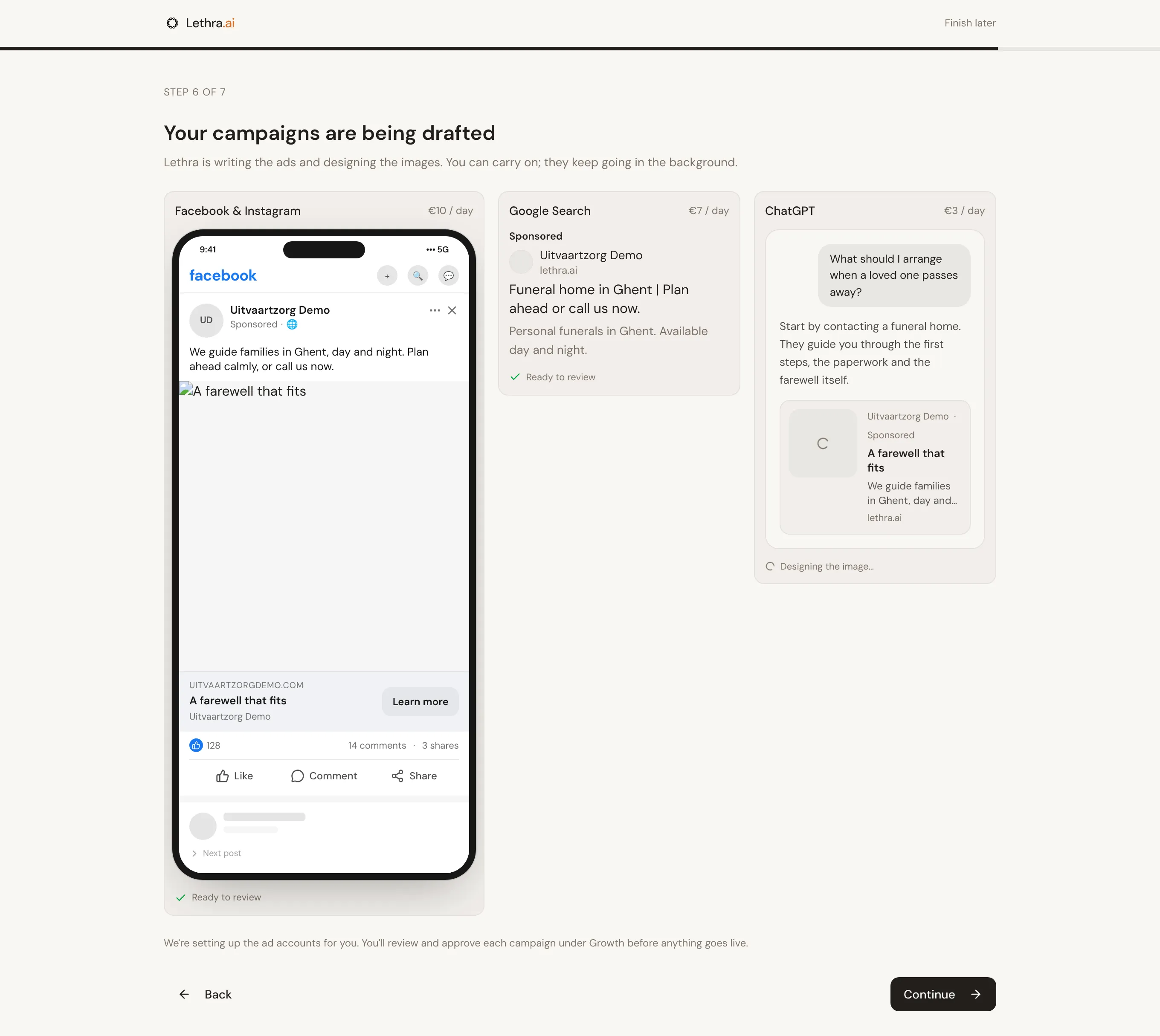
Your campaigns stay drafts. Nothing is shown to anyone, and nothing is spent, until you review and approve each one under Growth.
7. Your launch board
Section titled “7. Your launch board”The last step shows your launch board: every part of your setup, where it stands, and the next step for each. It updates as things finish.
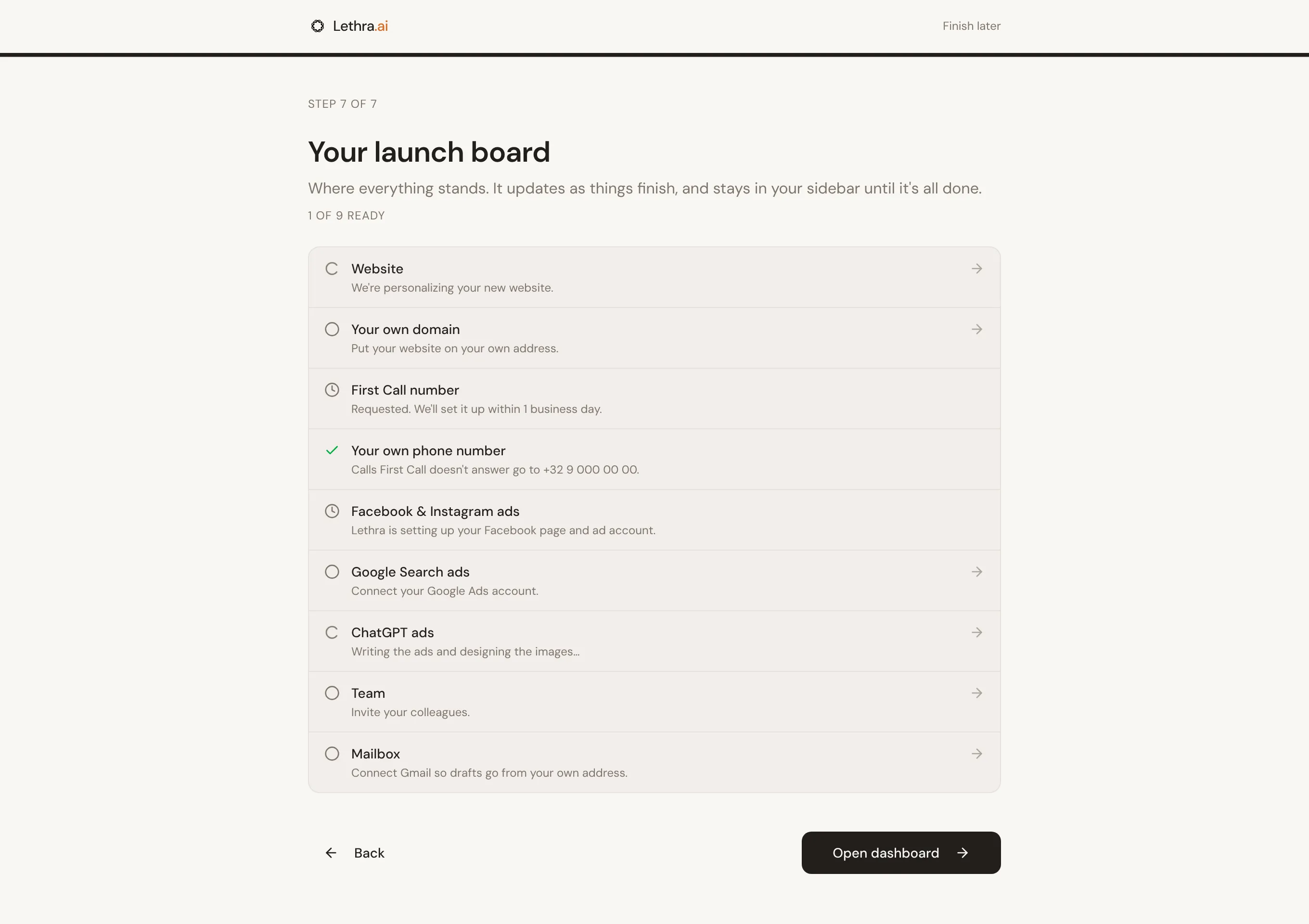
Each row has one of four states:
| State | Meaning |
|---|---|
| Done | Running. Nothing to do. |
| In progress | Lethra is working on it, for example writing your ads. |
| Waiting | Waiting on someone else, for example your phone number. |
| To do | The next step is yours. Click the row to go there. |
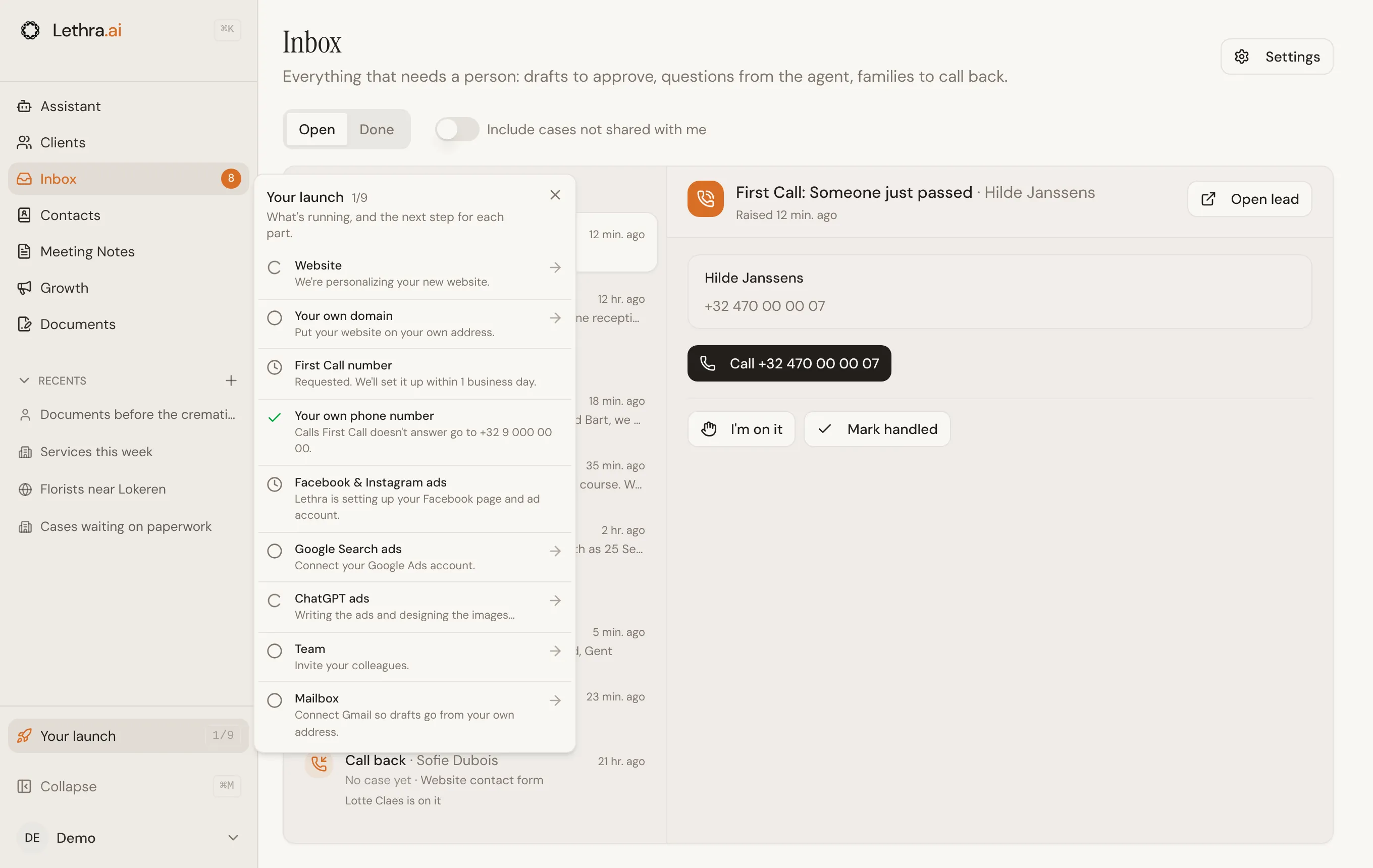
After setup, the board stays in your sidebar as Your launch, with how many parts are ready. It disappears once everything is done, or when you close it.
Was this page helpful?
Thank you. We read every reply and use it to improve the guides.