

First Call, the website chat
First Call is the chat on your website. Think of it as your front desk: it is there day and night, it helps first when something is urgent, it answers questions, and it works out what someone needs. Then it passes them on to the right place.
It is separate from the phone receptionist: the phone line keeps working exactly as before, whatever you change here. It is also separate from Your planning in the family portal, where people record their own wishes.
How a conversation ends
Section titled “How a conversation ends”Every First Call conversation ends in one of three ways:
- Someone from your team takes over. A call, a callback, a message or an urgent alert reaches your team.
- The question is answered. First Call answers from your company knowledge, then offers one clear next step: a call back, a meeting, or a quote. Someone arranging things ahead for a parent or partner, or comparing funeral homes, is offered a call or a meeting with your team. First Call never books anything itself: you get the request and get in touch.
- They move on to their own space. Someone who wants to plan their own farewell continues in Your planning, in the portal.
First Call never records wishes itself, and it never shows anyone a plan or a case. A name or phone number typed in the chat does not give access to anything. Someone who asks about an existing arrangement is asked to sign in to their family space, or First Call passes the question on to you.
Prices and contact details
Section titled “Prices and contact details”When someone asks what something costs, First Call answers with the prices or packages in your company knowledge or on your website, and adds that your team gives an exact quote. It never makes up, estimates or negotiates a price. If you have not published prices, it says so and offers to have you send a quote. To have First Call quote prices, add your price list or packages to your company knowledge.
First Call asks how to reach someone only once it has helped them: after answering their first question, or as part of offering a call back. When someone has just passed, it asks right away whether they would like a call. If they would rather not share their details, it keeps helping.
One conversation, no paths to pick
Section titled “One conversation, no paths to pick”Nobody has to choose a path. First Call reads each conversation as it goes and adapts to what the person needs, the way someone at your front desk would. A question about prices can turn into “my mother died this morning”, and First Call follows.
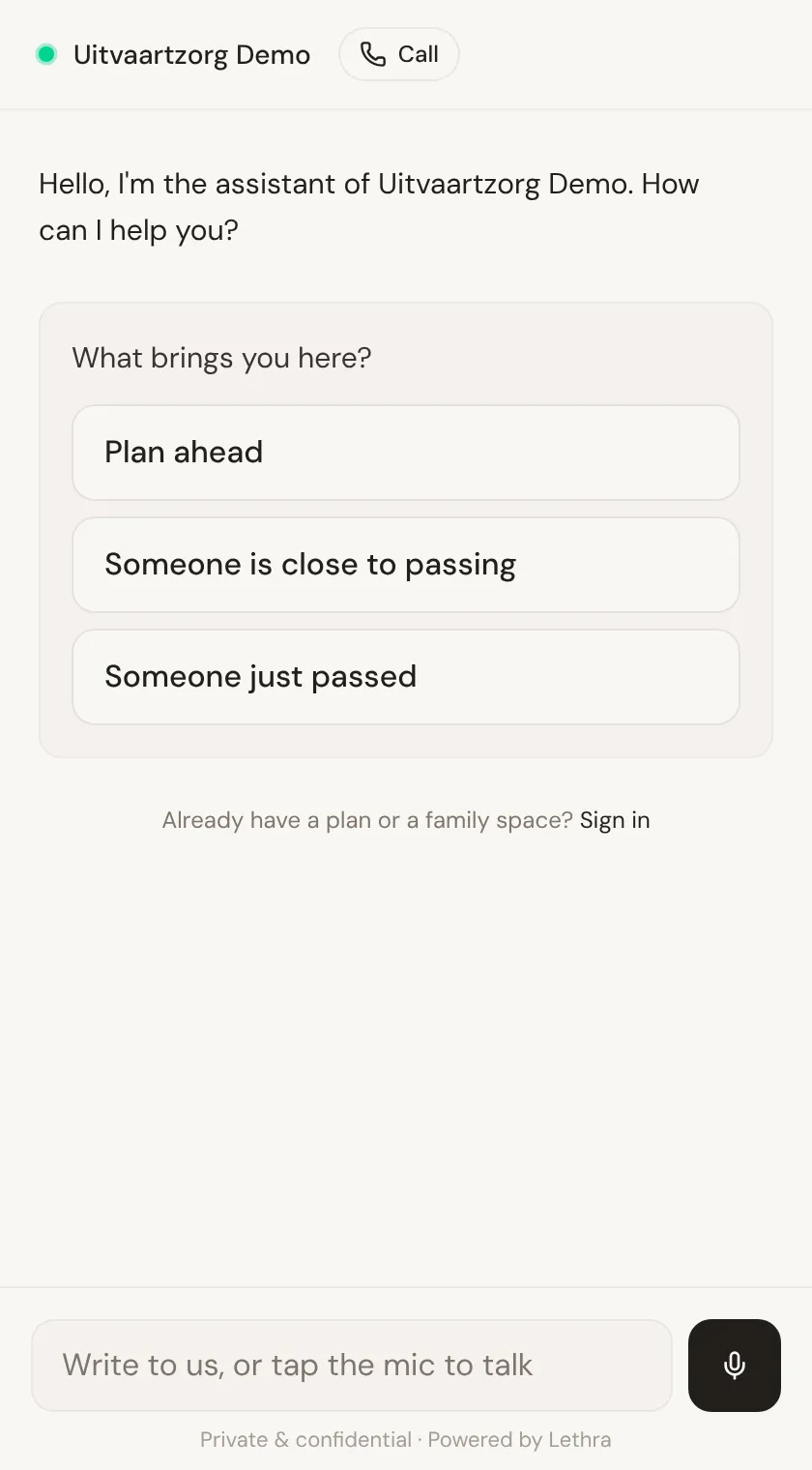
Under its greeting, people see three quick replies: Plan ahead, Someone is close to passing and Someone just passed. Tapping one is simply a shortcut for typing it. Anyone can also just write what they need, and change direction at any time. There is nothing to confirm or undo.
What First Call does depends on what someone tells it:
- Someone just passed: calm, practical guidance for the first hours. It asks right away whether your team should call, and gives your phone number. On the full-page chat a Call now button shows the number families are put through to or, if you left that empty, your main phone number. If you turn on Offer live talk in the chat, the family can also start a live voice call with your team right in the chat. It is only offered when someone can pick up: during opening hours, or outside them if you forward calls. If nobody answers, the family can leave a number and you get an urgent callback in the inbox.
- Someone is close to passing: gentle support for families preparing for a death that is expected soon, and an offer to be called by your team.
- Planning their own funeral ahead: First Call does not do the planning in the chat. It offers their own planning space instead, as below.
- Anything else: questions, comparing funeral homes, a supplier. First Call answers and offers a next step.
First Call never assumes that someone has died or is dying unless the person says so. The Call button in the chat header is always there for anyone who would rather speak to a person.
When someone wants to plan ahead
Section titled “When someone wants to plan ahead”When someone taps Plan ahead, or says in the chat that they want to arrange their own funeral, First Call shows a card: Continue in your planning space. Nothing happens until they tap it.
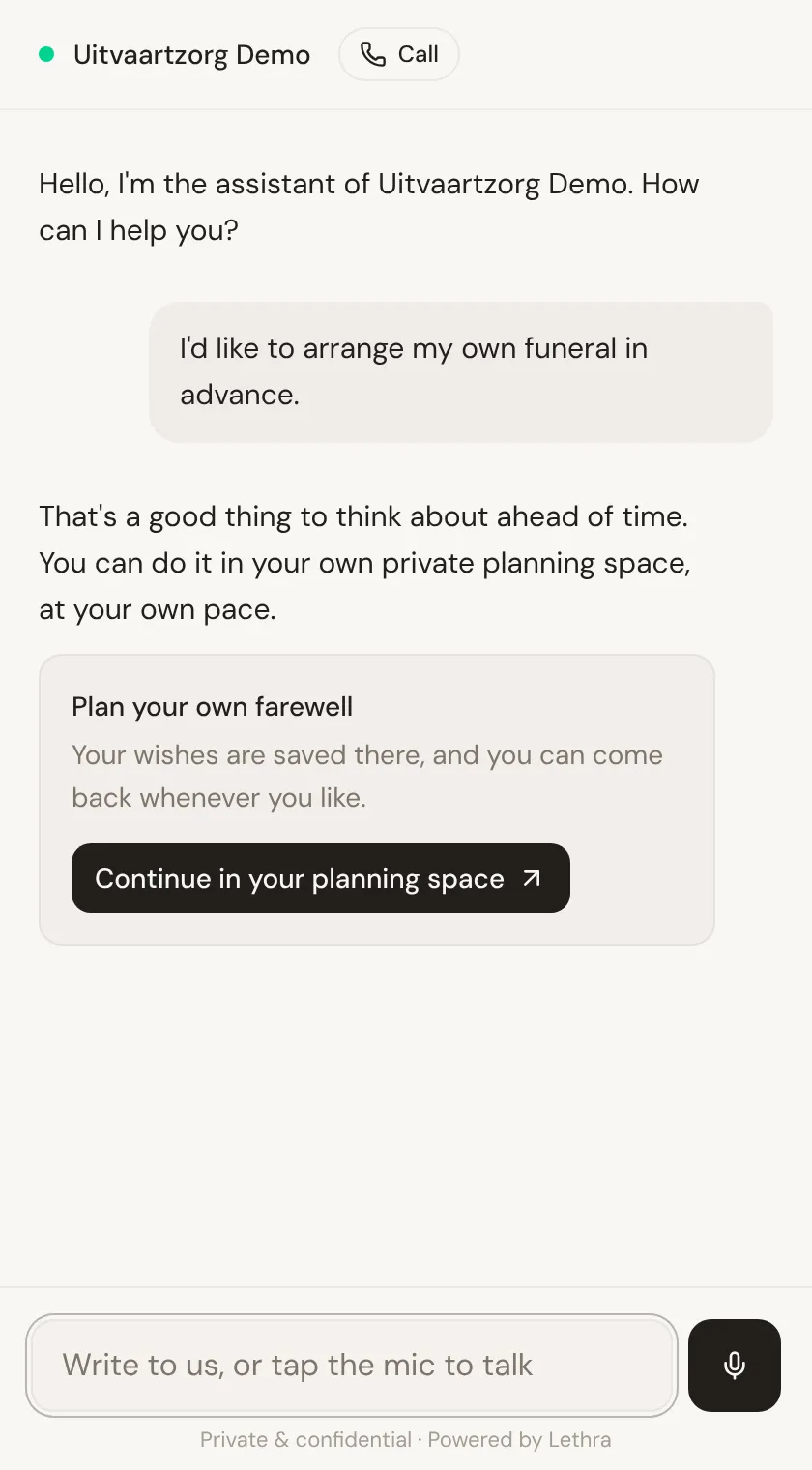
Tapping it opens Your planning in a new tab, already linked to your funeral home. Whatever they told First Call about themselves, such as their name, how to reach them and anything they already said about their wishes, comes along, so they are not asked again. The chat on your website stays open where it was.
People who already have a plan with you see a Continue your plan card in the chat instead. Everyone else sees a small Sign in link, for their own plan or for a loved one’s family space.
What your team sees
Section titled “What your team sees”- In Leads, each conversation shows a small label with the situation First Call understood from it.
- When someone has just passed or is close to passing, and the family leaves a phone number or email, your team is alerted straight away and an urgent item appears at the top of your Inbox for everyone at the firm, linked to that lead. It stays there until someone marks it handled or the lead becomes a case. To keep helping a family whose loved one is close to passing, open a case from that item and invite them to the family portal. First Call only tells a family that your team has been alerted when that really happened.
- When a family asks for a live call, a Wants to talk now item appears in your Inbox and your team is alerted in the dashboard. Whoever answers joins the call with one tap. Nothing is recorded.
- Messages that are not about a family, from a supplier, a job applicant or the press for example, arrive in your Inbox as plain messages. They are never counted as leads.
Settings
Section titled “Settings”Go to Your Company, First Call:
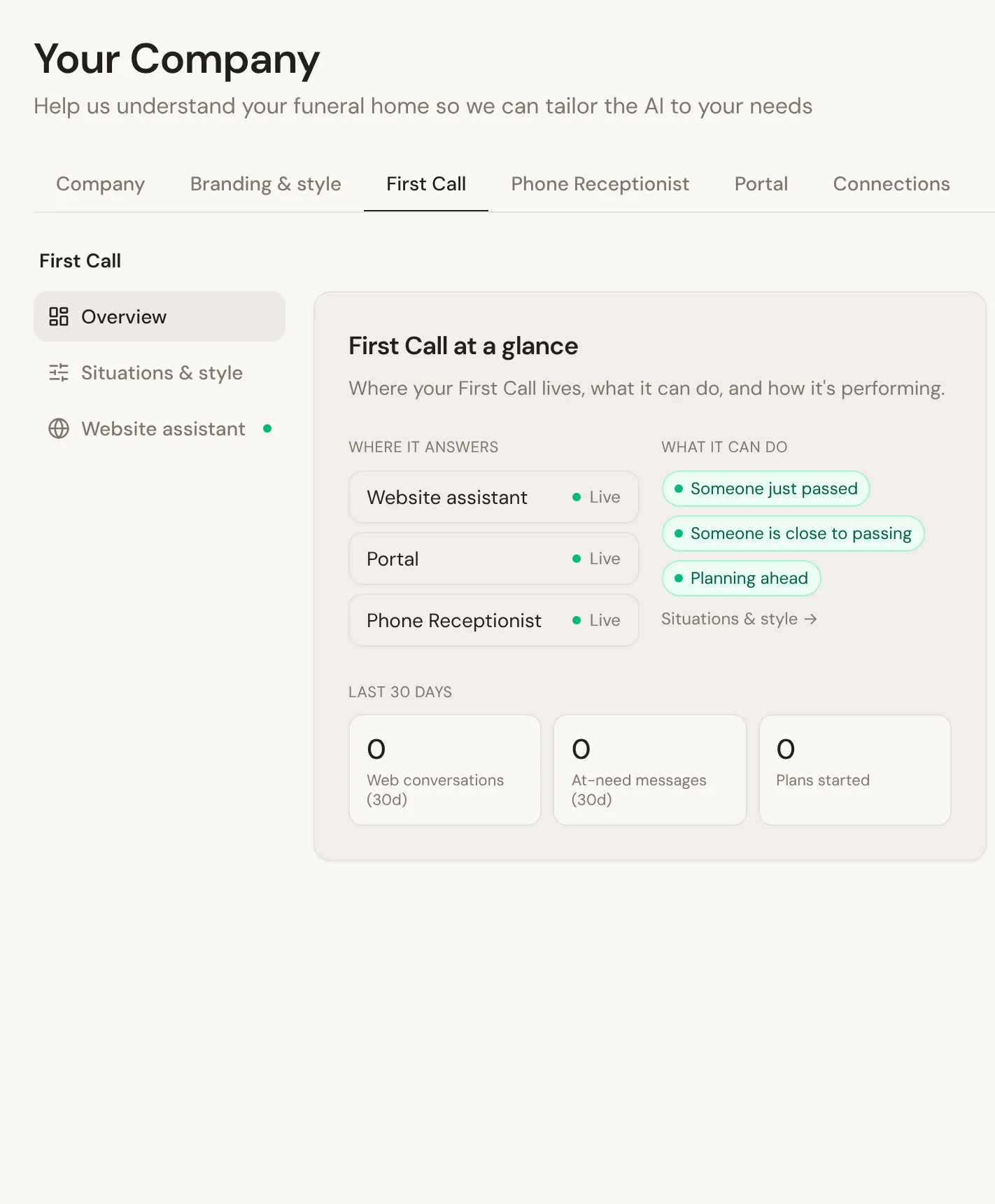
- Overview: where First Call answers and what it can do.
- Situations & style: what First Call handles, how, and the wording families see.
- Website assistant: the chat button on your website.
The phone line, the number families are put through to and website live talk are set on the Calls tab. See Phone receptionist.
What First Call handles
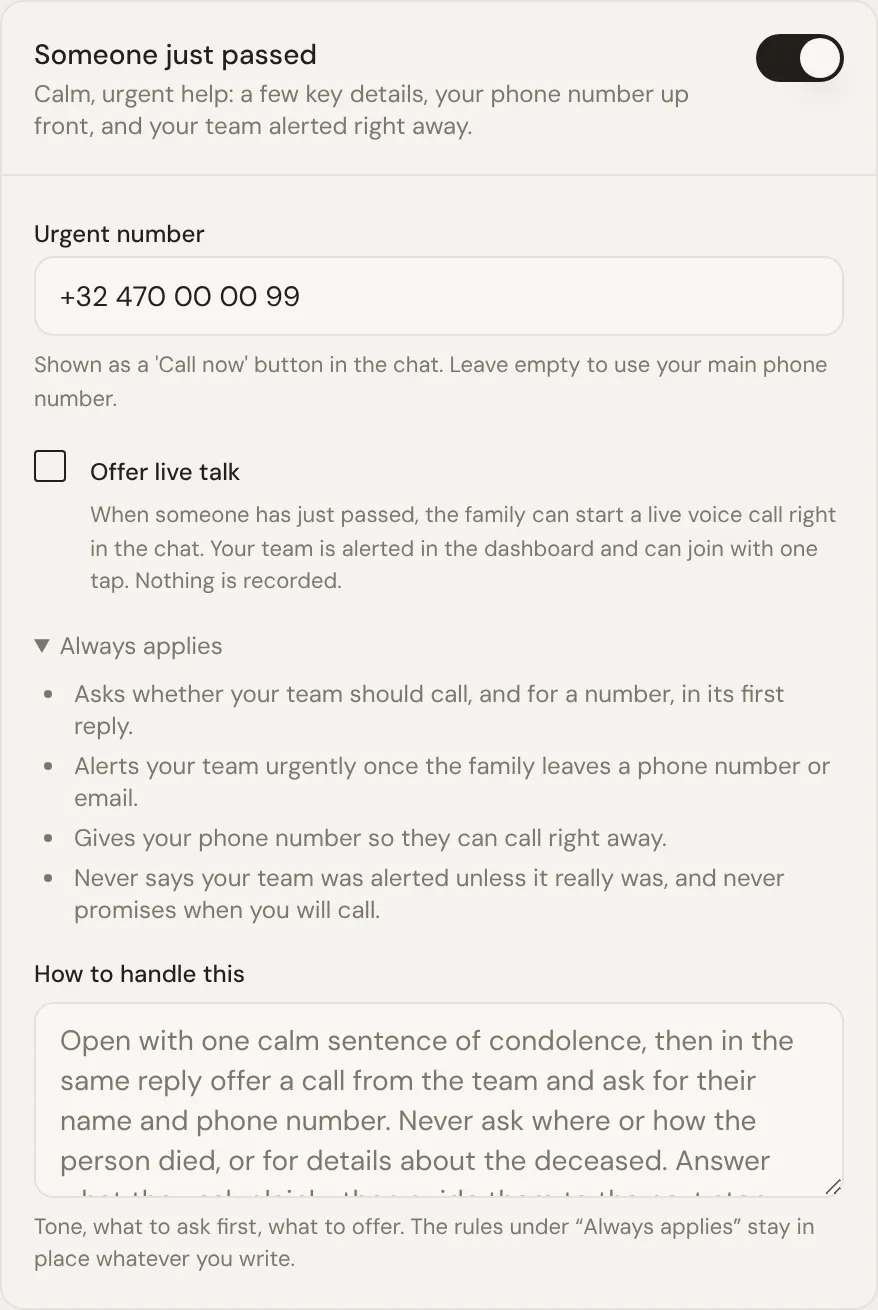
Section titled “What First Call handles”Each situation has its own card with a switch. Someone just passed and Someone is close to passing decide whether First Call takes urgent requests for them; when one is off, First Call gives your phone number instead. Planning ahead decides whether it offers people their own planning space. At least one must stay on. Questions are always answered.
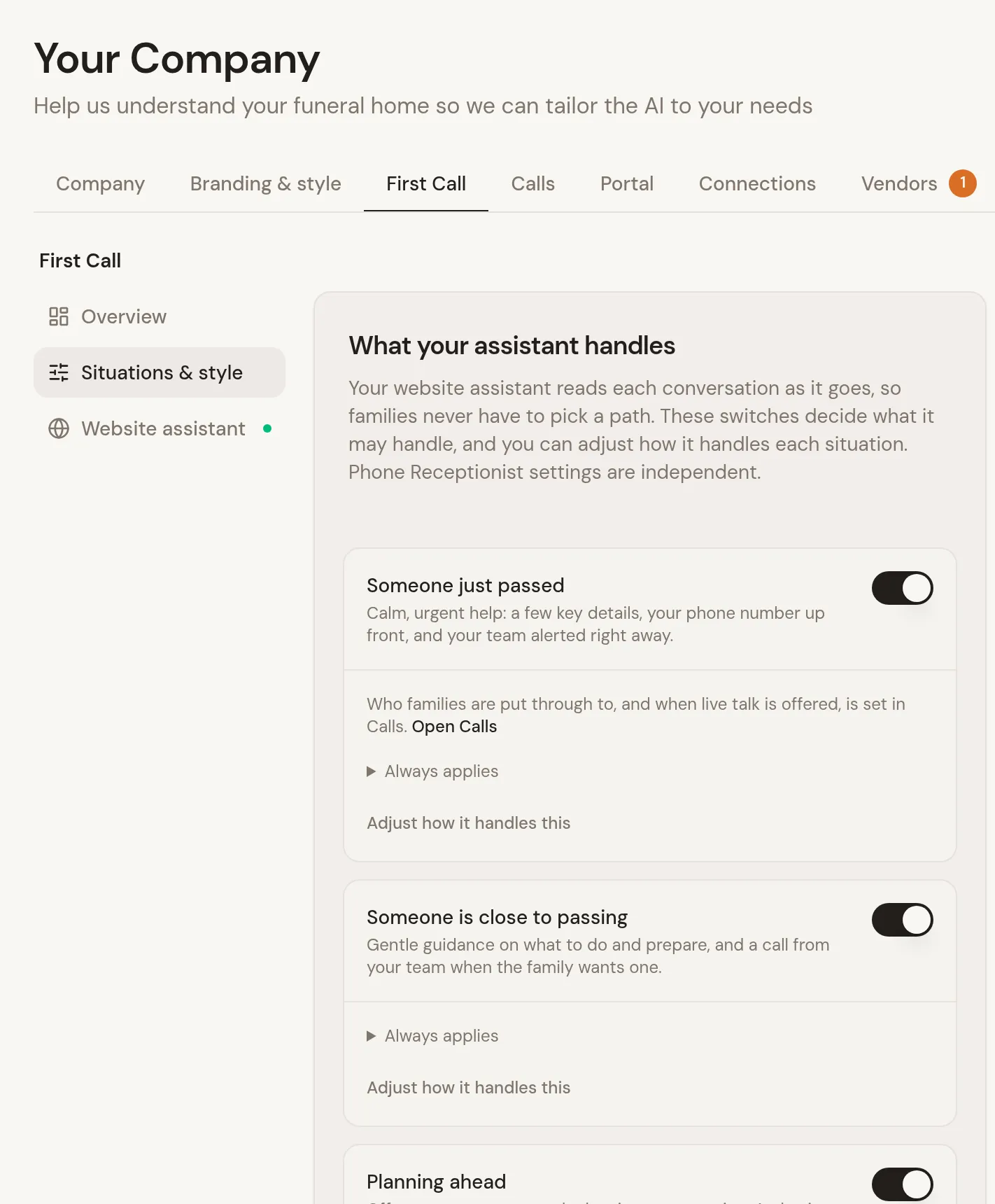
A situation’s options appear inside its card while it is on: Someone just passed links to the Calls tab, where the number and live talk are set, and Planning ahead holds the Planning questions used in Your planning.
How it handles each situation
Section titled “How it handles each situation”Open Always applies to see what First Call always does in that situation, such as asking whether your team should call and never claiming your team was alerted when it was not. You cannot switch these off.
Click Adjust how it handles this to write your own approach: the tone, what to ask first, what to offer. The box shows the recommended approach until you type your own; Reset to default brings it back. Whatever you write, the rules under Always applies stay in place.
Always and never
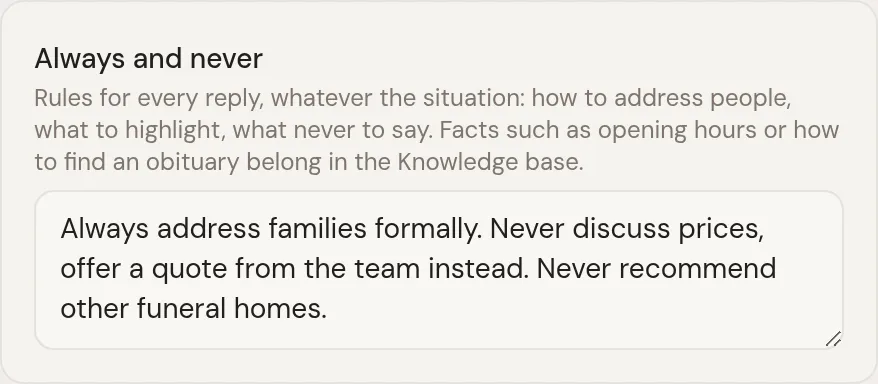
Section titled “Always and never”Always and never holds rules that apply to every reply, whatever the situation: how to address people, what to highlight, what never to say. For example: address families formally, never discuss prices and offer a quote from the team instead, never recommend other funeral homes.
Facts belong in the Knowledge base instead, for example your opening hours or how families find an obituary on your website.
Conversation copy
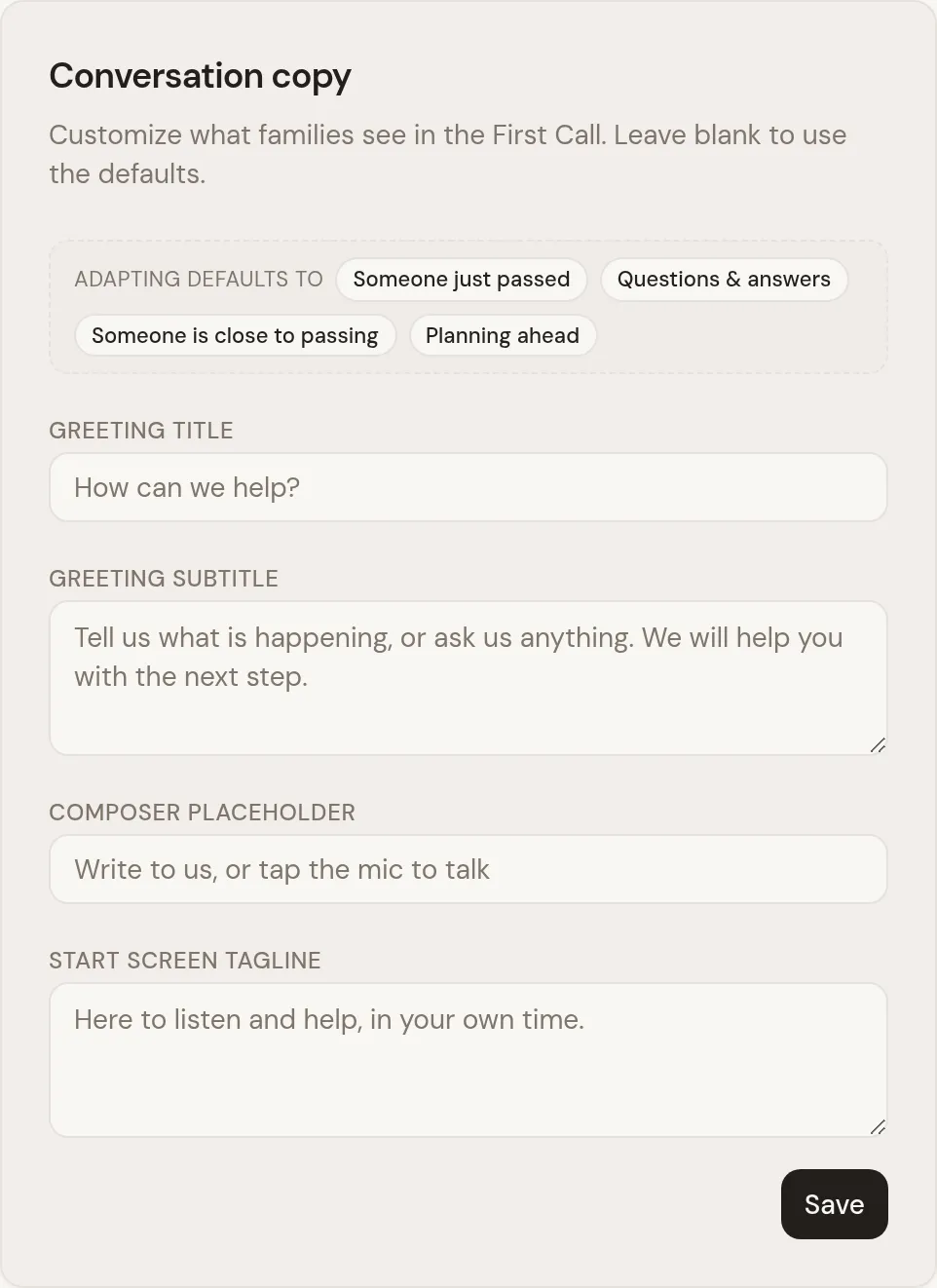
Section titled “Conversation copy”Below the situations, Conversation copy holds the words families read when First Call opens: the Greeting title, the Greeting subtitle, the Composer placeholder in the box where they type, and the Start screen tagline. Leave a field blank to keep Lethra’s default wording.
Language
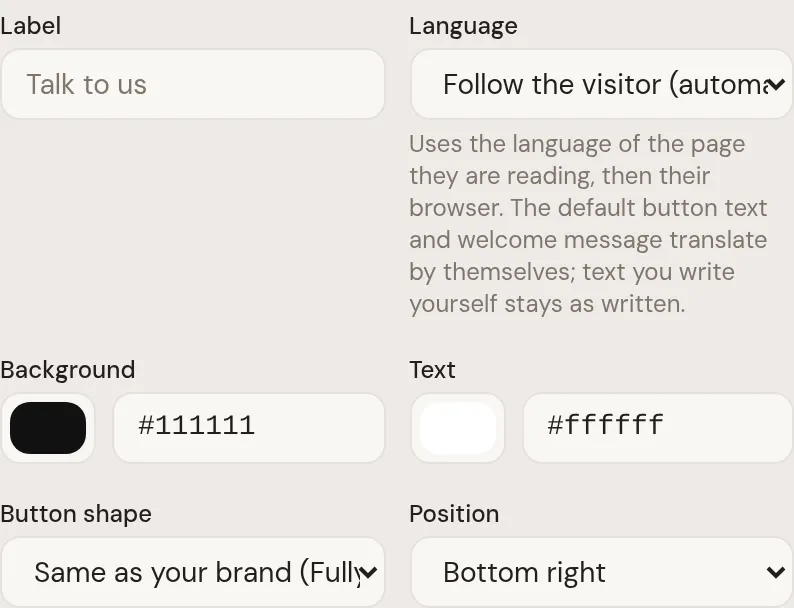
Section titled “Language”The chat on your website follows each visitor’s language. It looks at the language of the page they are reading, so someone on the French page of your website gets the chat in French. If the page does not say, it uses the language of their browser, and otherwise your home’s main language. The chat speaks English, French, Dutch and German. If the website switches language without reloading, the chat button follows.
The default button text and welcome message translate by themselves. Text you write yourself stays exactly as you wrote it. Whatever language the screens show, First Call answers in the language the visitor writes in.
To show the chat in one language only, pick it under Language in the website button settings. That choice also applies to websites that already have the chat code, so there is nothing to replace.
Linking straight from your website
Section titled “Linking straight from your website”Your website’s buttons can open First Call with a quick reply already sent. The Lethra website template does this already: “A death has occurred” starts the conversation with Someone just passed, and “Plan for later” shows the Continue in your planning space card.
Was this page helpful?
Thank you. We read every reply and use it to improve the guides.