

The inbox, in depth
The inbox overview covers the layout and a daily routine. This article goes into the details worth knowing once you use it every day.
How items arrive and leave
Section titled “How items arrive and leave”Every item is something that happened on a case or a lead, together with a question for a person. Lethra adds it when the situation comes up and removes it when the situation is resolved, wherever that happens.
- A draft leaves when it is sent or discarded, whether that is in the inbox, on the case or in the assistant chat. If the agent writes a newer draft to the same person, it replaces the older one. If you send it from your Gmail drafts, Lethra notices that too.
- A condolence leaves when it is published or hidden, in the inbox or under Growth, Obituaries.
- A First Call or a call back leaves when you mark it handled, or when the lead becomes a case.
- A family asking to talk now leaves on its own as soon as someone answers the call.
- An email that did not go out leaves when it is sent again or dismissed.
- A message from the family, sent through the family portal, leaves when you have answered them and marked it done.
- An ad alert leaves on its own when the next morning’s review finds the problem solved, for example after you publish the campaign it was about. You can also dismiss it; it then stays quiet for 14 days.
So the list stays honest: something you dealt with on the case does not linger in the inbox.
What happens when you approve
Section titled “What happens when you approve”Approving sends the email straight away. It only goes out once, even if two people approve the same draft at the same moment: the second person is told it was already handled.
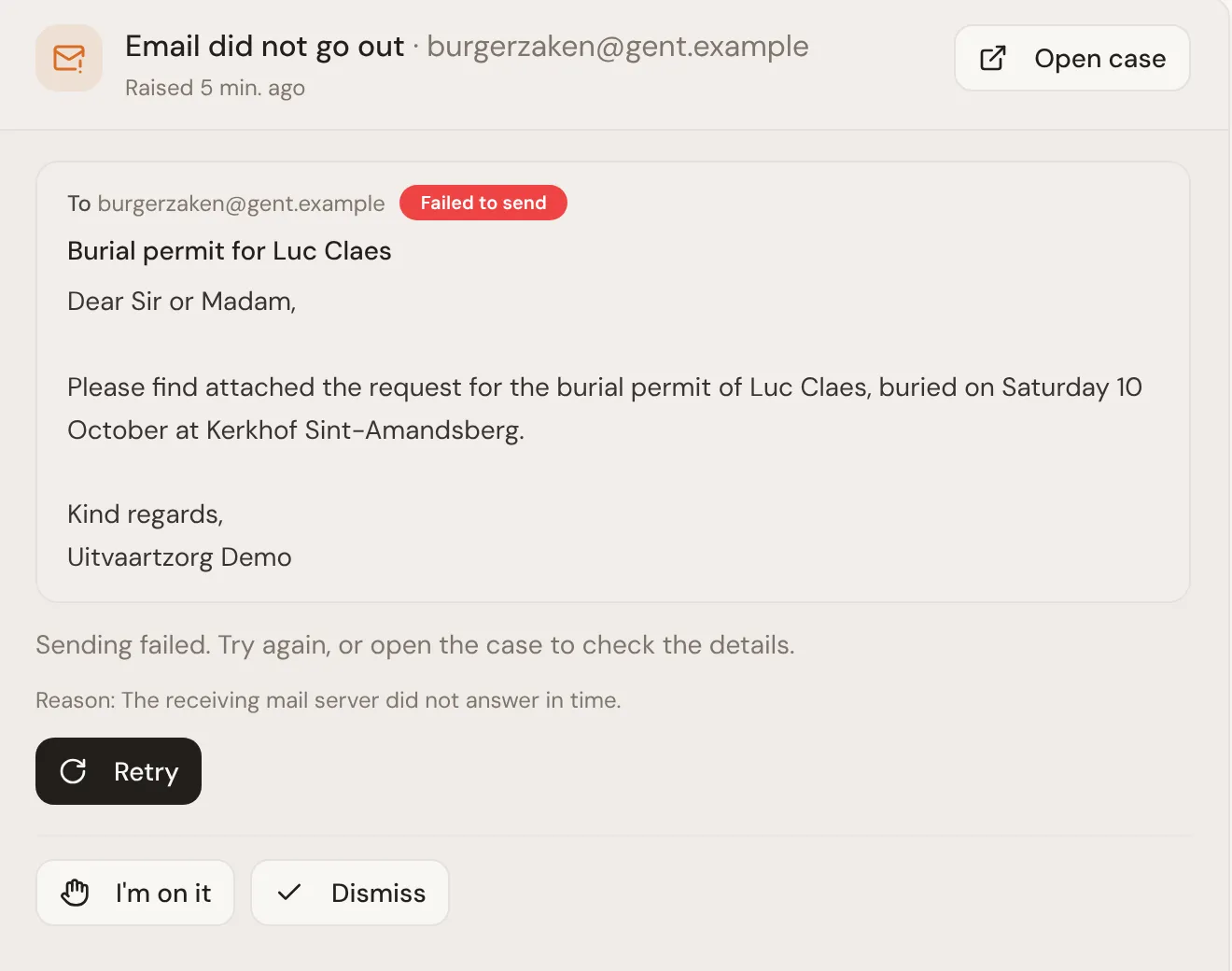
If the email cannot be sent, it comes back to the inbox as Email did not go out, with the reason. Choose Retry to try again. If the email bounced, the address is probably wrong, so check it on the case and then ask the agent to send it again. Retrying a bounce would only bounce again, so that button is not offered.
Which mailbox a message sends from
Section titled “Which mailbox a message sends from”Every draft to a family or supplier goes from one of two places, and the draft shows which before you approve it.
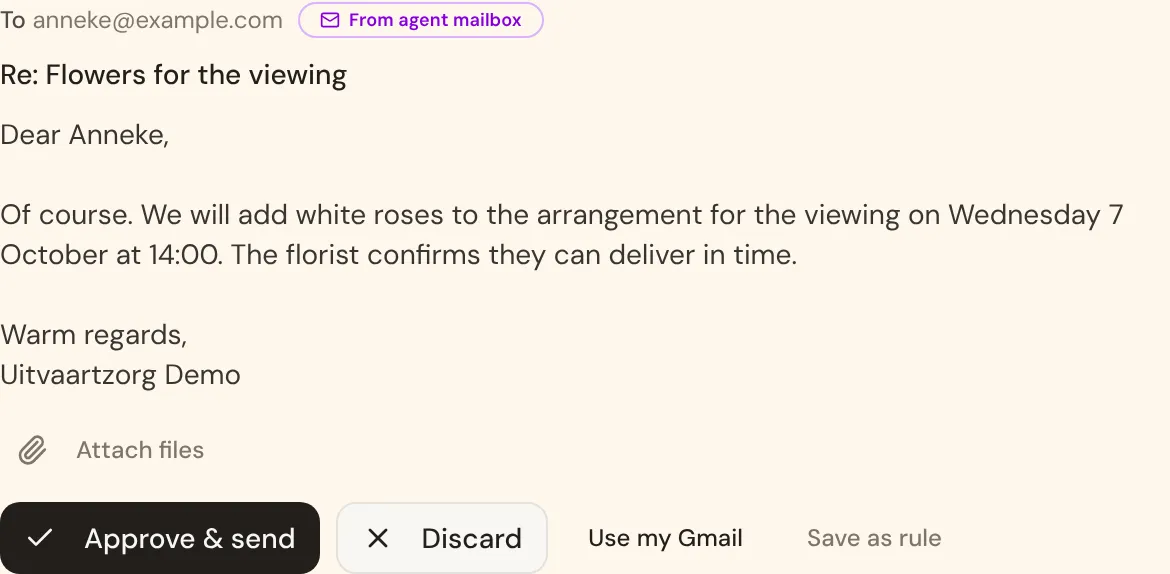
- Your Gmail, so the message arrives looking like it came from you personally.
- The agent mailbox, a separate address that belongs to the firm rather than to any one person.
If it is set to the wrong one for that message, switch it on the draft before sending.
Saving your choice as a rule
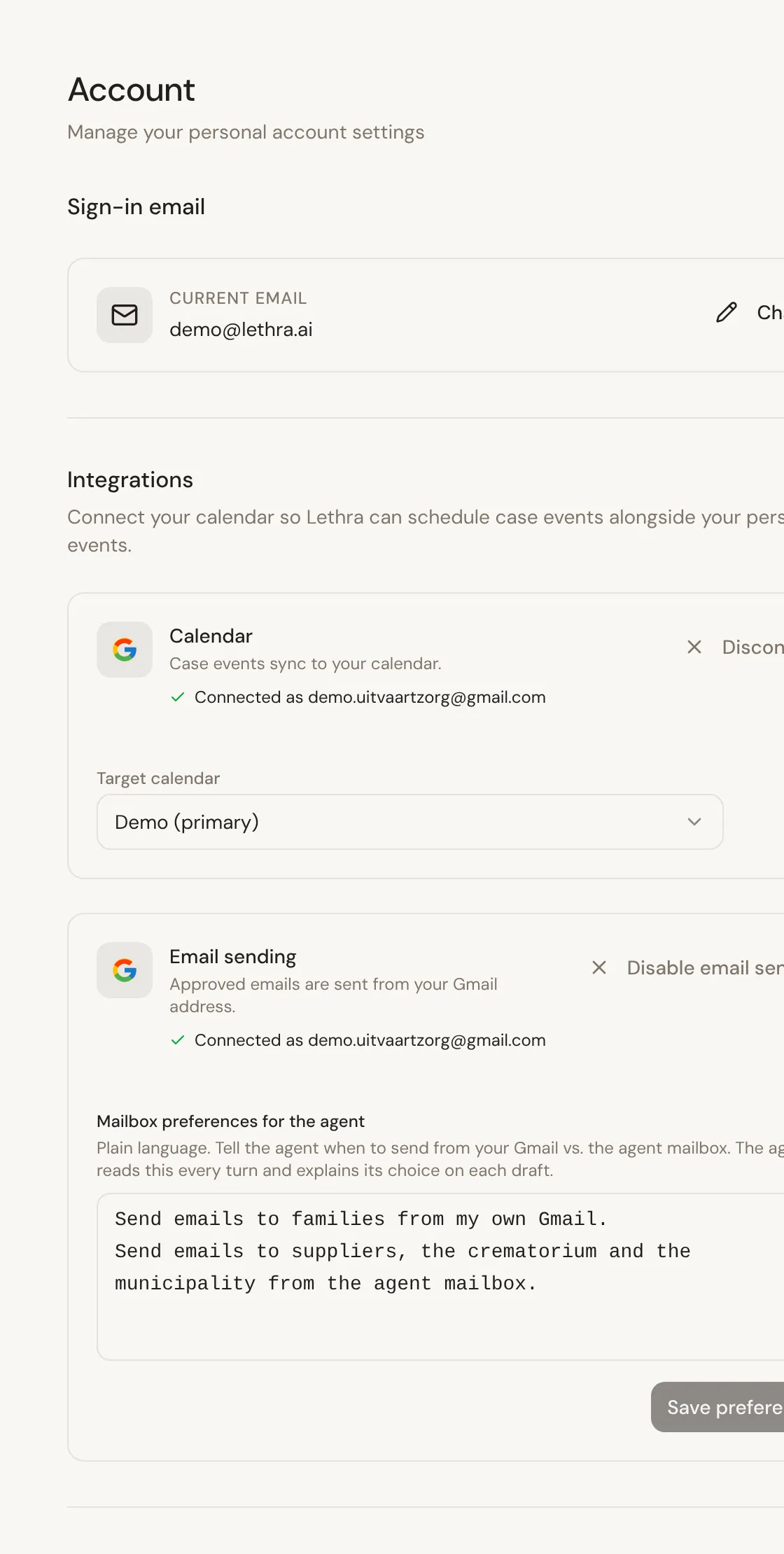
Section titled “Saving your choice as a rule”Save as rule teaches the agent to use the same mailbox for that kind of email next time, so you correct the pattern once rather than every week. Most firms end up sending family correspondence from a personal Gmail and supplier or administrative email from the agent mailbox, but there is no fixed rule: it follows what you teach it.
Replies come back to whichever mailbox the original message was sent from, and Lethra reads case-related replies either way, so the case stays in sync.
Your Gmail connection and draft mirroring
Section titled “Your Gmail connection and draft mirroring”Connecting your Gmail account is what makes sending from your own address possible. Once it is connected, a draft set to send from your Gmail is also copied into your Gmail Drafts folder, so you can review it in either place. Approving it in Lethra sends it.
Connect or disconnect Gmail from your account settings. Without it, drafts can still be approved and sent from the agent mailbox.
Answering the agent
Section titled “Answering the agent”The agent asks for a decision when it reaches something it should not decide alone: a value on the case that differs from eLys, a choice the family left open, information only your team has. Its question waits in the inbox until someone deals with it.
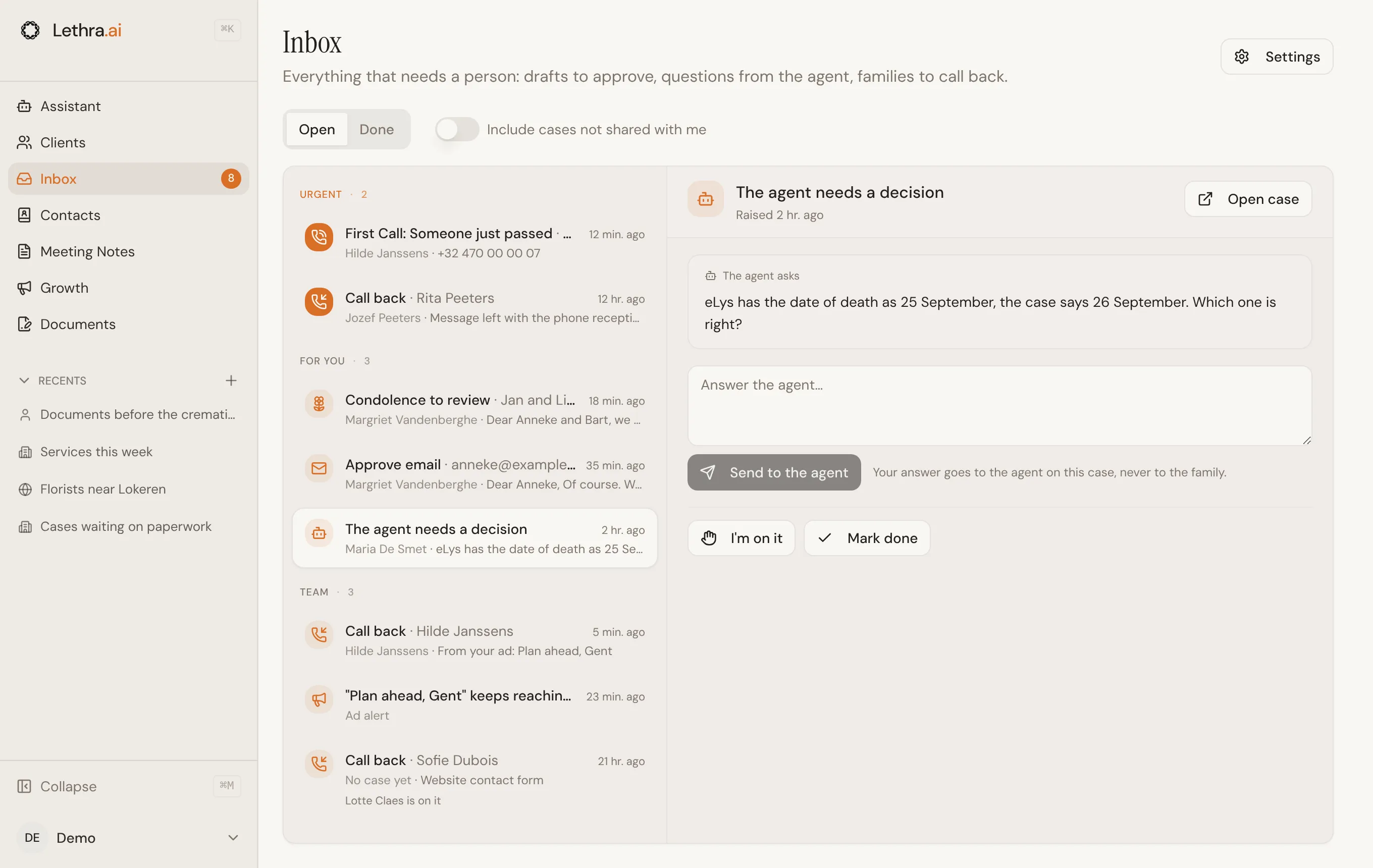
Type your answer and click Send to the agent. It goes into a conversation with the agent about that case, which you find on the case’s Assistant tab, and the agent replies there. The family never sees it.
Who sees what
Section titled “Who sees what”- Urgent items go to everyone.
- Items on a case go to the people responsible for it: whoever created the case and anyone with an open task on it. They see them under For you.
- On a case shared with the whole team, which is the default, everyone else sees its items under Team. You change this per case with Share inbox items with the whole team, on the case’s Agent tab.
- Items not tied to a case yet go to everyone, under Team.
Sharing changes who is asked, not who can open a case. Everyone at your firm can still open every case, and Include cases not shared with me at the top of the inbox shows those items too.
What the agent does on its own, and what it always leaves to you: Working with the agent.
Was this page helpful?
Thank you. We read every reply and use it to improve the guides.