

The inbox
The inbox is the list of things that need a person. The agent, your website and your phone line put them there: a draft to approve, a question the agent should not answer alone, a family to call back. You deal with each one, and it leaves the list.
When the inbox is empty, nothing is waiting on you.
It is not a history of every conversation. That lives on each case, on the Agent tab, where every email, call and note is kept in order.
What lands in the inbox
Section titled “What lands in the inbox”| Item | What it is | What you do |
|---|---|---|
| Approve email | A draft the agent wrote to a family or a supplier | Edit it, then approve and send, or discard it |
| The agent needs a decision | A question only your team can answer, such as a date that differs from eLys | Answer the agent, or mark it done |
| First Call | A family told your website someone just passed, or is close to passing, and left a way to reach them | Call them |
| Wants to talk now | A family asked on your website to speak to someone straight away | Call them back if nobody picked up |
| Call back | A website contact form, or a message left with the website assistant or the phone receptionist | Call or email them |
| Condolence to review | A condolence posted on one of your obituaries | Publish or hide it |
| Email did not go out | An email that failed to send or bounced | Try again, or check the address on the case |
| Message from the family | A family wrote through their portal | Answer them by phone or email, then mark it done |
How it is laid out
Section titled “How it is laid out”The list is on the left, the item you are looking at on the right.
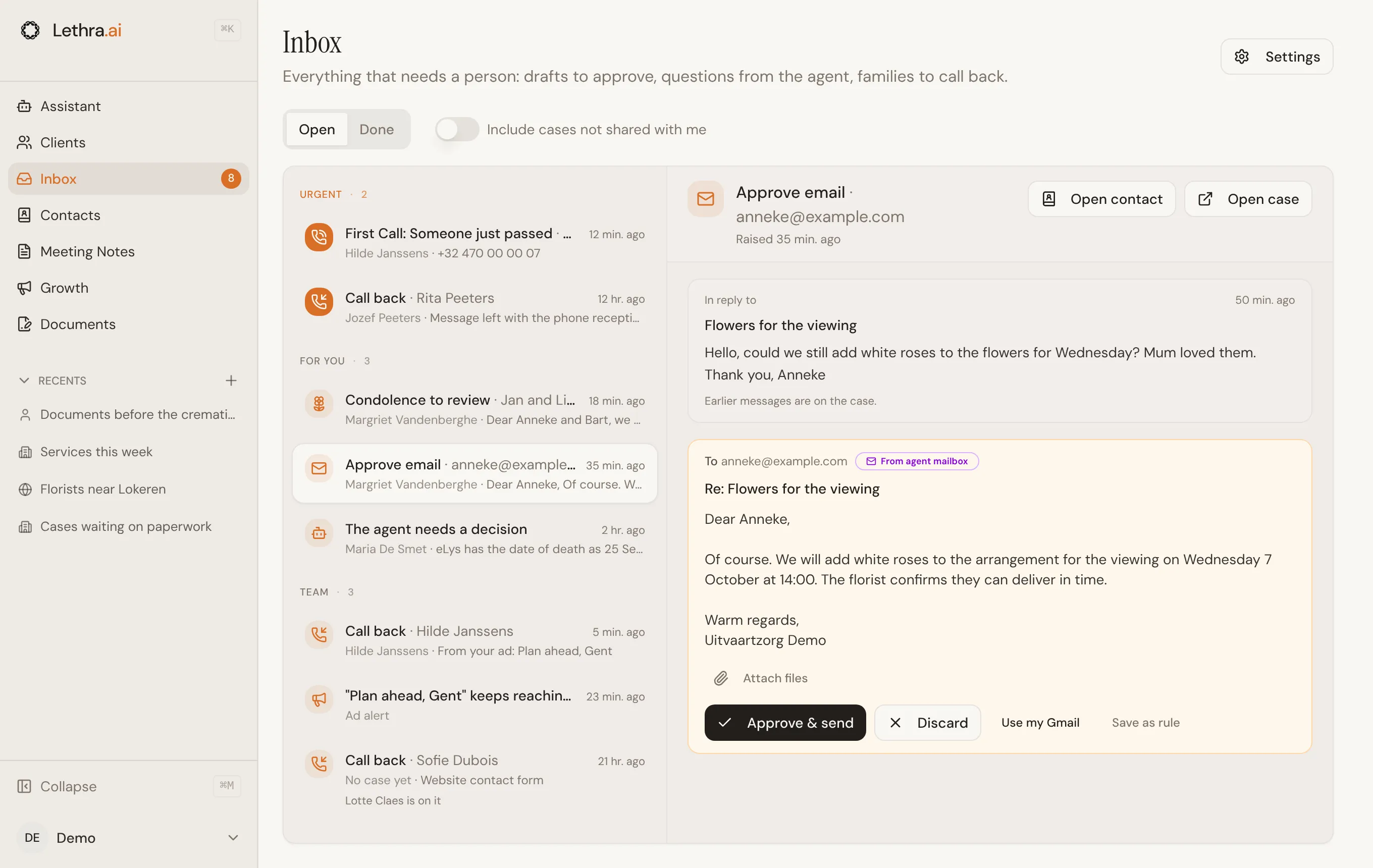
The list has three sections.
- Urgent holds First Calls, families asking to talk now, and phone messages the receptionist marked urgent. Everyone at the firm sees these.
- For you holds everything on the cases you are responsible for: the cases you created, and the cases where you have an open task.
- Team holds everything else: items on cases shared with the whole team, and items not tied to a case yet, such as a website enquiry.
Each line says in plain words what is being asked, who it is about, and how long it has been waiting. The number next to Inbox in the sidebar is how many items are open.
Dealing with an item
Section titled “Dealing with an item”Open an item and what you need is on the right: the message the draft answers, the number to call, the condolence to read. The buttons below it do the work.
Approving a draft
Section titled “Approving a draft”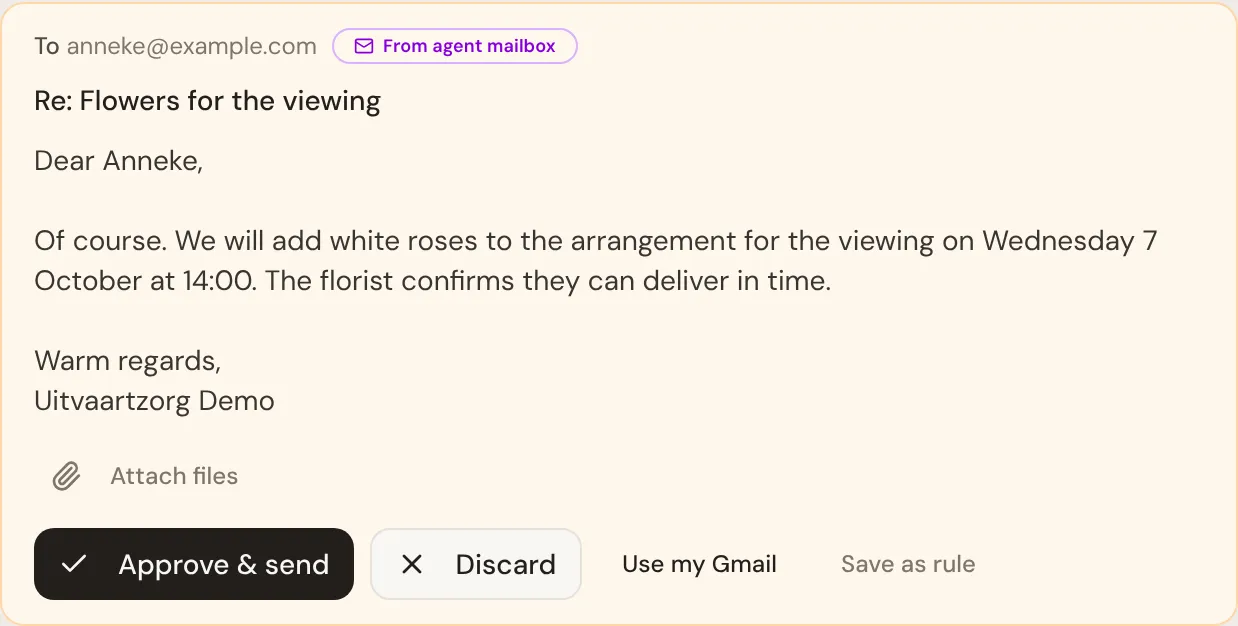
Approve & send if the draft is right. Discard if it is wrong, or the situation has moved on. To change the wording first, click the text and edit it in place: the email that goes out is exactly what you see.
Take the extra few seconds on anything sensitive. The agent writes well, but it does not know that this particular family fell out last year.
Drafts can carry attachments, and you can add or remove them before approving.
Answering the agent
Section titled “Answering the agent”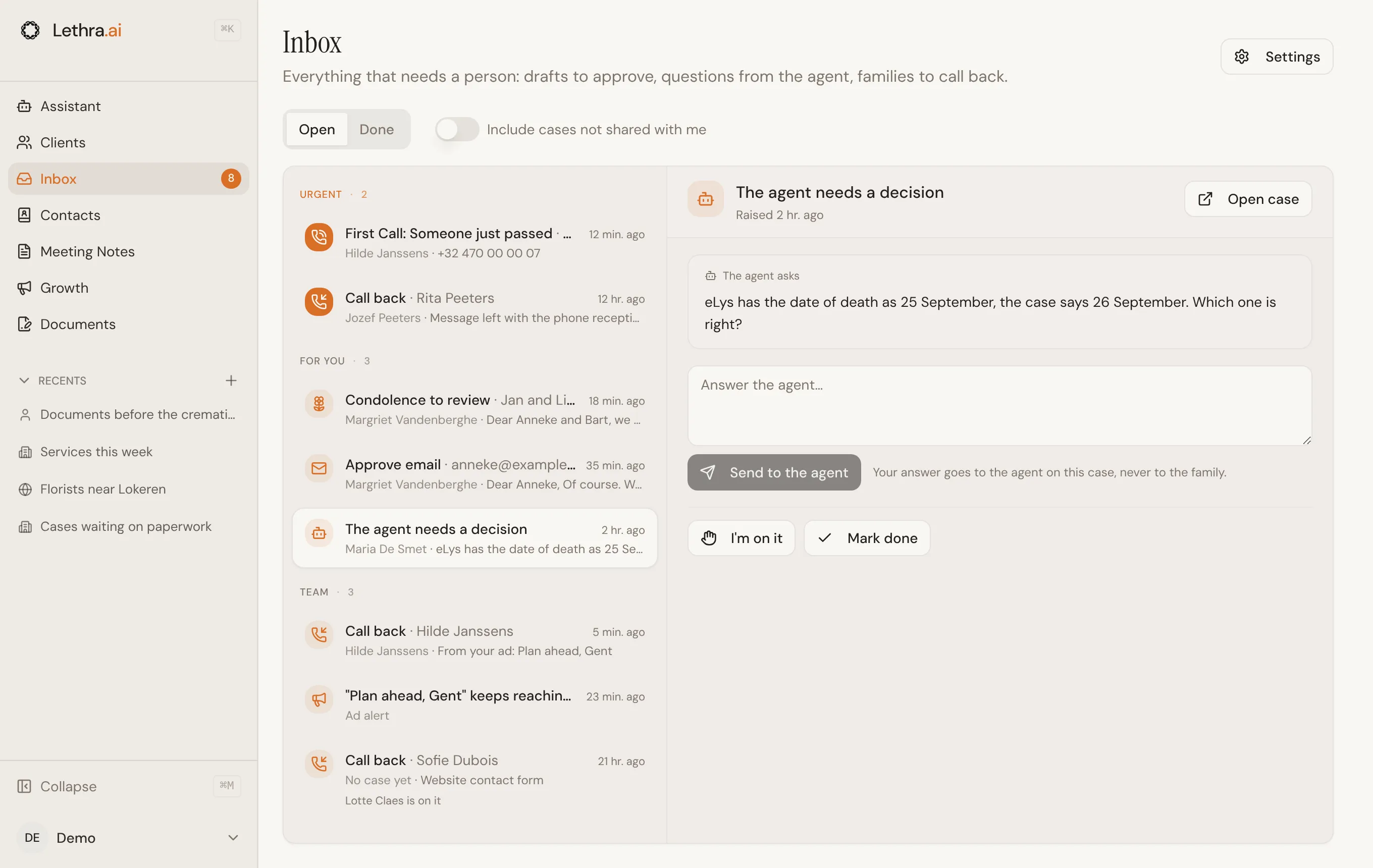
When the agent needs a decision, it asks one plain question. Type your answer and choose Send to the agent. Your answer goes to the agent on that case, never to the family, and the agent carries on from there. If you dealt with it another way, choose Mark done.
Calling someone back
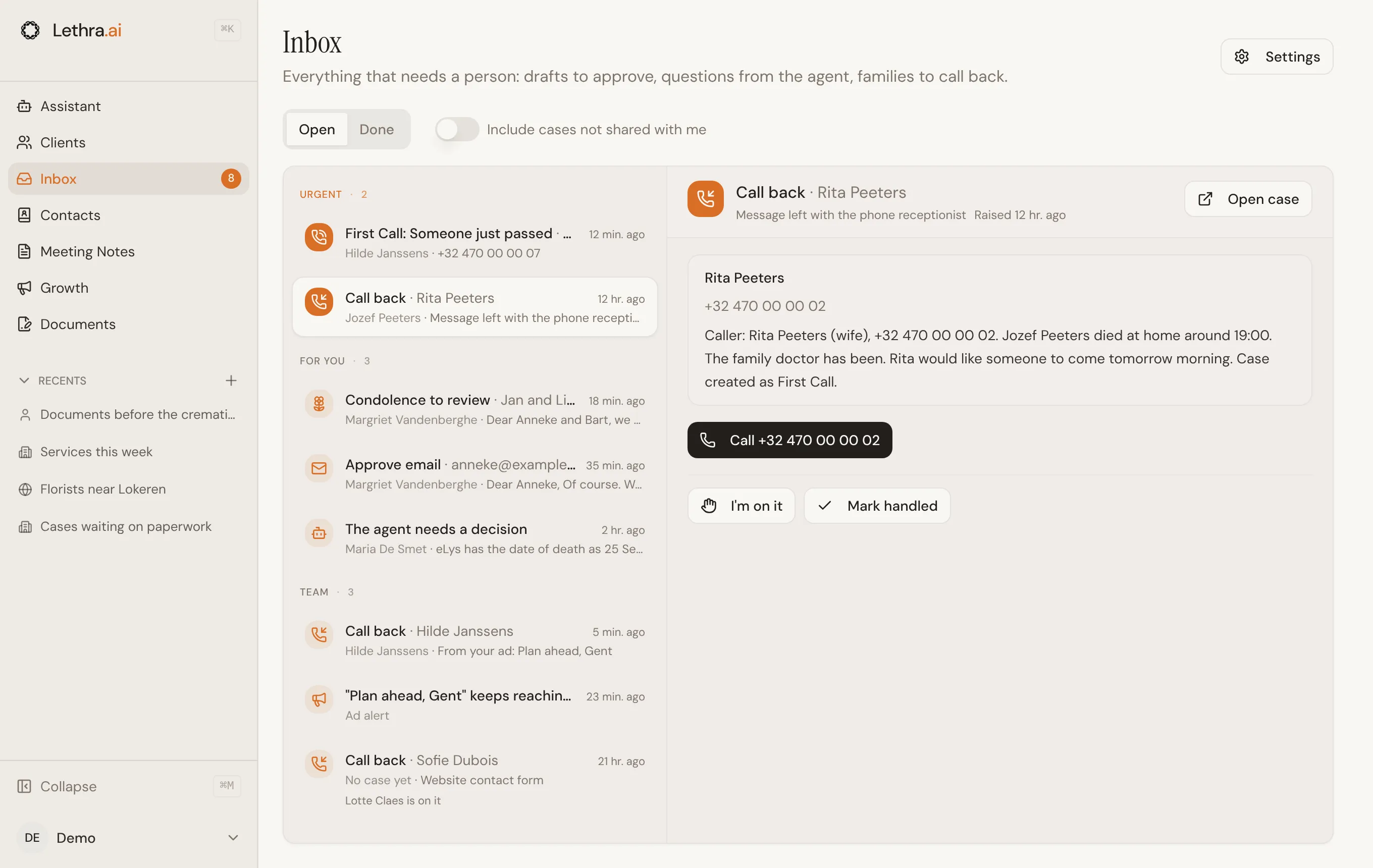
Section titled “Calling someone back”First Calls and callbacks show the person’s name, number and message. On a phone, Call dials the number. Once you have spoken to them, choose Mark handled.
Not calling the same family twice
Section titled “Not calling the same family twice”On anything someone has to go and do, I’m on it tells your colleagues you are handling it. Your name appears on the item for everyone, so two people do not call the same family. Let go takes your name off again.
Handled items move to Done. They stay there for 7 days, with who handled them and how, so you can check that something was dealt with.
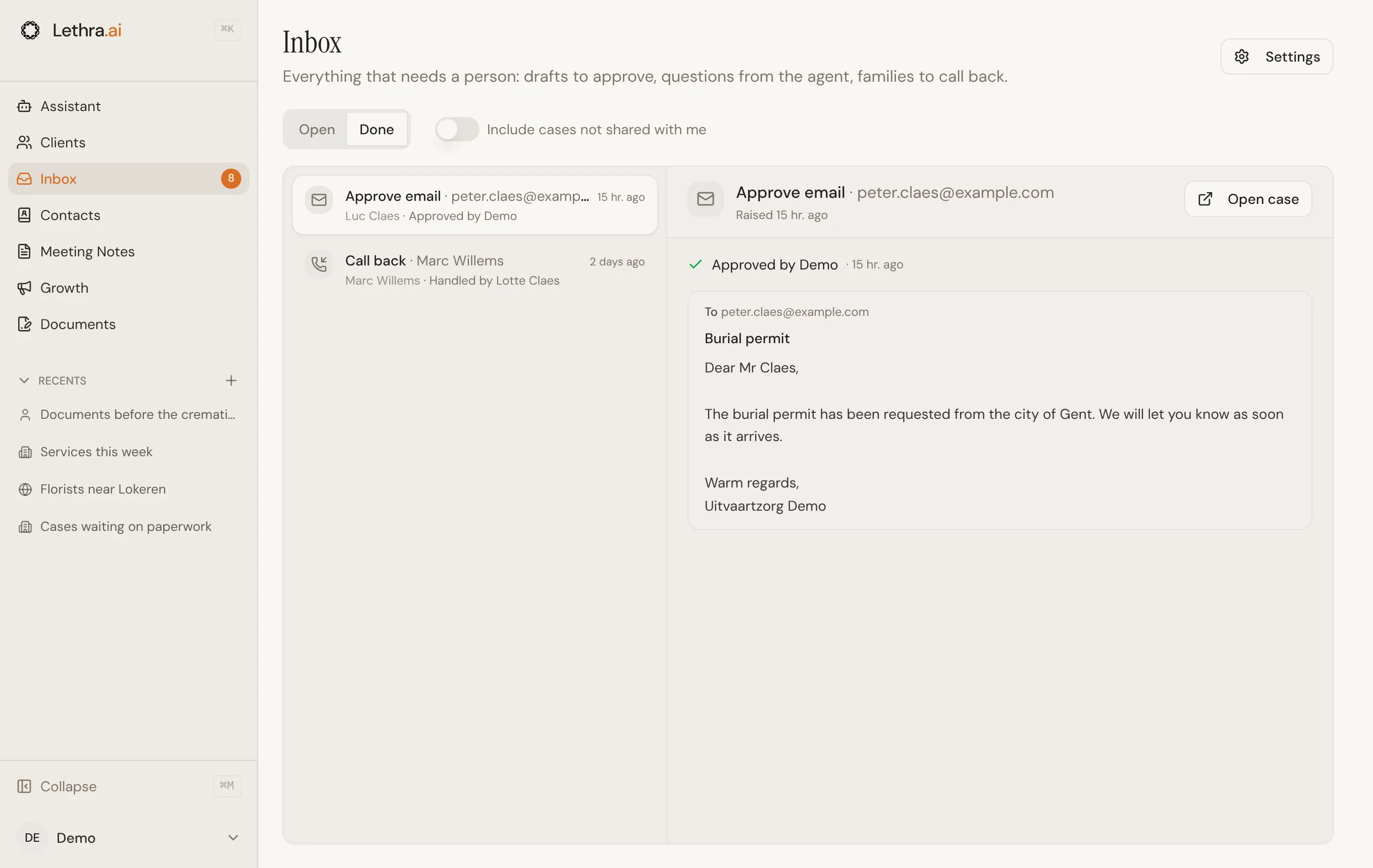
Cases that are not shared
Section titled “Cases that are not shared”By default every case is shared with the whole team, so anyone can pick up its items. For a case only certain people should handle, turn off Share inbox items with the whole team on the case’s Agent tab. Its items then go only to the person who created the case and the people with open tasks on it.
This changes who is asked, not who can see the case: everyone at your firm can still open it. To see items on cases that are not shared with you, for example while a colleague is away, turn on Include cases not shared with me.
A sensible routine
Section titled “A sensible routine”- Start with Urgent. Those are families waiting on a call.
- Clear For you: approve drafts and answer the agent.
- Look at Team for anything nobody has picked up yet.
Give the family their own view of the case: Sharing with the family.
Was this page helpful?
Thank you. We read every reply and use it to improve the guides.